

If you keep forgetting to empty the Recycle Bin in Windows 10, then you should use this guide, which will automatically delete all the junk files on your computer. It's the best way to forget about one of Windows' most iconic features.
Most people know that when a file is deleted, it goes directly to the recycle bin, which means that the file is still occupying valuable space for other purposes. So, if we forget to delete it every so often, we may have gigabytes of obsolete information there.
While there are several ways to configure the Recycle Bin in Windows 10 , this guide will walk you through the steps to automatically empty it using Task Scheduler. This will help optimize your hard drive space and give you time to recover deleted files.
How to automatically empty the recycle bin
- Click on start and perform the search for Task Scheduler and press enter (you can also search in Cortana)
- We right click on «Task Scheduler Library»And create a new folder
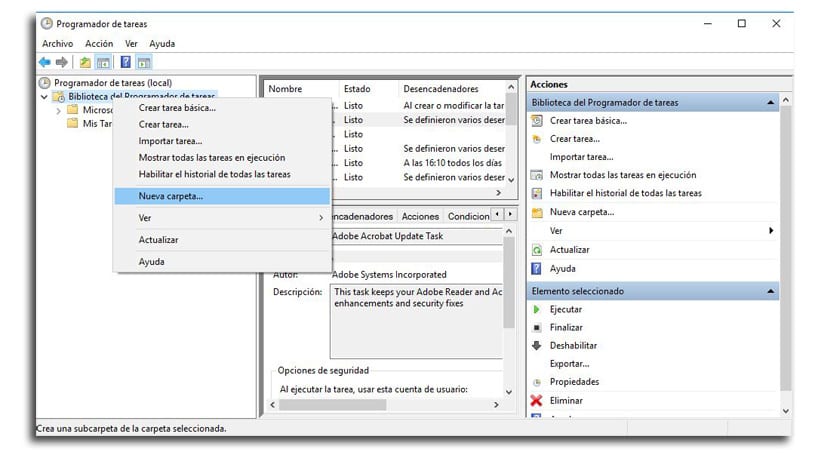
- You must name it «My tasks»Or something that describes it (this is done to keep your tasks organized and separate from those of the system)
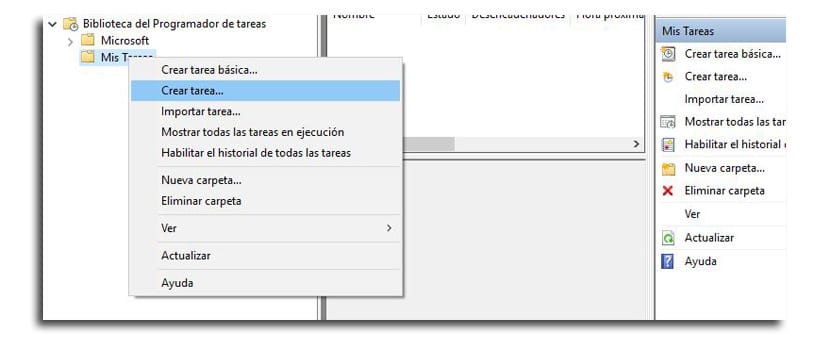
- We right click on the new folder created and select «Create task«
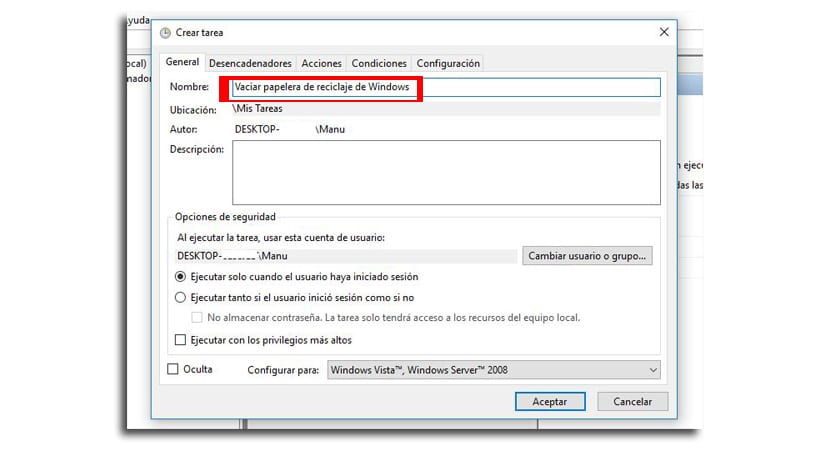
- In the General, we introduce the name of the task such as "Empty the Windows recycle bin"
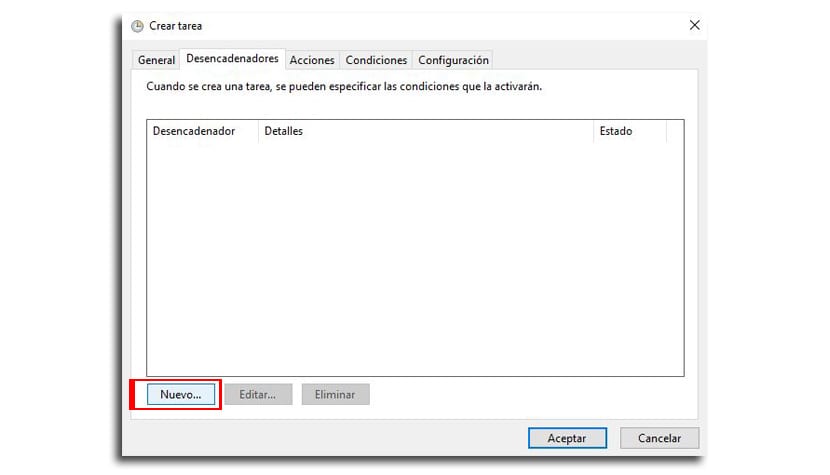
- In the Triggers, we click on new to create an action that will trigger the task
- We select and configure «According to a schedule«, But you can choose between the various triggers
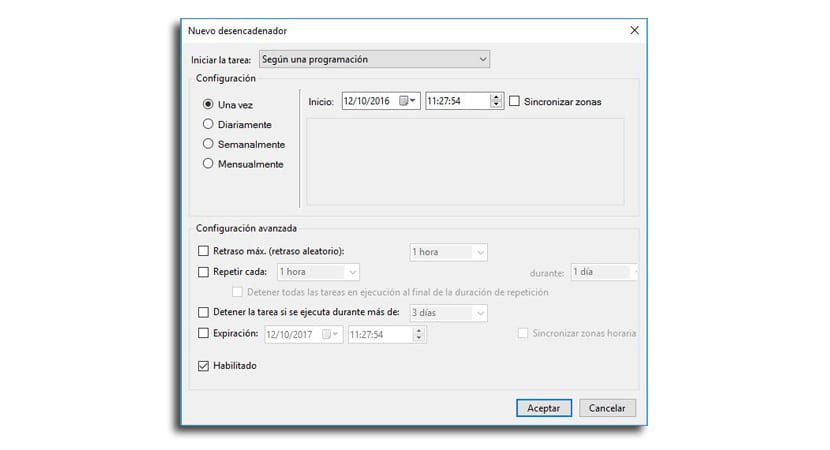
- If we use "According to a schedule" it is interesting that used weekly or monthly so that we have time to recover files
- Now we go to the tab actions and click on New
- Under Configuration, in «Add arguments»We introduce the following argument and click OK:
/c "echo Y|PowerShell.exe -NoProfile -Command Clear-RecycleBin"
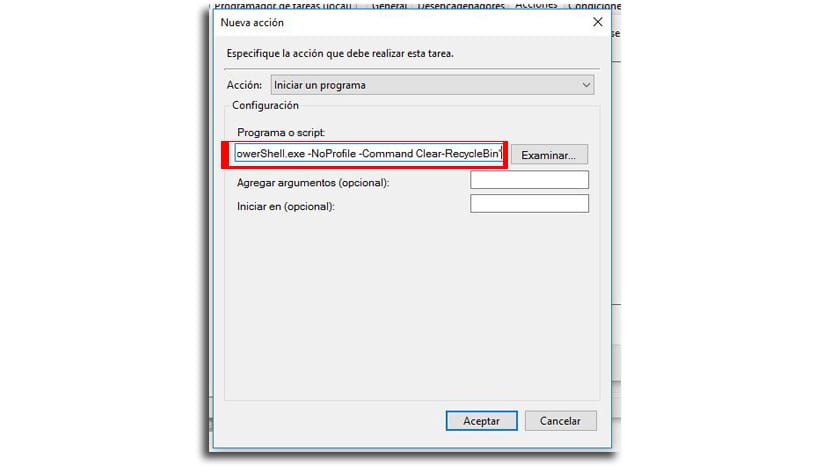
- We press Accept to complete the task
You will already have it configured to run the task daily, weekly, or monthly, or however you have configured it in the trigger.