

Not all tricks have to be complicated and lead us through a series of steps where, if we make a mistake, we can mess up part of the system, if we are in the case of messing with regedit, the Windows registry editor.
It also happens that, as systems become increasingly complex, some features are quite simple to activate, but with countless menus and settings, one can easily find oneself lost in a sea of windows, parameters, and advanced settings in Windows 10. Today we're going to show you how to automatically hide the taskbar in Windows 10.
This method will change with the Windows Anniversary Update, which will take you to the Windows 10 settings screen when you right-click on the taskbar. Since we don't have this update yet, we'll stick to the traditional method we all use now.
The truth is that having the taskbar that hides automatically gives us the feeling that the screen is bigger; it may seem silly, but that percentage of space used for the taskbar achieves that effect when it disappears.
How to automatically hide the taskbar in Windows 10
- We do right click on an empty area from the taskbar. If we are in tablet mode, we hold down our finger on the taskbar

- We now click on «Properties»
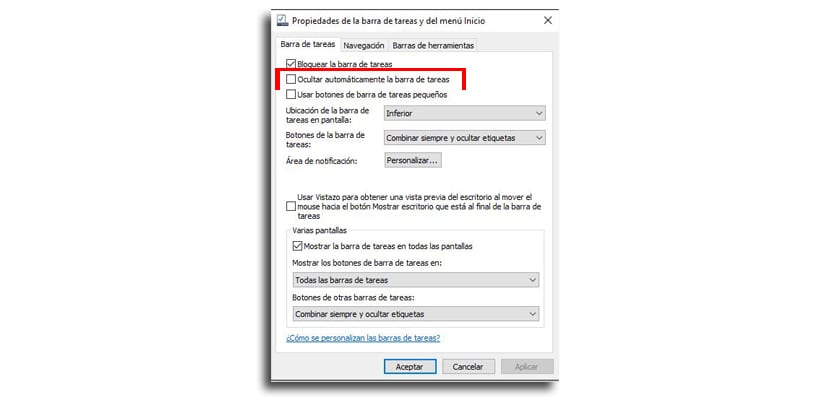
- In the main tab of "Taskbar" We find in the second option «Automatically hide the taskbar, we activate it
We now have the taskbar that hides automatically . And as mentioned, this setting will change when we get the Windows Anniversary Update, moving to the personalization category in settings.