

An operating system, by definition, is the software responsible for starting, managing, and making all of a computer's resources available. However, this has now evolved considerably, and a prime example of this is Windows. In addition to managing the computer's resources, it offers a whole range of complementary and expanded functionality. Therefore, we want to discuss the five essential Windows tools that every user should know and be able to use for a complete experience within the system.
As we know, the Microsoft operating system has many options and therefore, here we are going to talk about those that we consider vital for anyone who uses it.
Windows native options
Anyone who has ever installed Windows from scratch knows that the system needs to be equipped with additional tools, such as Office. However, this doesn't mean that Windows doesn't include useful native features, and we want to highlight them here. A particularly interesting example, related to our previous one, is that while there isn't a complete office suite, there is a simple alternative like WordPad.
Thus, Windows has many native options that may be unknown, leading us to unnecessarily use third-party solutions. Similarly, there are often scenarios that we can resolve without installing software, but due to our lack of familiarity with the system, we end up using other alternatives.
In that regard, we'll now discuss the most interesting and useful basic Windows tools for any user. With them, you can get the most out of the operating system, troubleshoot problems, and complete various tasks without downloads, installations, or additional payments.
The basic Windows tools you should know
The Task Manager
The Task Manager is one of those basic and essential Windows tools. Its function is to monitor everything that's happening with system resources, including the CPU, RAM, disk, and network usage. Therefore, this is the first area we should check if we're experiencing performance problems on our computer.
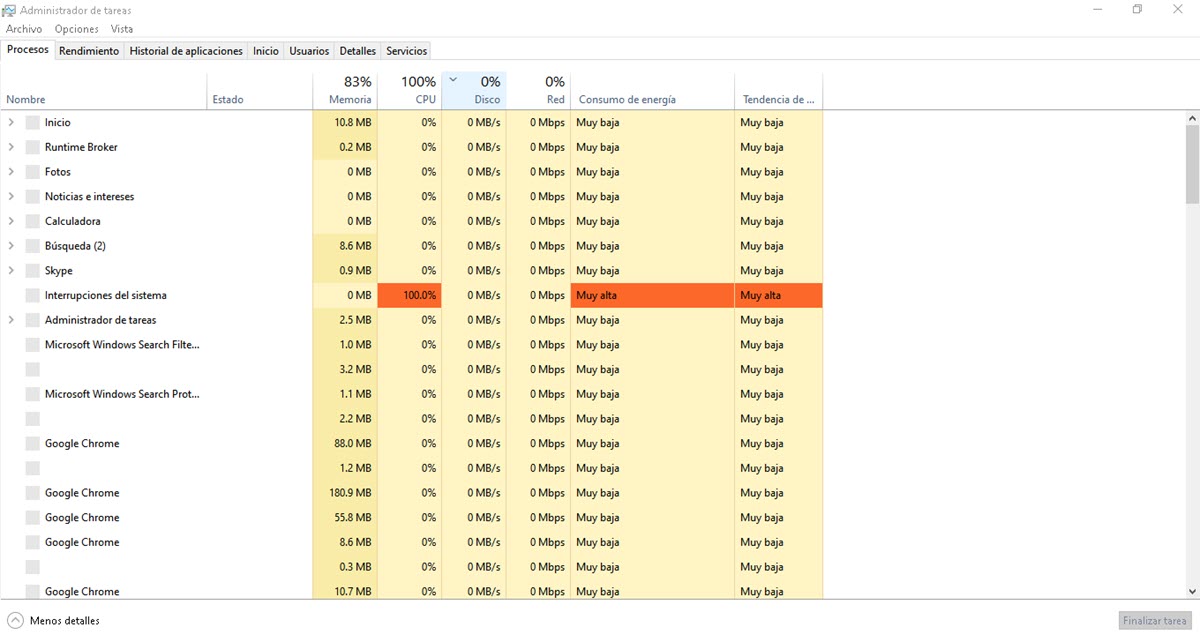
It consists of seven tabs where you can see running processes, hardware performance, application execution history, startup programs, users, details of running processes, and available services . Therefore, if you have problems or want to check how the elements related to these sections are functioning, open Task Manager. To do this, right-click on the taskbar and then select Task Manager.
The search
Versions prior to Windows 10 always lacked an efficient search tool. However, we can now say that it's a very useful and effective option for finding files on your computer, in OneDrive, and even for obtaining results from the web.
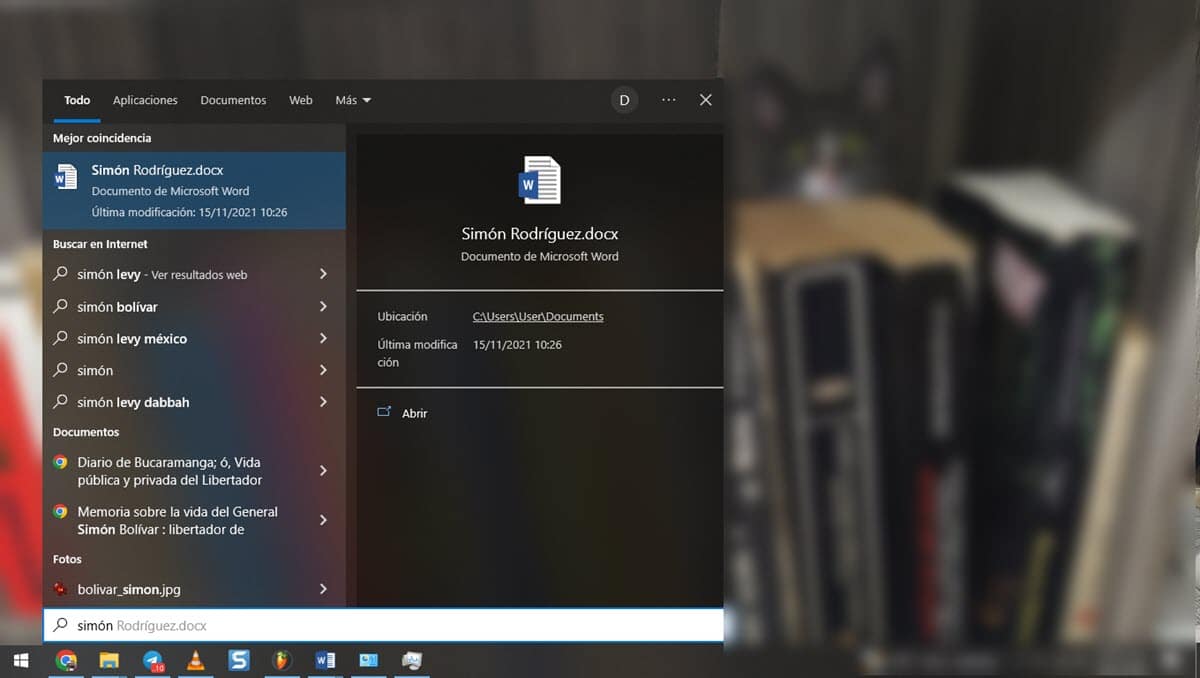
Accessing the Windows search bar is very simple. Just open the Start Menu by clicking it or pressing the Windows key on your keyboard, and then type the keyword for what you're looking for. You'll immediately see suggestions appear on the left and related details on the right.
Cropping and annotation
Another useful tool that can help us in certain situations is the Snipping and Annotation tool . Screenshots have become increasingly important lately, especially for content creation and tutorials. While we previously used the Print Screen key, we now have a wide range of applications available that offer very useful options for this task.
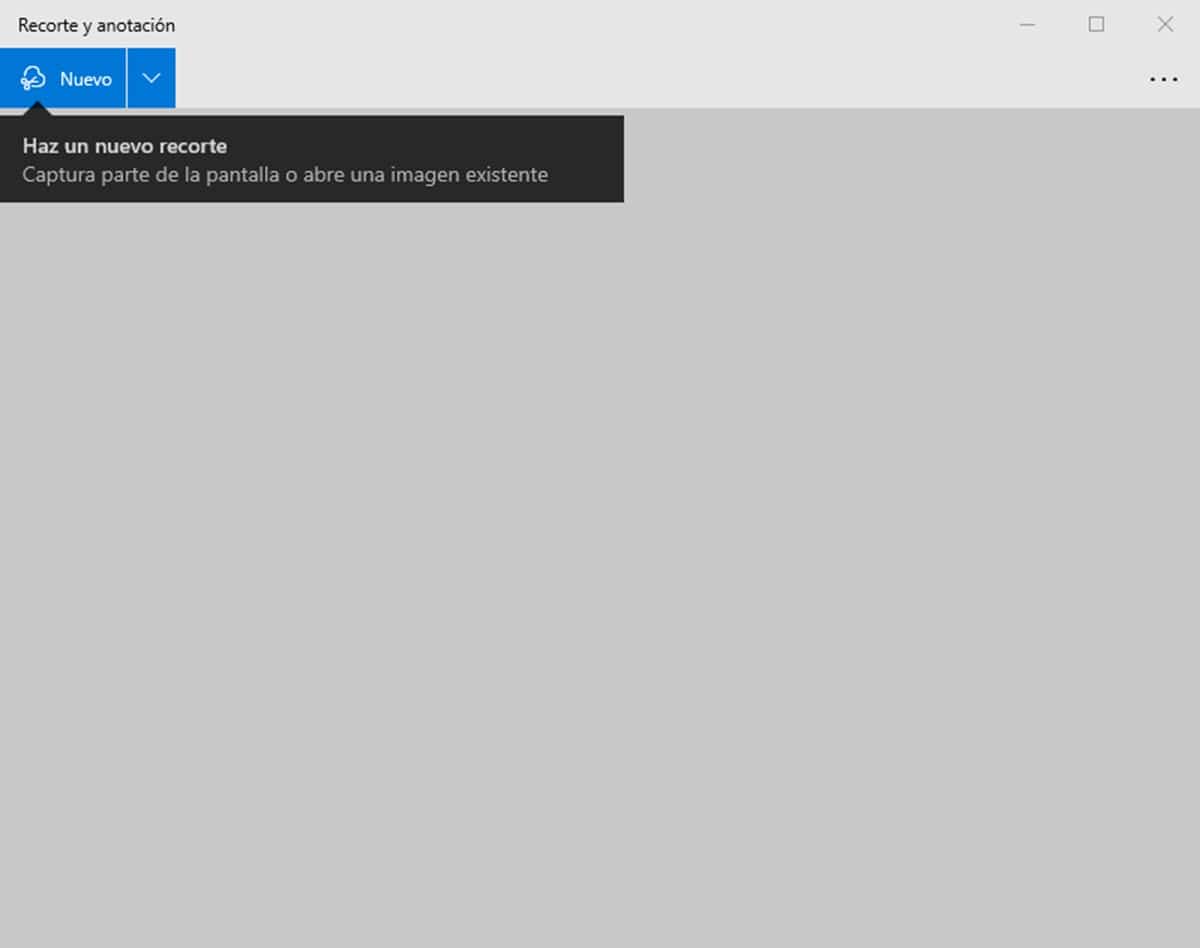
This is how Windows introduced the Snipping Tool to provide a solution to an increasingly common need in our daily activities. Its functions are quite basic, allowing you to capture screenshots, add annotations with a pen, and highlight any area.
Device administrator
This is one of those essential Windows tools that any regular user of the system should know. It's a section for managing the hardware connected to your computer, which is quite useful if you want to know whether your computer has correctly recognized any device you've connected.
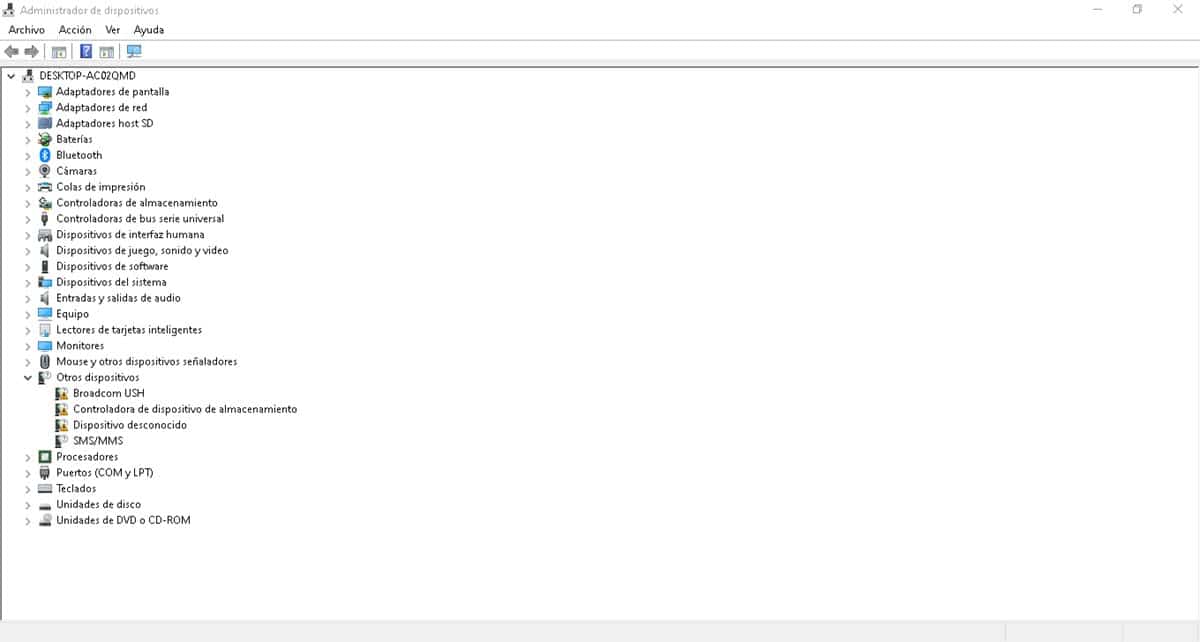
To access Device Manager, simply right-click on the Start Menu and then click on Device Manager . This will open a small window where you'll see the hardware connected to your computer, separated into different categories. If any of them are malfunctioning, they will be marked with an exclamation point.
From this section you can also manage everything related to hardware drivers, being able to install, uninstall or update them.
The Run window
The Run dialog box is a feature present in Windows since its earliest versions, providing a quick way to launch programs or access different sections of the operating system . This eliminates the need to open the Start Menu or navigate to a specific path to access certain Windows programs.
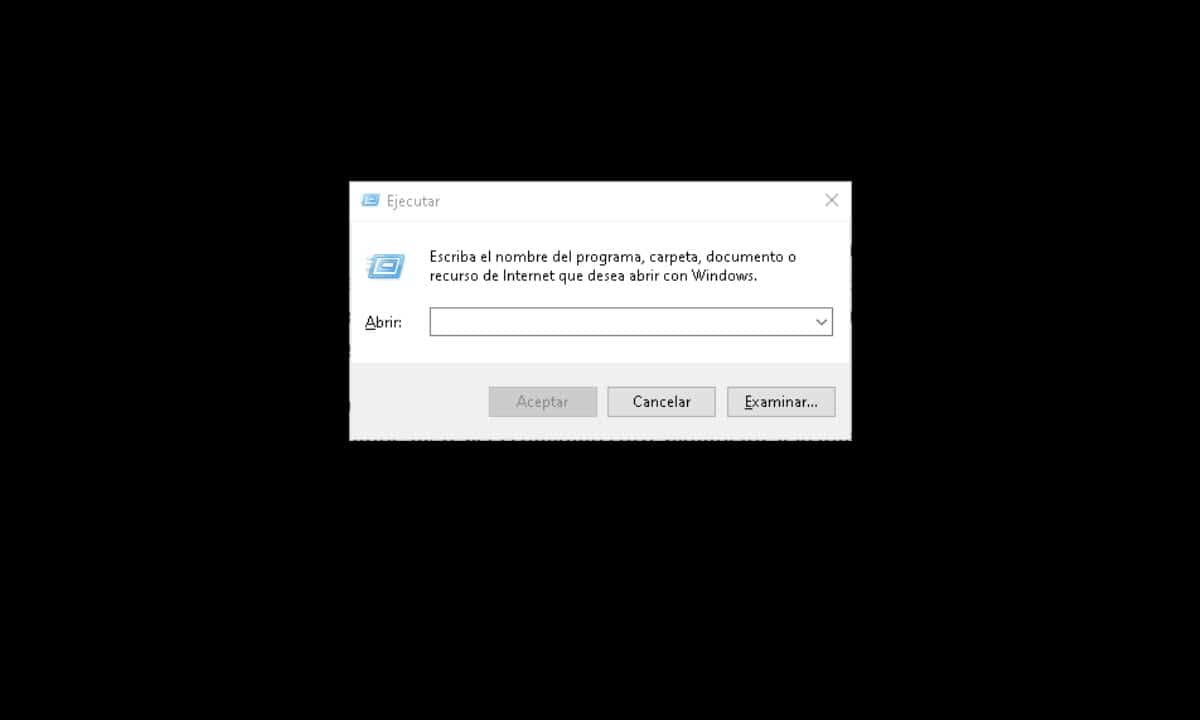
To use this tool, press the Windows key + R and the window will appear . Now, enter the command corresponding to what you want to do and press Enter. For example, if you want to access Network Connections, enter NCPA.CPL, or if you need to open Notepad, simply type Notepad and press Enter.
Table of Contents