

Changing the language on your computer is important, and it's good to know how to do it , as you may encounter situations where you need to use it in another language. Changing the language on your computer has been greatly simplified with the arrival of Windows 10 , making it easier than ever.
Furthermore, with this version of the operating system, the installation disc is no longer required to use a different language. This undoubtedly makes selecting or changing the language much easier when needed. In addition, the selection of languages available in Windows 10 is very extensive.
How do we add a new language in Windows 10? First, we need to go to the Start menu and click on the system settings icon (the gear icon). Once there, we need to go to the Time & Language category.
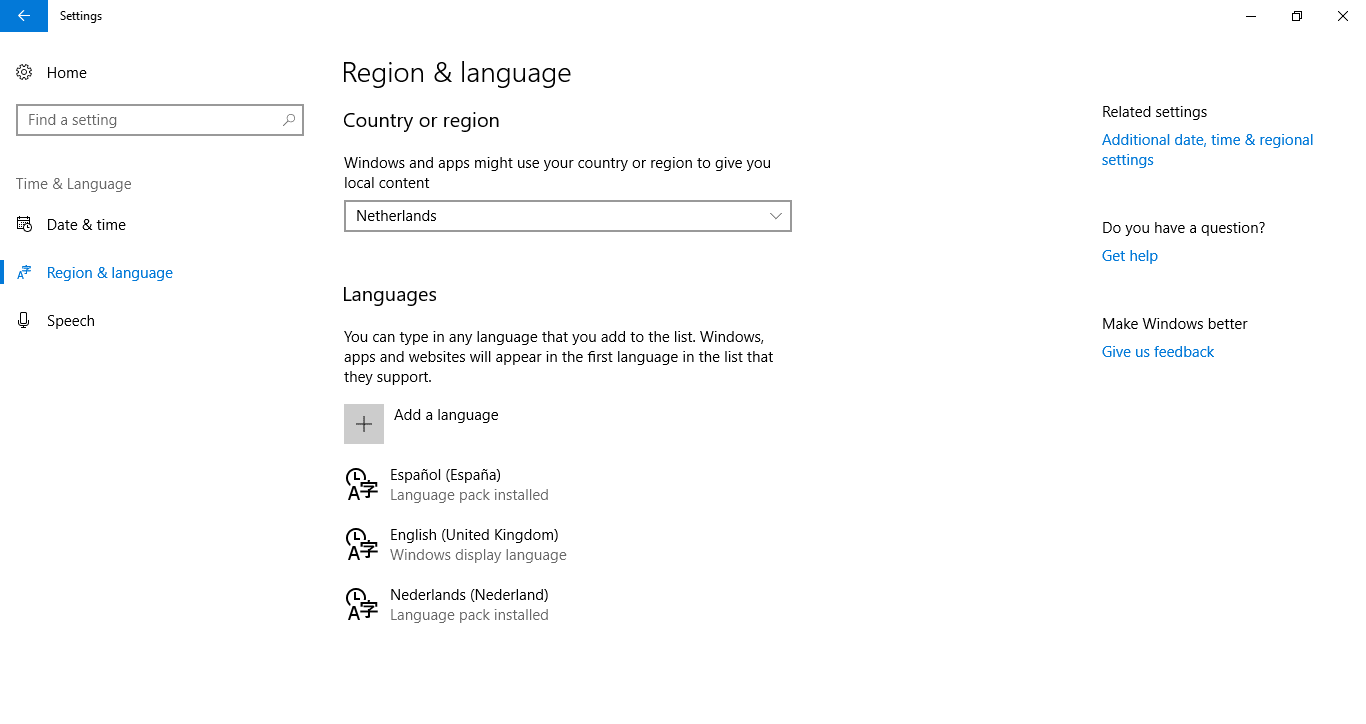
Within this option, on the left side, there's a menu. Select the "Region and Language" option . Clicking on this will bring up the menu shown in the image above. Here, you can choose your region and add more languages.
Therefore, we need to click on the "Add a language" button within the Languages section . A large list of languages will appear. From this list, we simply need to select the language we want to add to Windows 10.

The language we select will be downloaded by Windows Update . When we're not using the computer, the download of the languages we've added will begin. However, if we want, we have the option to do it immediately. In this case, we need to go to settings and download it manually and add the specific keyboard for that language. Adding the keyboard for that language is optional.
If we want the new language we've entered in Windows 10 to be the system language , we need to click on it and then click the "Set as default" button. The next time we log in to our computer, the system language will be the one it uses.