

One of the best features that electronic and computer technology has achieved these days is integration. The universality of communication between these devices has opened up possibilities such as controlling them from a mobile phone, for example. But there's much more to this that we can take advantage of, and in that sense, we're going to show you the possible ways to connect your PS4 controller to your PC . This will be very useful, since if you want to play on your computer, you won't need to buy a new controller.
This connection is possible thanks to the available USB port and the existing drivers that allow the device to be recognized by the PC. However, you should know that there are a couple of methods we can use for this, and which one you choose will depend entirely on your needs . Let's review each of them.
2 ways to connect and configure the PS4 controller to PC
Configuration for Steam
The first method we'll show you is for using your PS4 controller with Steam . If you have games on this platform, this is the best option. To begin, connect your PS4 controller to your PC via USB and wait for Windows to recognize it.
After a few seconds, the operating system will display a notification indicating that a new device identified as "Wireless Controller" has been connected.
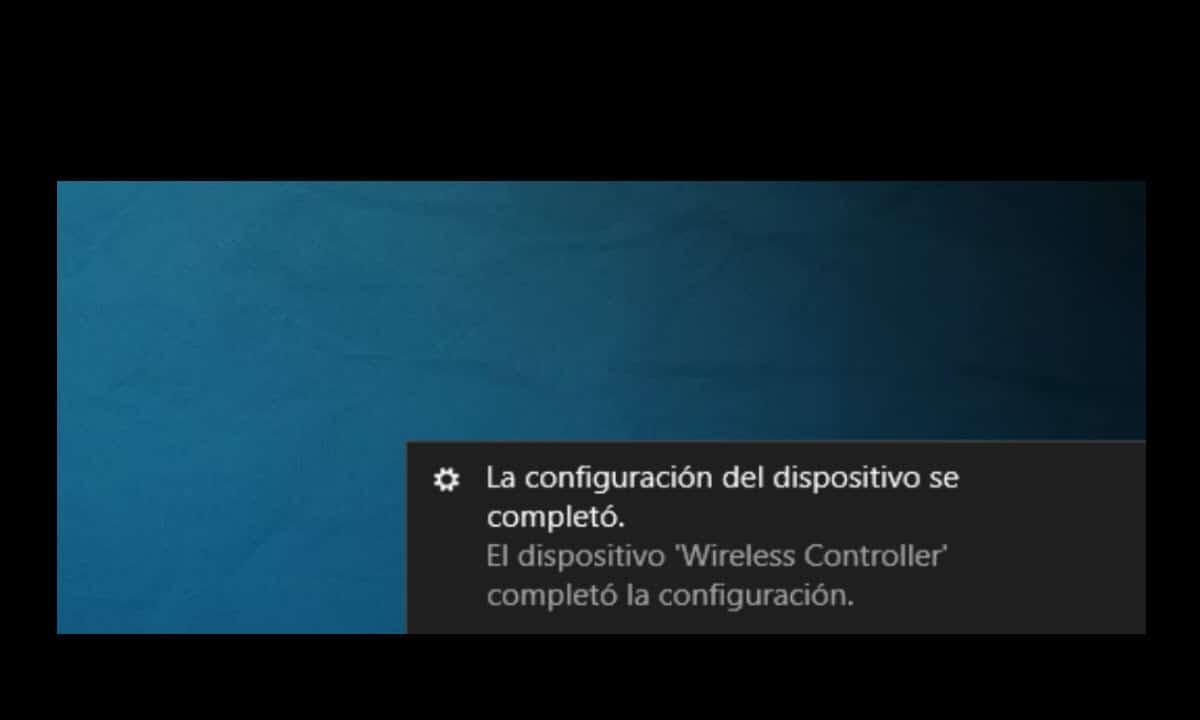
A moment later, Windows will indicate that the device in question has been configured. Click on the notification and you will go to the system configuration screen where you will see everything that is connected to the computer wirelessly. In the last position you will see the PS4 controller.
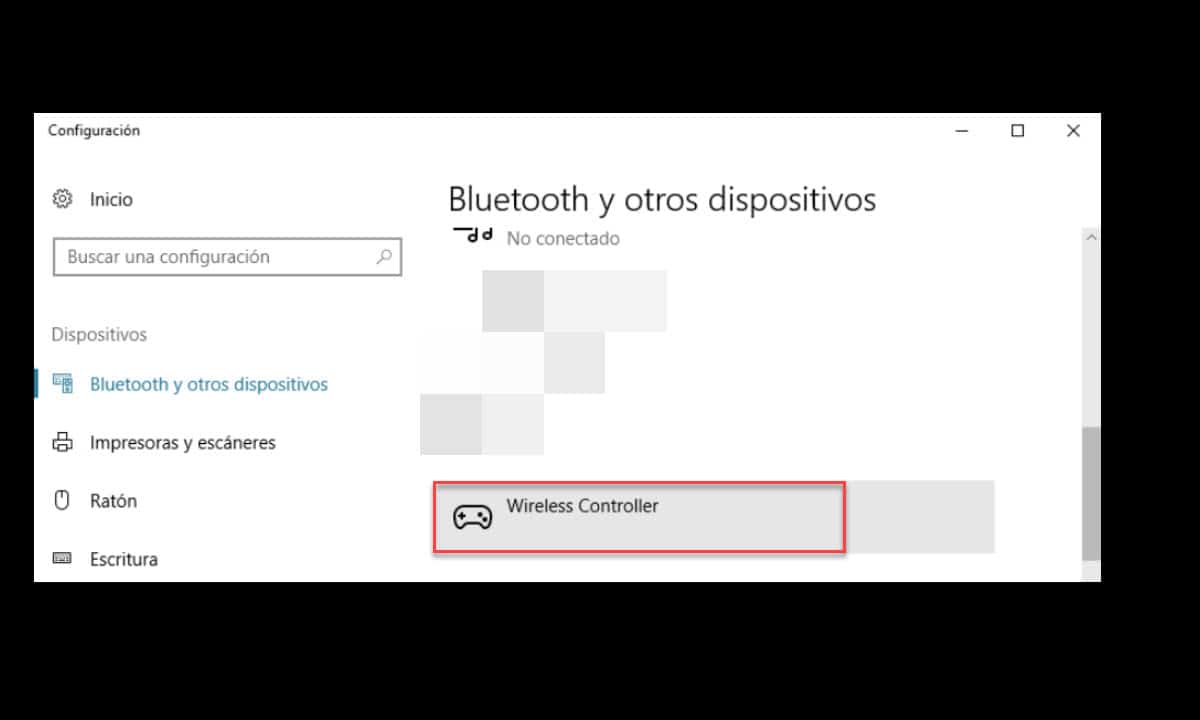
This means that the drivers have been installed and the controller has been recognized; however, it cannot be used immediately because it is not yet mapped. Windows is actually applying a generic configuration to the controller and not mapping the buttons, so you won't be able to play yet. We'll handle the rest through Steam.
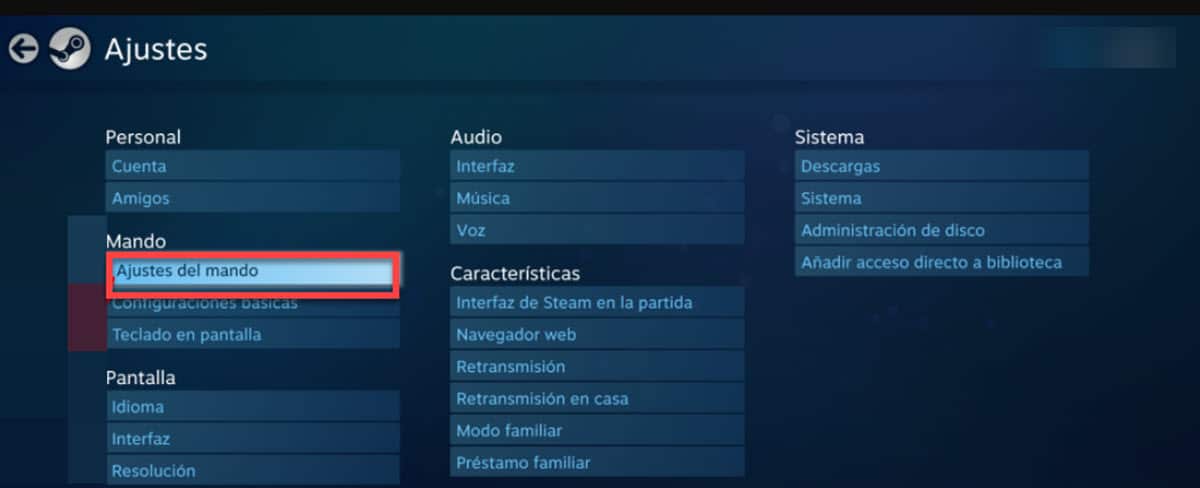
Open Steam, click the controller icon at the top, and on the next screen, click the gear icon located in the same place. This will take you to the Steam settings section where you'll need to go to "Controller Settings".
Next, new options will appear and you should click on "PS4 controller settings".
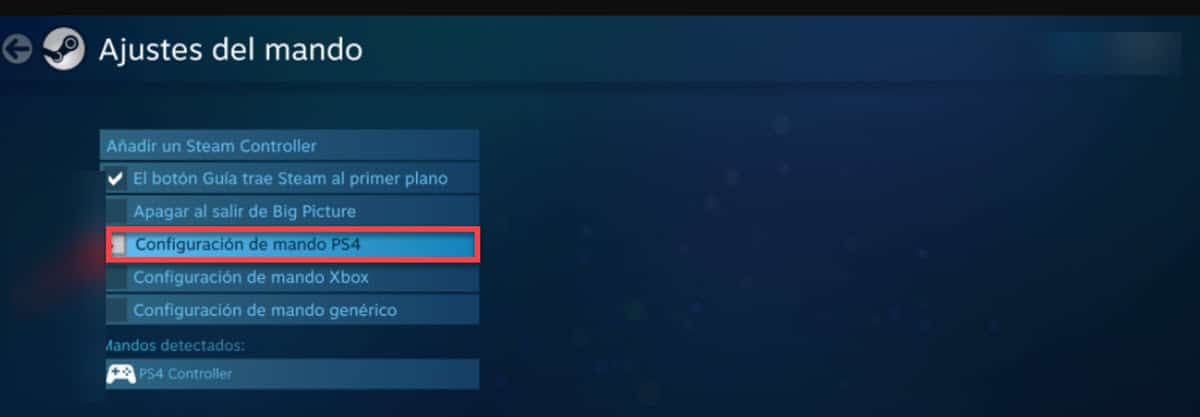
Immediately, Steam will begin to recognize the controller with all its characteristics and will do the mapping automatically. In that sense, you will not have to do anything else and you can start playing. However, there is a very useful additional step and that is the Driver Registry.
This option appears at the end of the process and its function is to save the controller configuration you just inserted, so you can use it on any computer where you log in to Steam . This way, you can skip the entire Steam setup process when connecting your PS4 controller to your PC.
DS4Windows
If you have non-Steam games that you want to play with a PS4 controller, then you'll need to use DS4Windows . It's a third-party application that handles driver installation and provides an interface for button mapping and profile creation.
When you download and run the application, a small window will appear asking where you want to store the control profiles you create. It will offer two options: Program Folder and AppData. It's best to select the first option, so they are saved in the same folder as the application.
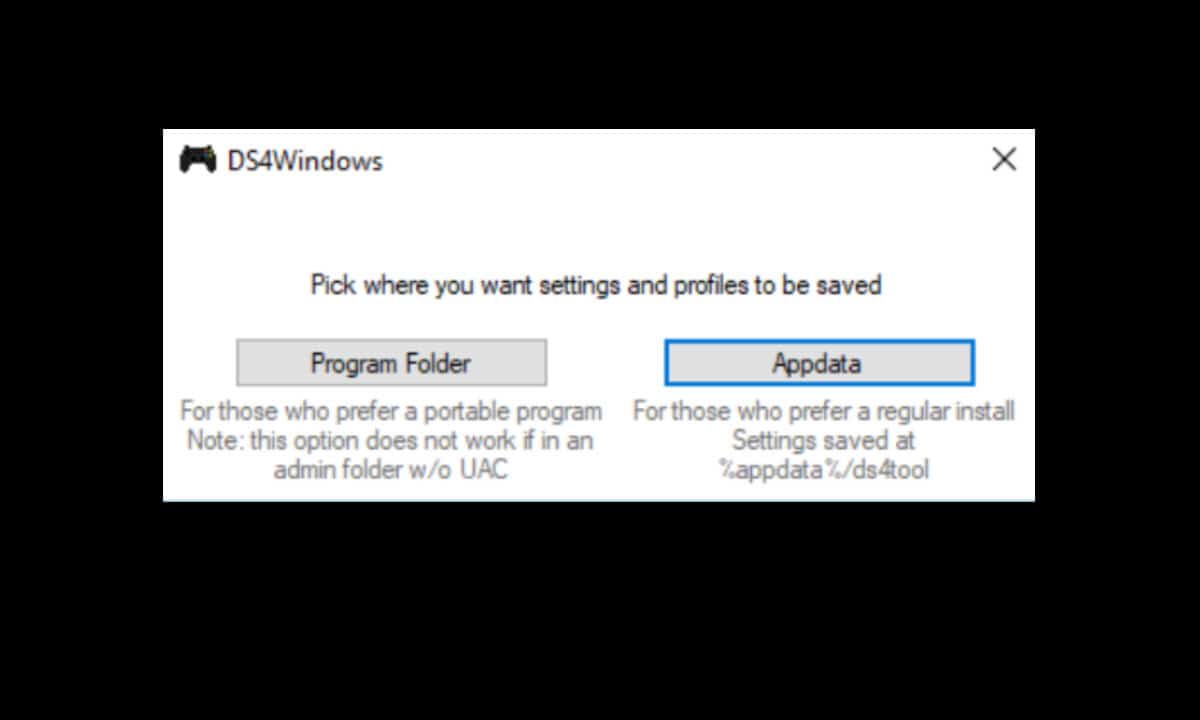
Next, two windows will appear: one with no information and the other showing a two-step process to follow. The first step involves installing the controller drivers, and the second involves installing additional drivers to access all available features and functions of the device . Clicking each button will open a window asking you to confirm the driver installation. When you're finished, click the "Finish" button.
Afterward, it's best to restart your computer for the changes to take effect . Run the application again, and you'll now see a single window displaying the controller's MAC address, connection type, and battery status. Next to this, you'll find a drop-down menu to select the profile and a button to edit it.
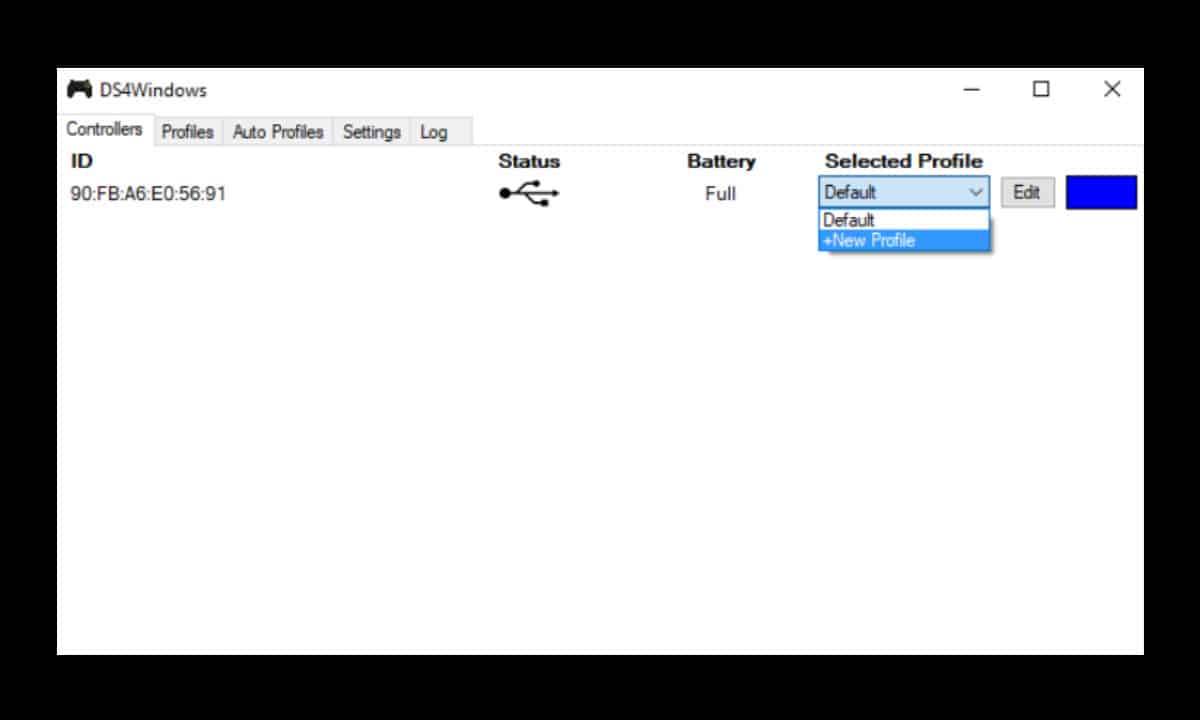
The default settings work perfectly; however, if you go to the editing section, you'll be able to completely customize the controller's functionality . This way, you can change everything from the color of the lights during vibration to the battery notifications.
DS4Windows is a very efficient alternative to connect the PS4 controller to the PC in a simple way, allowing us to play any title outside of Steam.
Table of Contents