

There are many programs and applications that can be used to download videos and content from YouTube, but none work as well as the one we're going to discuss in this post. Both for ease of use and the quality of the results. Let's see how to download a YouTube video with VLC.
To avoid confusion, it's important to clarify that we're talking about downloading the entire video , not just the music or audio track. For that, there are other options available.
What is VLC and why is it worth installing?
The most practical and useful video player is one that is compatible with all codecs available on the market. Following this premise, we can confidently say that VLC is, if not the best, certainly one of the best.

VLC software is available in two versions : the Microsoft Store version and the version available for computers without access to the official Microsoft Store. The former, for obvious reasons, is the most recommended: it's not only optimized for touch devices but also offers full compatibility with all types of codecs. Furthermore, it provides users with numerous features, including the ability to download YouTube videos directly from VLC.
One of the most noteworthy aspects of the VLC app is its universality, which allows us to use it on any device running Windows 10 (mobile, Xbox, PC, etc.). Regardless of the device's screen size, the application automatically adapts to display the content we want to play.
This is just a small sample of the advantages that make VLC such an interesting tool for managing videos.
Download YouTube videos with VLC

Let's see below what you have to do to download a YouTube video with VLC. We explain the process to follow step by step. We divide the task that we must carry out into two phases:
First phase
- To start, it is necessary get video url that we want to go down. To do this you have to open the browser and access the video to play it.
- With the video playing, an address with a bar code that needs to be copied, either by selecting it, right-clicking on it or pressing Control + C.
- Next you have to open VLC.
- In the application, we select the tab "Half" and then click on the option "Open network location." On Windows, it can also be done by pressing Control + N simultaneously.
- In the new window that opens, we go to the tab "Net".
- There in the field «Enter a URL» we have to write the address of the video copied earlier.
After executing these actions, the YouTube video that we viewed before will automatically open in VLC and playback will begin.
Second stage
Now that we have the visualization, let's see what we have to do to download the video. With the video playing in VLC, these are the steps to follow:
- Let's go to the tab "Tools" and click on «Multimedia information».
- Then the window opens «Current media information».
- Then we select the tab "General".
- At this point we have to copy the address shown in the field "Place". This is a temporary address in which the video is hosted, hence its strange appearance (see an example in the image above).
- We return to the browser. There we write the VLC address that we have copied in the address bar and press "Intro".
This last action will start playing the video in your browser, but no longer from the YouTube website. This gives you the opportunity to right-click on it, download it in MP4 format , and save it to your desired location. It's that simple.
Other cool features of VLC
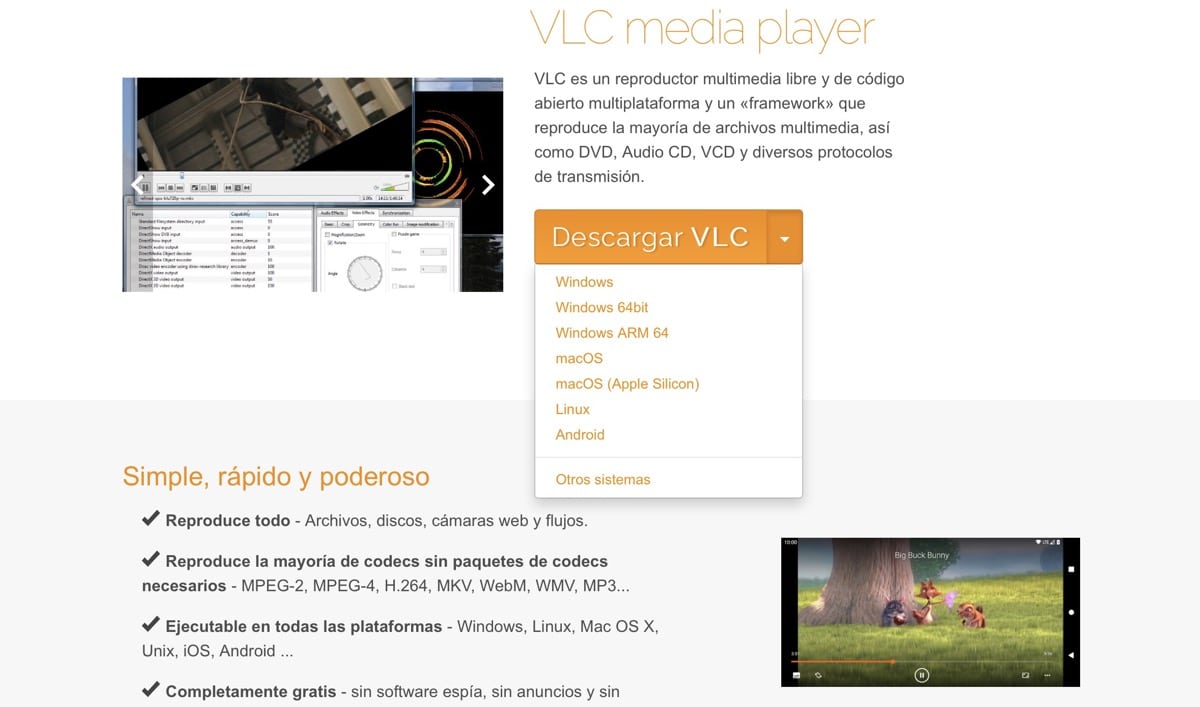
In addition to downloading YouTube videos, VLC offers many other options . Its most common use is playing all kinds of video and audio files on your computer, regardless of their format. Of course, this also includes the ability to use features like fast forward/rewind, skip forward/rewind, correct audio delay in videos, and double-speed playback, among others.
Other interesting options include recording your PC screen, playing playlists of multimedia files, and sharing them with other users. All of this is also possible with VLC. You can also use VLC as your default media player on your mobile phone . This applies to both Android and iPhone.
In short, a lot of functions that make this player a really attractive option for any type of user.
Table of Contents