

Although Windows is a user-friendly and easy-to-use operating system, it's undeniable that it's prone to common glitches that can disrupt the user experience. The example we'll focus on today is audio, a feature we use throughout the day at our computers. You might find yourself unable to hear any sound when trying to make a call or play content. Therefore, we want to show you all the available options for fixing your computer's volume.
If you're trying to enjoy a video or song and your device seems to have no volume, we'll review all the possible causes and how to fix it. It's important to note that this problem can have multiple sources, so we need to carry out a troubleshooting process to pinpoint the cause.
How to fix the volume of the computer?
As we mentioned, the failures related to the volume of the computer have multiple causes among which we can mention:
- Wrong audio device selection.
- Audio device muted.
- Audio device disabled.
- Problems with the audio driver.
- Audio enhancements affect the operation of the device.
This is the reason why we must carry out the troubleshooting process, in order to find the origin of the problem in the shortest possible time, addressing all the causes that may be involved.
Check the selected audio device
The first step in our troubleshooting process is always the simplest, and this case is no exception. Therefore, we'll begin by verifying that we have selected the correct audio device. Remember that a computer can have different audio outputs, for example, by connecting speakers and also a television via HDMI cable.
To find out which device is selected on your system, simply click the speaker icon in the taskbar. Just above the volume control, you'll see the device name. So, if the HDMI device appears instead of your sound card, you'll know why your speakers or headphones aren't working.
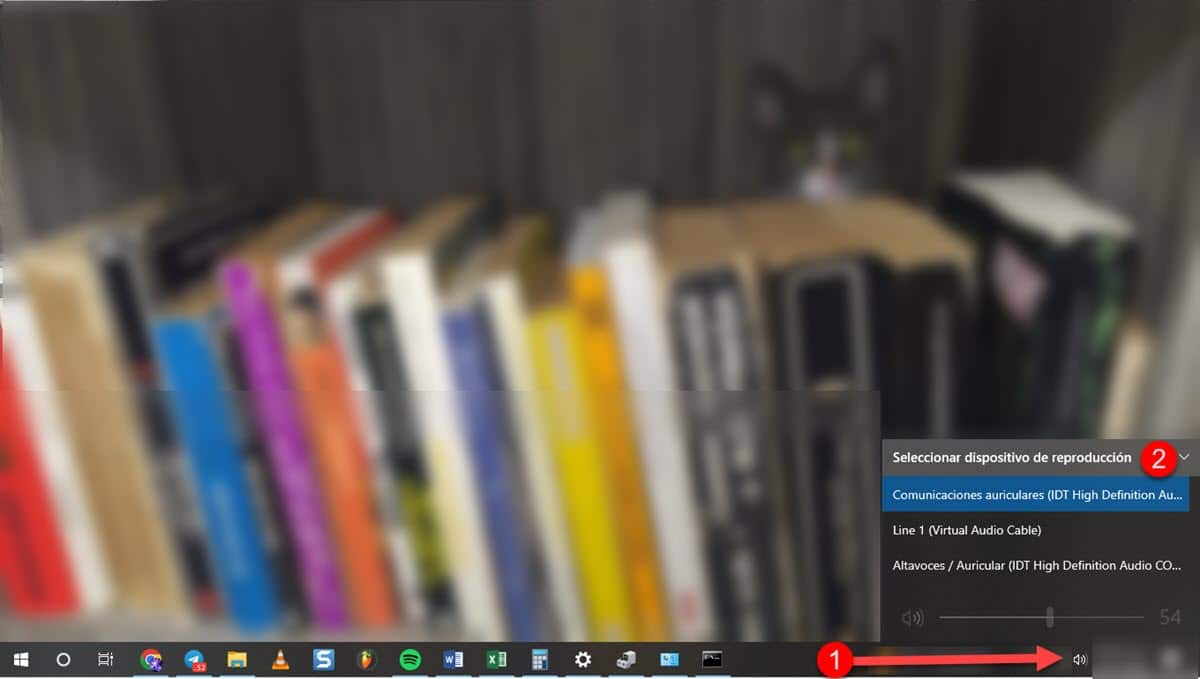
Pick the right device and you'll instantly get the audio you need.
Check if the device is enabled
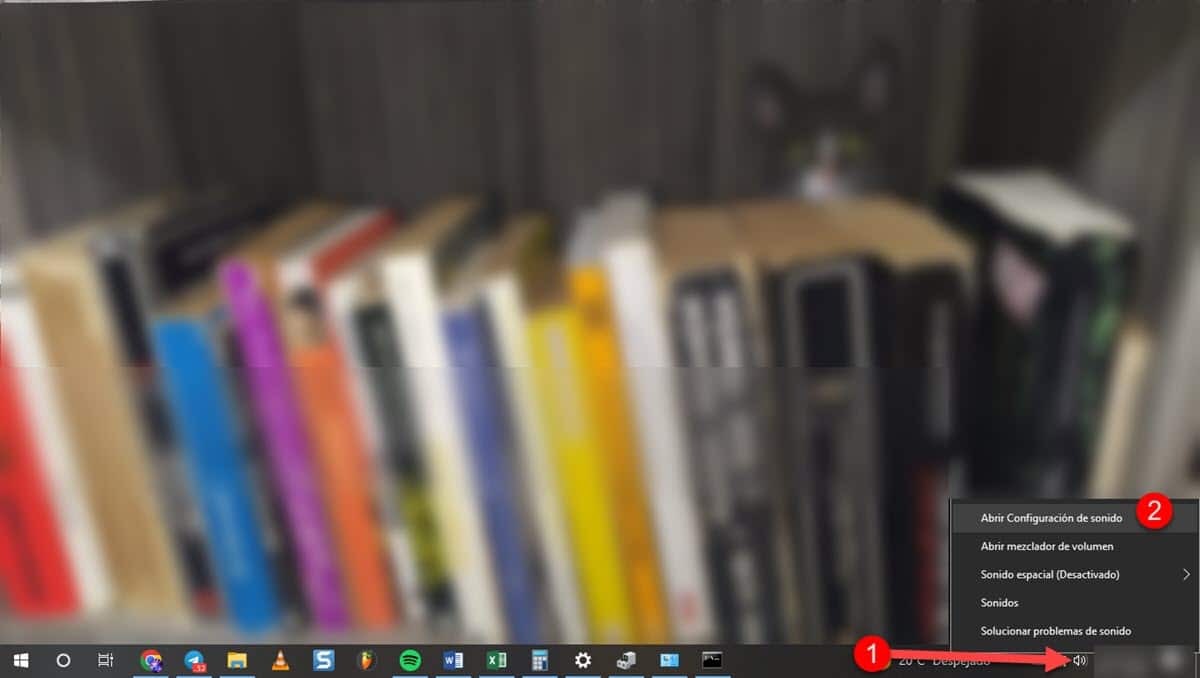
If the audio output you normally use doesn't appear, we'll check if the device is enabled. To do this, go to Sound Settings. Simply right-click on the speaker icon and then select "Open sound settings . "
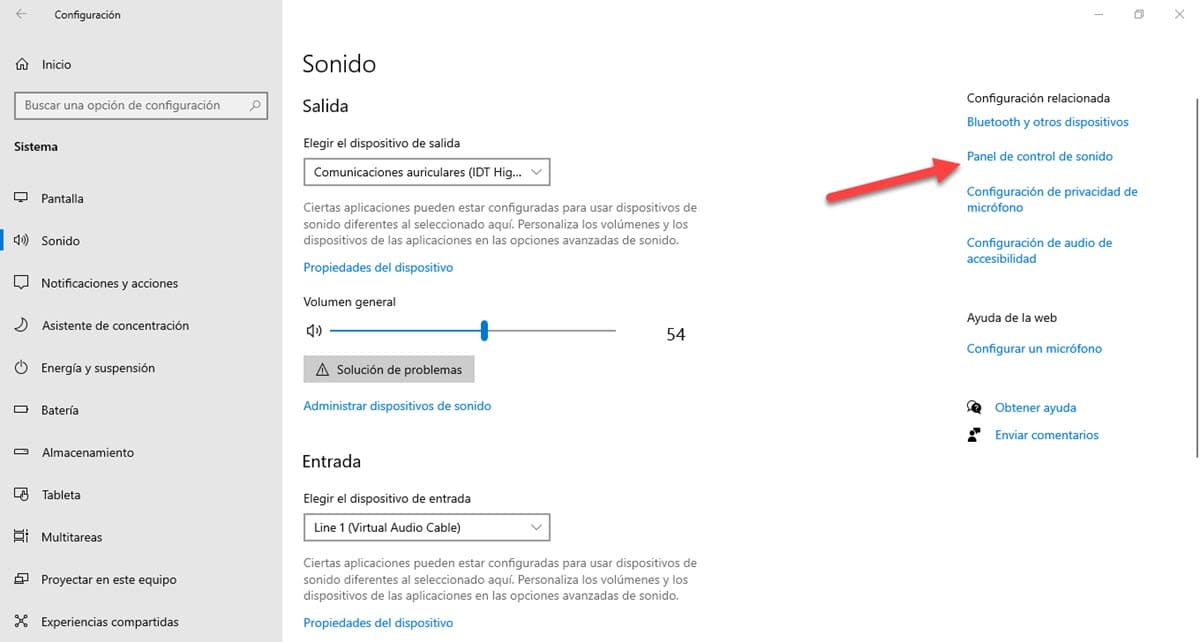
A window will immediately appear with a range of options for controlling input and output audio devices. We are interested in the link labeled “Sound Control Panel,” located on the right side of the interface.
Clicking on it will open a small window with several tabs; go to the "Playback" tab. There you will see all the output devices connected to your computer; verify that yours appears and is enabled.
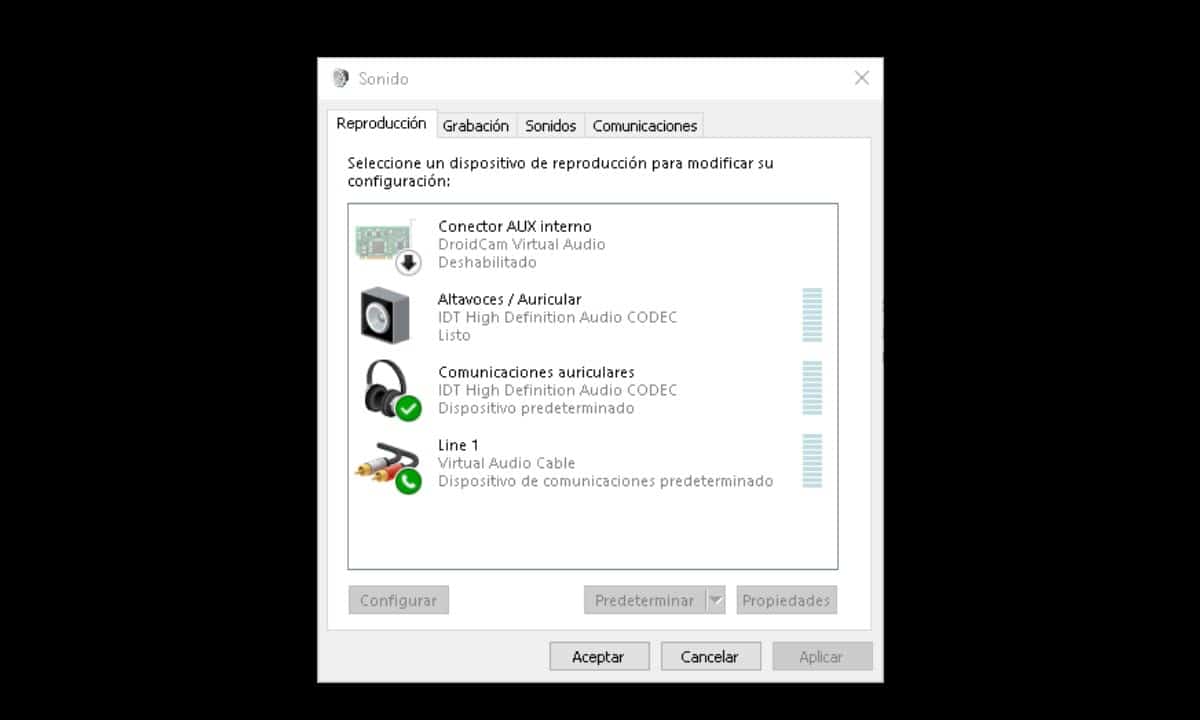
When they're not, their icons have a gray and transparent appearance, unlike active ones that show full color.
If yours is disabled, simply right-click it and select "Enable." Then, to verify that it's working, right-click it again and select "Test."
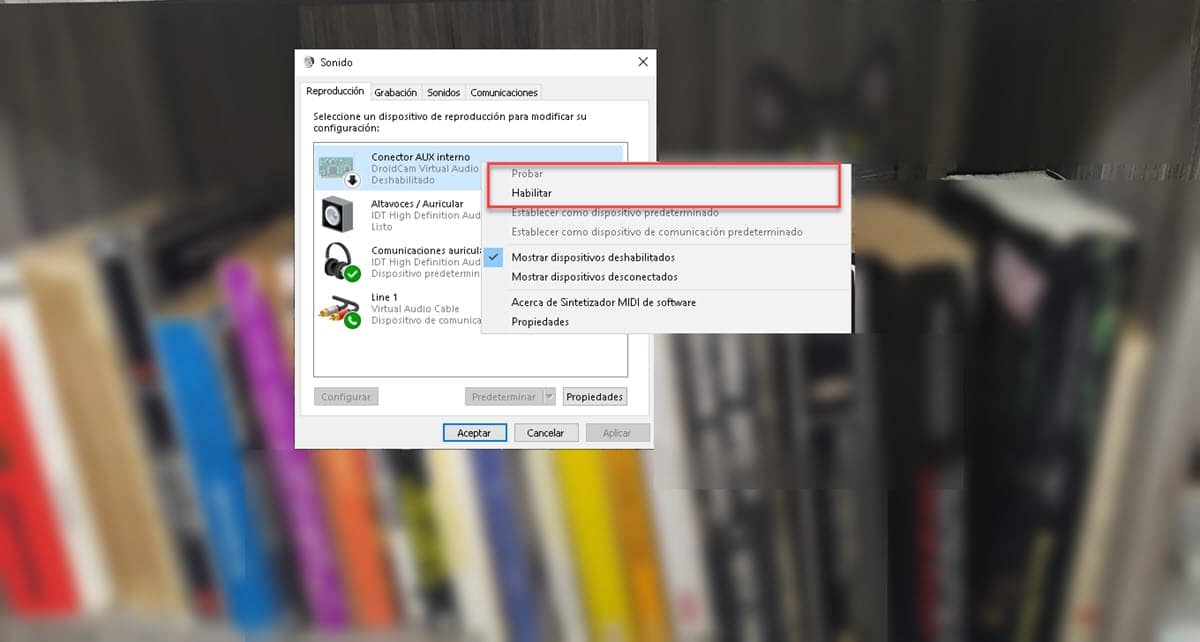
This will play a sound through whatever headphones or speakers you're using, so if you can hear it, you've succeeded in fixing your computer's volume.
Check the audio driver
Drivers are another very common reason why audio devices don't work or have no volume. These are simply pieces of software that act as the communication bridge between the hardware and the operating system. Therefore, if this component is installed incorrectly or its files become corrupted, the computer's sound will be affected.
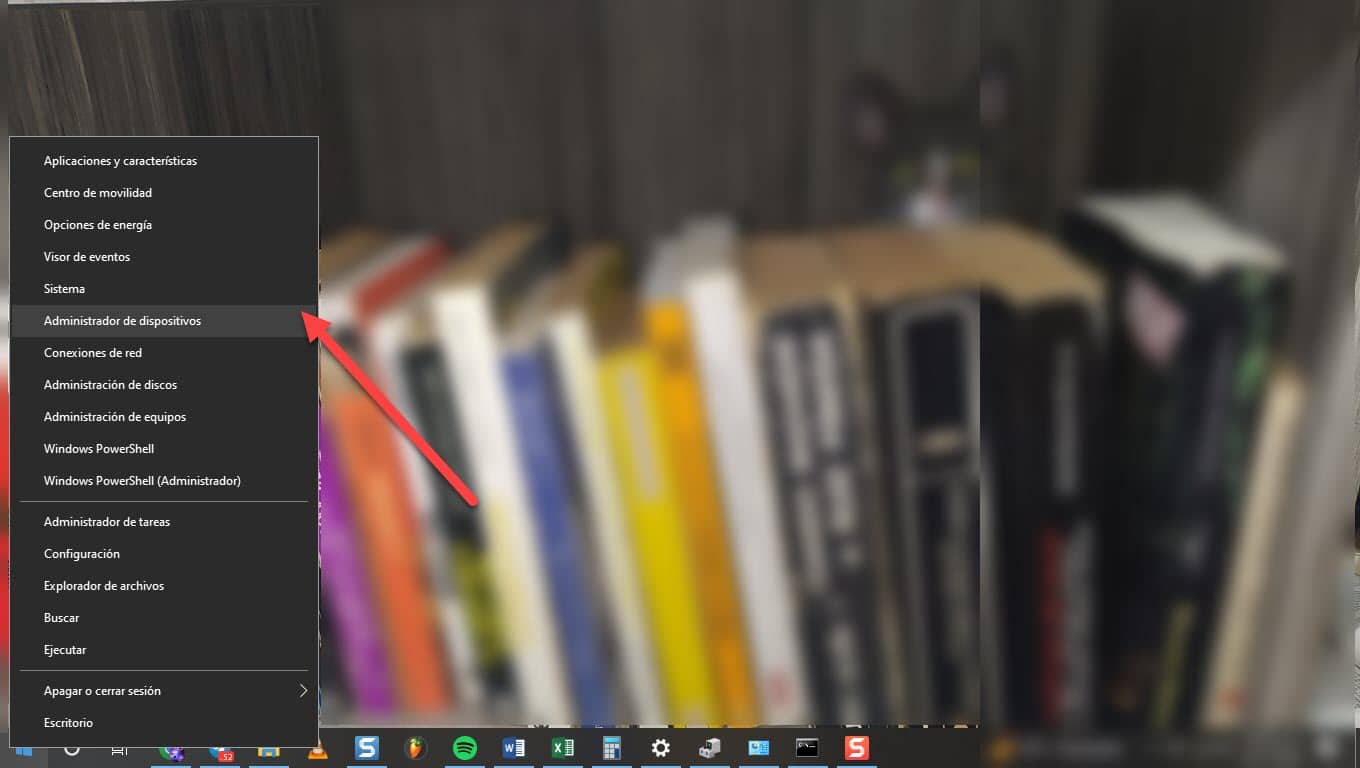
If the previous steps haven't solved your problem, it's most likely due to an issue with your audio driver. To check if it's working, open Device Manager by right-clicking the Start Menu and selecting the option mentioned earlier.
A window will immediately appear listing all the components connected to the computer. Locate the "Audio Inputs and Outputs" section and click to display the sound devices.
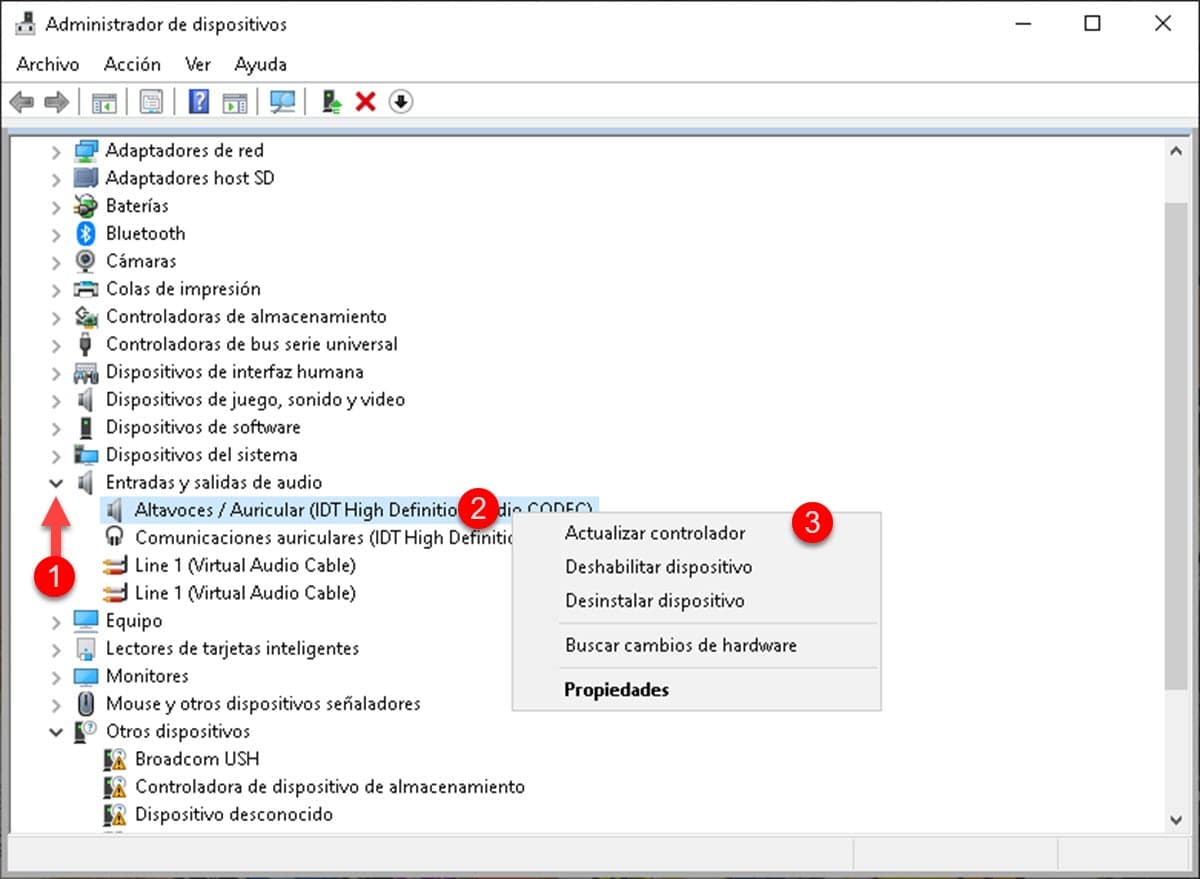
The ones that are having conflicts or malfunctions usually display an exclamation point. However, if none appear, you can still right-click and then choose “Update Driver”.
The system will offer to search for it automatically in Windows; however, you can also select it from any directory. This is the best option for installing or updating drivers, ensuring you always select the correct file.
Table of Contents