

Changing your Wi-Fi password is important , especially if someone has accessed your network . This ensures you have a secure network again, free from unauthorized connections. Therefore, you can change both the network name and password. This can be done easily from your computer. Below, we explain the steps to follow.
There may be times when we want to do this, such as if we want to improve the security of our home Wi-Fi network. The entire process is carried out by accessing our home Wi-Fi router . The steps are not complicated. We'll explain them below.
Most routers have the same access address. In the vast majority of cases, you'll need to enter 192.168.1.1 into your web browser . While it might be different for some models, this is uncommon. If you want to be sure, the address is usually indicated on the router itself. But the first step is to paste this address into your computer's web browser and log in.
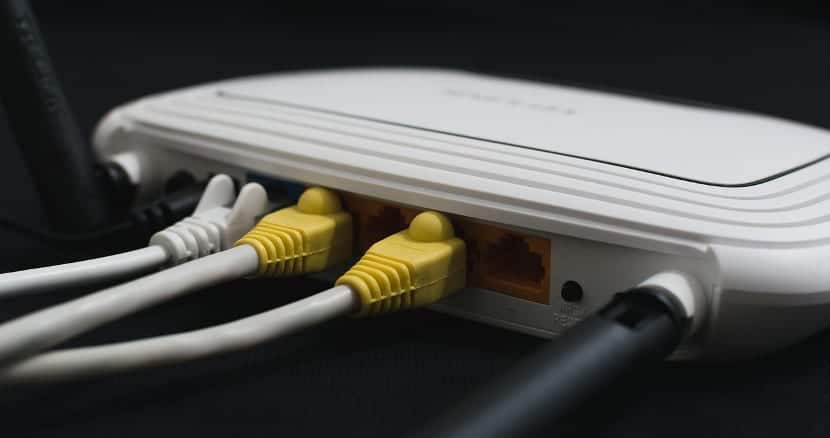
Next, you'll usually need to enter your username and password . These credentials are typically stored on your Wi-Fi router and are usually the same as your network settings, so you shouldn't have any problems accessing them. If you don't know them or can't access them, you may need to contact your internet service provider. They can provide this information so you can continue changing your Wi-Fi password. They may even be able to change the password for you.
Once we've entered this information, we'll be in the menu where we can configure everything we want about our router. Here we have access to all sorts of functions, so we can adjust many aspects. But what we're interested in here is changing the password , and possibly the name as well for some users. Most routers have a settings section where you can create a new password.
Although it depends on each Wi-Fi router and the internet service provider, there may be more or fewer sections on the screen at that moment. It might be in a settings section. Others have a security section where you can easily create a new password for your router. Still others have their own menu for changing the password. There are many options, but they aren't difficult to access. The important thing is that you create a secure password that isn't easy to hack . Therefore, it must meet certain requirements.
In this regard, certain aspects must be met . Therefore, it should be long enough to include uppercase and lowercase letters, as well as some numbers and symbols. Some letters can always be replaced with numbers. Furthermore, a common trick that works well is to use the letter Ñ in these passwords. It greatly increases security in a very simple way. Therefore, it's a trick to always keep in mind.
To change your Wi-Fi password, you'll typically need to enter your old password first, followed by your new one . You'll then be asked to confirm the new password a second time to ensure the changes are applied to your router. Once you've done this, the new password will be official. Any device attempting to connect will be unable to do so because of the new password.
The process itself isn't complicated. However, if any users don't feel ready, they can always call the operator . They can change the password to one you provide or they can create a random one for you. So you also have this option if you're not comfortable doing the process yourself.