

This week, Inbox, one of Google's email clients, shut down permanently . As of Tuesday, April 2nd, it's no longer possible to use this platform from the American company. This has forced users to look for alternatives, with Gmail being one of the most popular options, as it shares some features with Inbox.
In fact, if you use Gmail, you can activate some Inbox features within it . This makes the transition easier for users who have switched platforms, allowing them to make better use of Inbox at all times.
Organize emails into categories
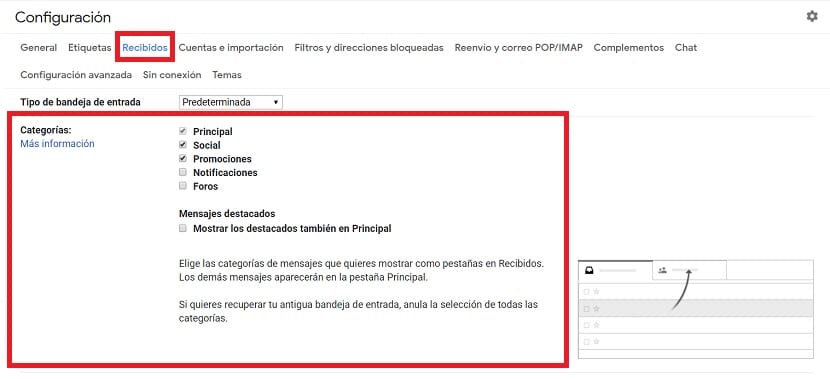
One of Inbox's most popular features was the ability to organize emails into different categories . That's why many users have opted for this platform. Gmail also offers this option, although it requires a few steps to access, as it's somewhat hidden.
First, click on the gear icon in the top right corner. A series of options will appear. From these, click on Settings. When Gmail's settings open, look at the options at the top. Then, click on Inbox . Within that, you'll find a Categories section.
It allows you to choose which categories to use in Gmail . Furthermore, you can then, as in Inbox, easily move emails from one category to another. This will allow for much more precise organization of the user's inbox on their computer.
Set reminders
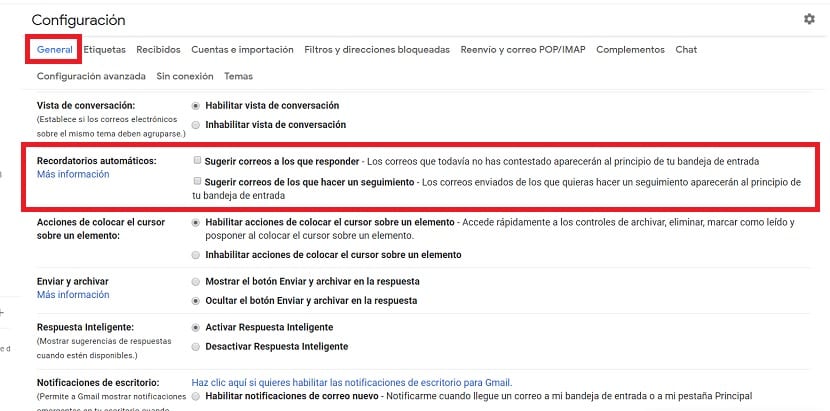
Another highly popular feature of Inbox was reminders . This function allowed for more comprehensive use of the platform, especially in a work environment. Therefore, if you need to use Gmail for work, you can retrieve these Inbox reminders from your account. This undoubtedly allows for much better use of the platform in these situations.
To use reminders in Gmail, click the gear icon and go to your email settings. Within these settings, go to the General tab, which is located at the top. Then, go to the Automatic reminders section . There you will find the option to enable this feature.
So Gmail will remind us if we have unread emails , ensuring we don't forget to reply to any. It also provides good tracking of our activity. Undoubtedly, if you receive or send many emails daily, as is common in work environments, this is an incredibly useful feature. It will be just like using Inbox.
Snooze emails
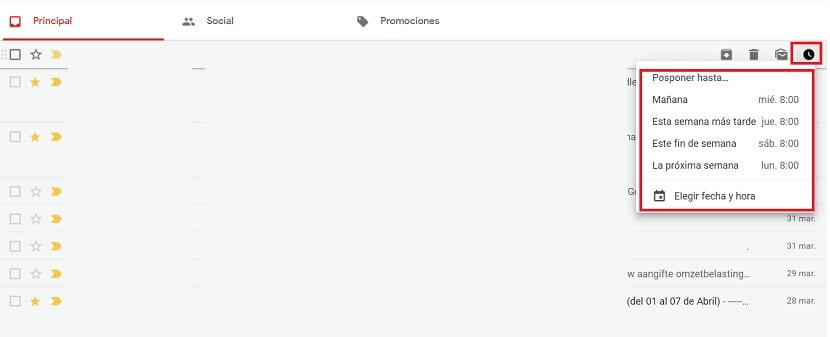
One of the features that Inbox users really liked was the ability to snooze emails . We can also do this in Gmail, as the email service has inherited this function from Inbox, one of many. So, if we want or need to, we can snooze sending an email at any time. What's more, it's a very easy feature to use.
To do this, you need to click on the clock icon in the options bar that appears above each email. When you hover your cursor over a received email, several options appear. The rightmost option is a clock icon, which is the snooze option. Simply click on that option to open the snooze menu on your computer screen.
The menu is very similar to the one used in Inbox , so it shouldn't be a problem for users. This menu allows you to choose from a series of preset times. However, if you prefer, you can also choose the date and time, allowing you to select when you want to receive the email. For example, you could choose a time when you're less busy, or when you're at home. This is something each user can configure to their liking.
Archive unopened emails
As with Inbox, we can manage emails without opening them . When we hover over a received message, Gmail offers a series of actions. In addition to snoozing, as mentioned above, we can archive the message. We can also delete it or mark it as read very easily, all without having to open the email.
Table of Contents