

Many of you have a Facebook account , the most used social network in the world. You might want to stop using it at some point and therefore want to delete your account data. This includes messages in Messenger. You might also simply want to delete all the messages in your account.
This is something we can do in all versions of the social network. Although we show you the way to do it on the computer, so that you can delete those messages. It is a simple process, although Facebook has not yet introduced a method that allows you to eliminate them all at once.
While this has its reasons— to prevent us from accidentally deleting all our messages —it means that if we have many conversations in Messenger, the deletion process can take quite a while. We have to go from chat to chat, deleting each one. Luckily, the steps are very simple throughout, which definitely helps.

Delete Facebook messages
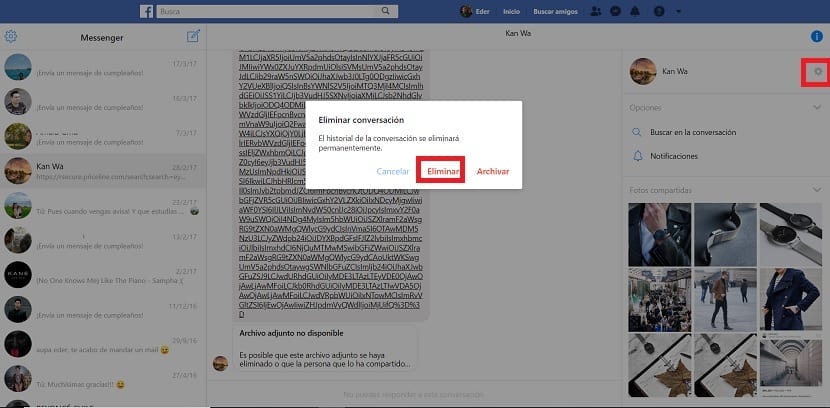
The first thing to do is open Facebook on your computer. Then, log in to the account from which you want to delete messages. You then have two options to do this. You can directly access the chat you want to delete by clicking the Messages button in the upper right corner. Or, you can open Messenger by clicking the Messenger option on the left side of the screen. This will give you access to all the conversations that have taken place from that account.
Both methods work equally well. Furthermore, it doesn't matter which one you use, since, as mentioned, each conversation must be deleted individually . When you tap on a specific chat, it will open in the center of the screen in full-screen mode. In the next step, look at the right side of the screen. There you'll find a kind of settings menu with several options. One of the icons there is a gear; tap it. Tapping it will reveal a couple of additional options, one of which is "delete." Use that option.
A small warning window will then appear. Facebook is reminding us that all messages and content (photos, videos, links, files, etc.) sent in that conversation will be permanently deleted. If this is what we want to do, we simply click "delete." The conversation will then be permanently deleted. If we want to do this with multiple conversations on the social network, we just need to repeat the process for each one; there are no problems in this case.
Archive or delete

This is an option we should consider. If you want to delete this Facebook conversation, which means losing the files in that chat, then you can delete the conversation. But it's also important to know that the social network doesn't allow you to restore deleted messages . So we should think about the consequences this could have in this case. If it's a chat we don't care about, it's not a big deal. But we could end up losing photos or other important data.
On the other hand, we have the option to archive a conversation . It's a very simple function, but it allows us to stop seeing a chat we have on Facebook without having to delete it. This is precisely what makes it a useful feature for many users. Because this way, nothing from the chat is lost, but we simply stop seeing it in our inbox for as long as it's inactive. A simple way to stop seeing the conversation without losing any of the data.
Table of Contents