

When browsing in Google Chrome, a webpage may take a long time to load. When this happens, we see the message ERR_CONNECTION_TIMED_OUT. This means the server has taken too long to load, so we can't access the website at that time. There are several different solutions to this problem.
Undoubtedly, this can be particularly annoying at times. Therefore, we need to do something about it, and the solutions available are quite varied . This way, this message shouldn't appear when browsing in Google Chrome.
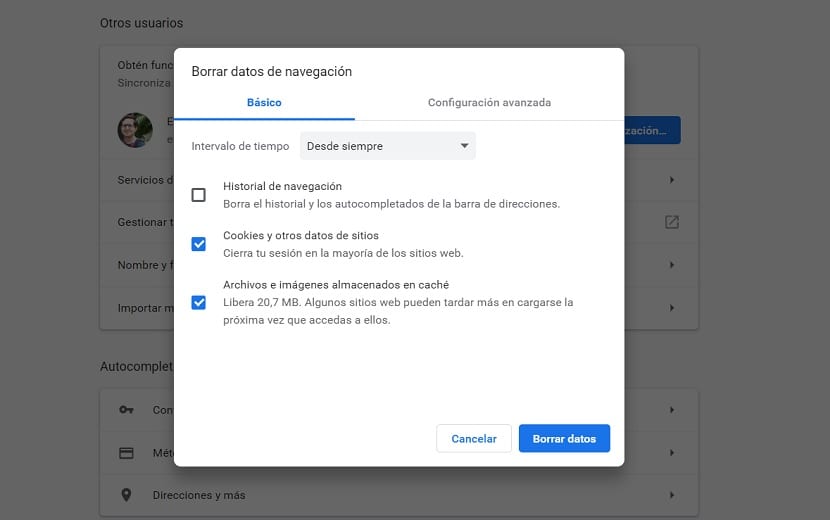
One of the first things we always recommend is clearing your Google Chrome cache . Too many cookies and browsing data may have accumulated, preventing you from browsing the web effectively and accessing the website. Therefore, this is one of the first steps to take. The steps to follow are simple:
- Open Google Chrome on the computer
- Click on the three vertical dots
- Go to More tools
- From the options that appear on the right, click on Clear browsing data
- There you choose the data you want to delete
- Click on accept

LAN settings in Windows 10
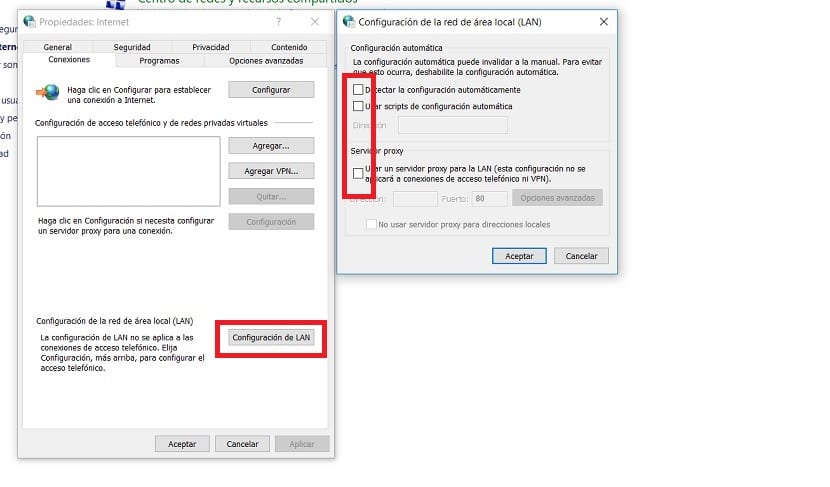
Another option we can try, which is often one of the most effective, is adjusting the LAN settings on the computer . In many cases, incorrect LAN configuration is the problem preventing access to a particular website. Therefore, if we configure this correctly, which only requires unchecking one option, the problem should be resolved.
- Open the control panel
- Click on networks and Internet
- Click on the option called Internet Options
- A new sale opens, in it, click on the connections tab at the top
- Click on the LAN settings button
- We deactivate all the options in that section (uncheck all options)
This method often works, so we should be able to access this page again without any problems using Google Chrome in our browser. However, it's not the only option available.
Hosts file
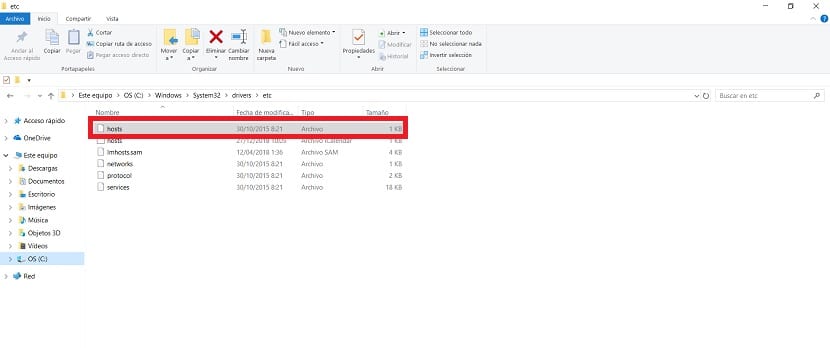
On the other hand, we should also check the hosts file in Windows 10. This is a file on the computer that the operating system uses to assign hostnames to different IP addresses. Its function is to manage network nodes on the computer's network. However, it's possible that this file might be misconfigured at some point, or that an IP address has been added that shouldn't be there, causing the blockage.
The file can be located on your computer in the following path: C:\Windows\System32\drivers\etc. You will see a file called Hosts in that folder. Open it using Notepad. You will see several IP addresses listed. Check that the one you are interested in has a # at the beginning . If it doesn't, remove it from the list and save the document.
So, we go to Google Chrome, where we should be able to use said website again without problems.
Update drivers
It's possible that an outdated driver, in this case the network adapter, is causing problems when accessing websites in Google Chrome . Therefore, it's important to keep it updated at all times. Go to Device Manager on your computer and locate the network adapter. Right-click on it and select "Check for updates." This will allow you to search for updates online, in case any have been released that you haven't received.
After a few seconds , we'll be able to see if there's an update available and install it. Often, a timely update helps prevent these kinds of problems when browsing in Google Chrome. Therefore, the issue should be resolved this way.
Clear DNS cache
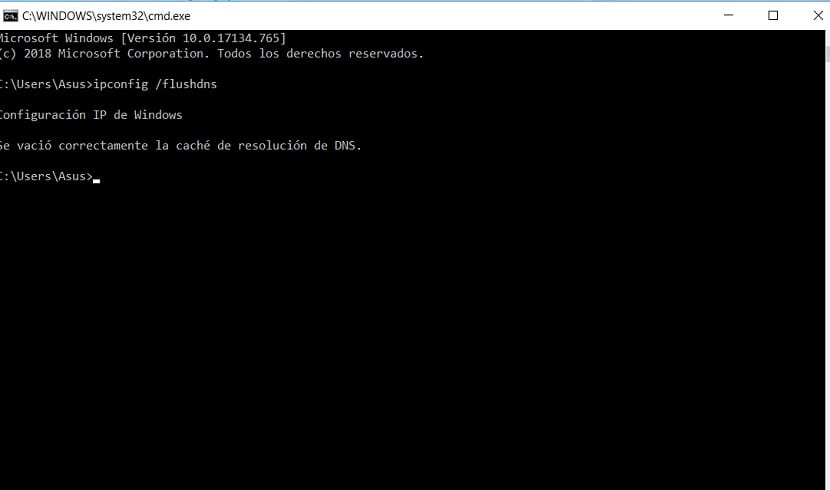
One last option that might be useful in this case. As we browse the internet, a cache is stored, making access to frequently visited websites faster and easier. Unfortunately, this can also lead to the accumulation of too much data, which can cause connection errors in some situations. Therefore, clearing the DNS cache isn't a bad idea.
We need to open a Run dialog box (Win+R) and type cmd.exe. A command prompt window will then appear, where we should enter the command: ipconfig /flushdns . This will clear the DNS cache. This should resolve the issue and allow us to access the website again in Google Chrome.
Table of Contents