

While browsing the internet has become accessible to all users, it's not without its challenges. Many elements are involved in web browsing, from the internet service provider and network hardware to the software components, where browsing serves as our entry point . Each has its own characteristics and vulnerabilities, and a clear example of this is when you encounter an error while trying to access a website. In this regard, we want to discuss specifically how to fix the JavaScript: Void(0) error in Windows 10.
This error typically occurs when visiting certain websites or using web tools, preventing access to the page and its resources. Therefore, we will conduct a troubleshooting process to identify the source of the error and resolve it as quickly as possible.
What Causes the JavaScript: Void(0) Error in Windows 10?
If we were to talk about advantages when a system error occurs, we would have to say that JavaScript: Void(0) has a very interesting one. Unlike the various error messages we receive in Windows, this one has the unique characteristic of giving us a clear clue as to what is happening when JavaScript is mentioned.
JavaScript has become a fundamental language for the web, being an excellent option for creating interactive content. Entire websites are even based on JavaScript, which means modern browsers can interpret and execute this language within their own environment. Therefore, when the error in question appears, it's due to something related to the browser's interaction with JavaScript.
To be more exact, the answer to how to fix the JavaScript error: Void(0) in Windows 10 is to solve what blocks the correct execution of the JavaScript code of the page or web service.
Javascript has no relation to Java
Before we delve into how to fix JavaScript:void(0) in Windows 10, it's crucial to understand that JavaScript is not related to Java. We mention this because numerous websites suggest installing or reinstalling Java as a solution. This is simply a waste of time, as JavaScript execution in the browser is entirely separate from Java.
JavaScript is a client-side language, meaning it runs in the browser. Because it's so widespread across the web, modern browsers run it natively. With that in mind, let's immediately review the steps to resolve this error.
How to fix JavaScript:void(0) in Windows 10? Steps to follow
Check if JavaScript is enabled
As mentioned earlier, fixing the JavaScript: void(0) error in Windows 10 involves identifying what's blocking JavaScript execution. Our troubleshooting process starts with the simplest and progresses to the most complex issues, so the first step is to check if JavaScript is enabled in your browser.
We are going to give the steps to do it in Google Chrome:
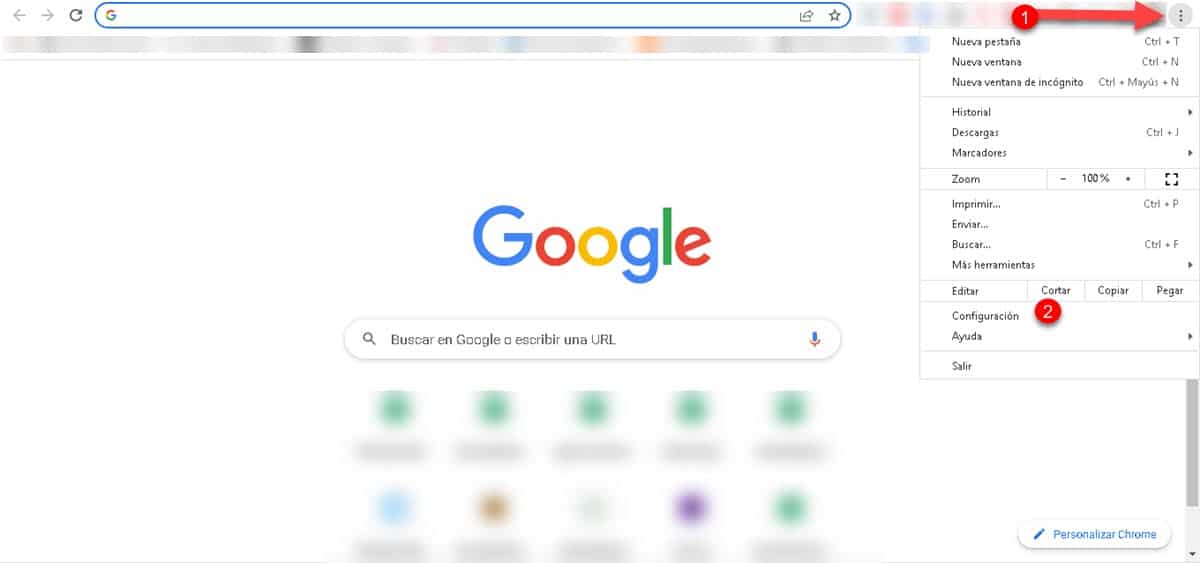
Open Chrome settings: click on the icon of the 3 vertical dots and then enter Settings.
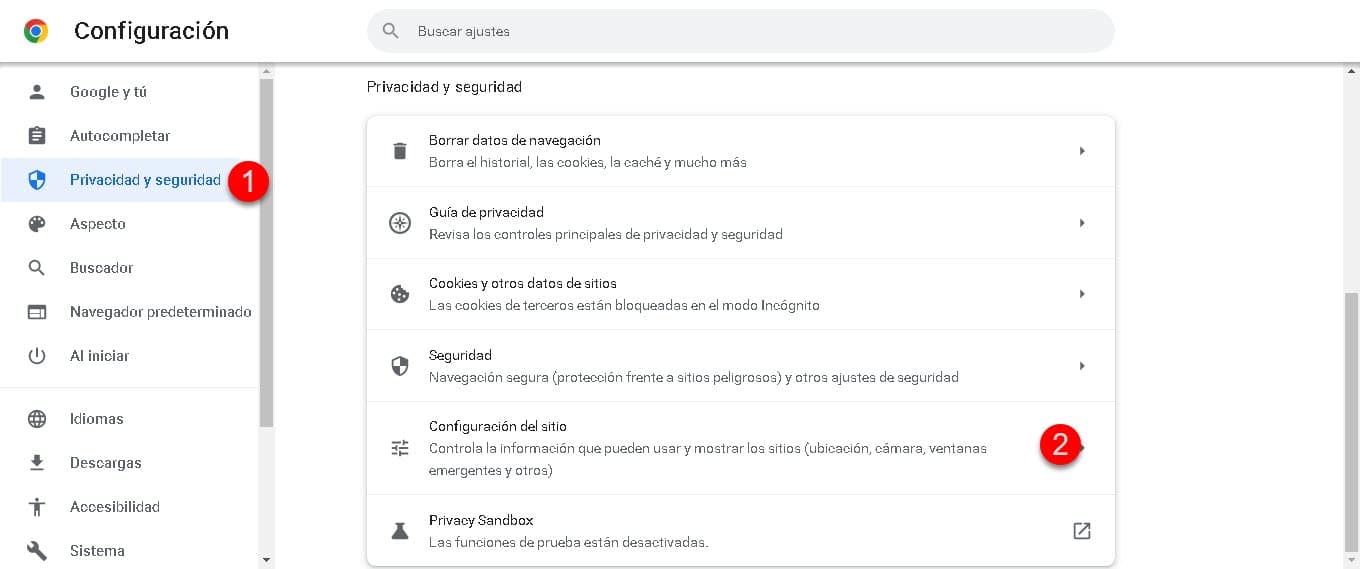
Go to the " Privacy and Security " section. Then scroll down and enter " Site Settings ".
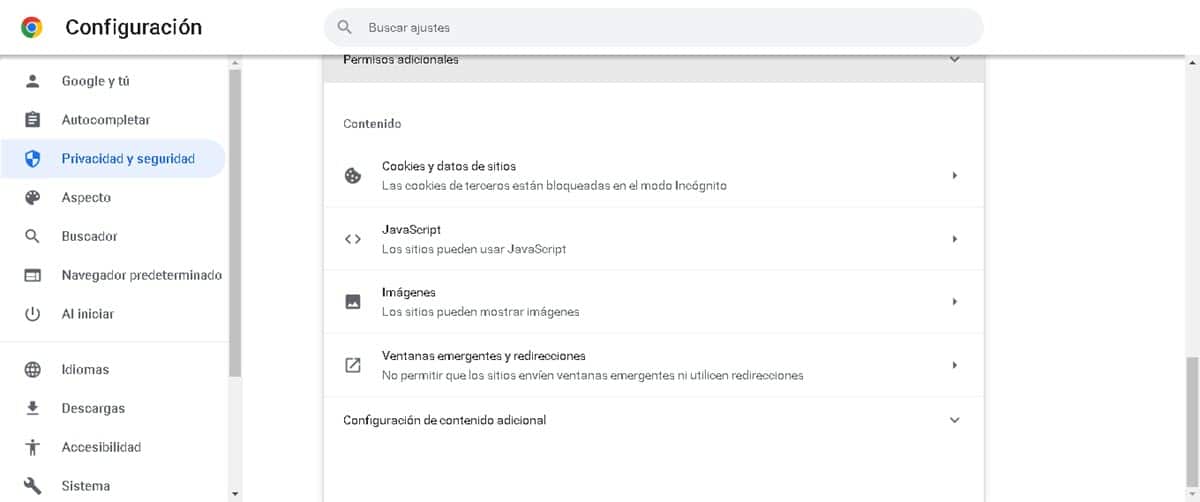
Scroll down to the “Content” section and click on the “ JavaScript ” option.
Select the option " Sites can use JavaScript "
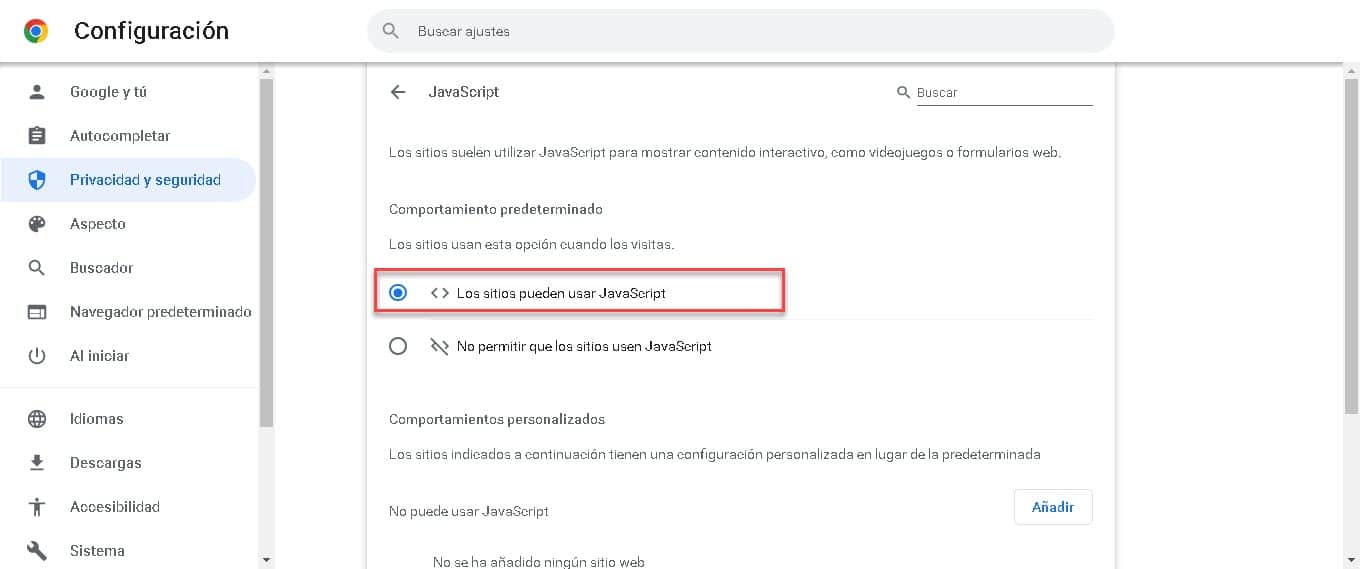
In this way, Chrome will be ready to run any website or tool that contains elements based on this programming language.
Reloads the page bypassing the cache
If JavaScript was already enabled, or if you enabled it and the problem persists, our second step is to refresh the page, but without clearing the cache. This is worth trying, since after enabling JavaScript, the site might still display the error due to what's stored in the cache. Therefore, the idea is to reload the site cleanly to verify its behavior.
It should be noted that it is not necessary that we do the process of deleting the entire browser cache. We can refresh the page by omitting it with the key combination: Ctrl+F5.
Eliminate cookies associated with the site
As in the previous step, you don't need to delete all cookies if you don't want to. The idea here is to reload the page as cleanly as possible, and if skipping the cache didn't work, we can enhance the process by deleting the cookies associated with the site.
Here are the steps for Google Chrome:
Go to Chrome settings and then click on " Privacy and Security ". Next, go to " Cookies and other site data ".
Scroll down and click on " View all site data and permissions ".
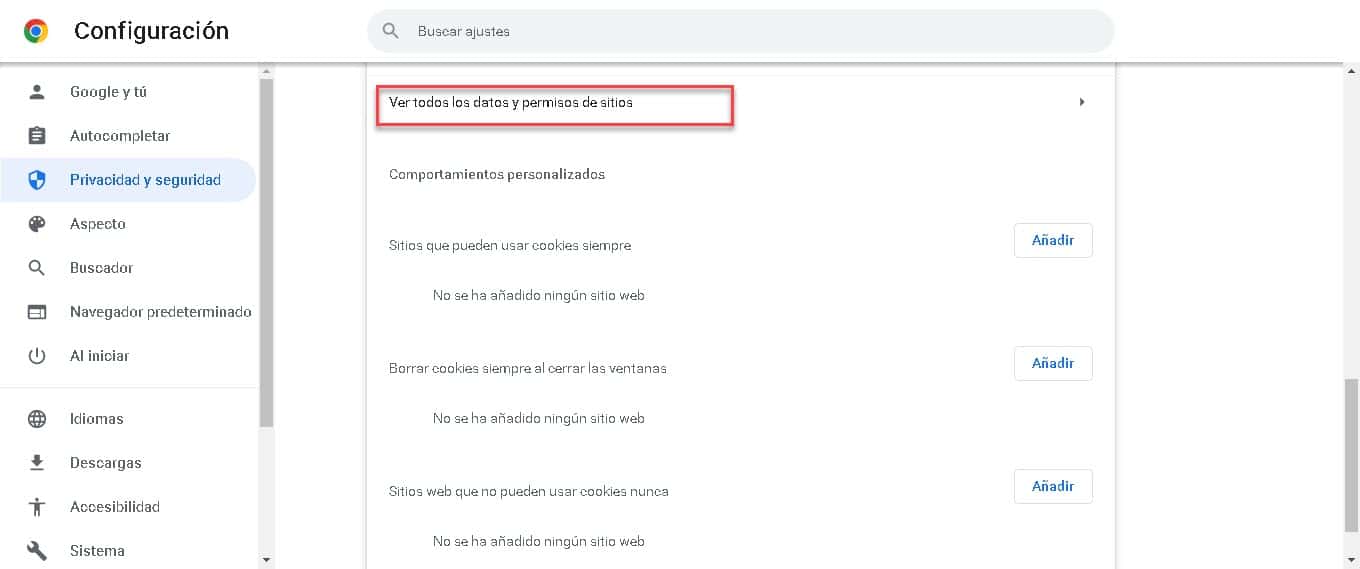
Use the search bar on the right side to enter the name of the site in question and have it displayed in the list.
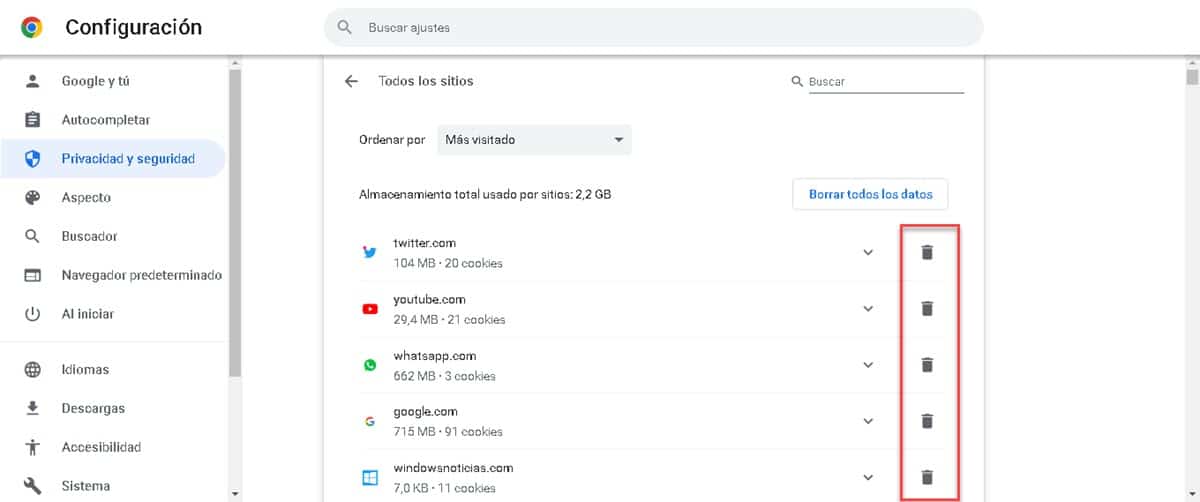
Click on the trash can icon to delete cookies.
Finally, exit Chrome settings, go to the page that is throwing the error, and reload it bypassing the cache again.
Disable extensions
If you continue to receive the JavaScript: void(0) error when accessing certain web pages after following the steps above, there is one more option that could be the definitive solution. Since this problem is caused by something interfering with JavaScript execution, we need to look at the extensions.
Extensions execute code in our browser, and it's possible that some of them might conflict with JavaScript. Therefore, our final test in this process will be to disable all extensions and check if the error reappears when accessing the page. If it's resolved, then we can begin enabling the add-ons one by one, until we find the one causing the problem.
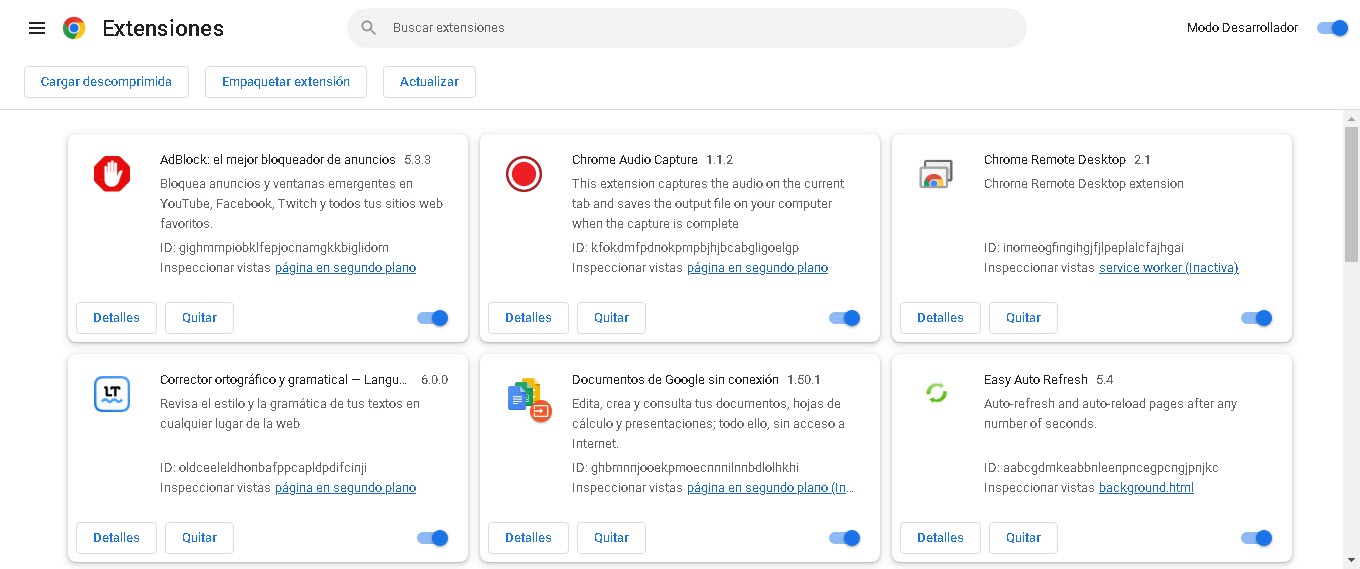
To access the Extensions section, you just have to enter chrome://extensions/ in the address bar and press Enter. You will immediately be taken to the plugin management area where you will see the option to disable plugins.
Table of Contents