

Google Chrome is the most widely used browser on the market, and many of you probably use it on your Windows 10 computer. A new version is released periodically , bringing new features. Normally, the browser updates automatically, so you don't have to do anything. However, there are times when you haven't received a particular update.
That's why we want to update Google Chrome. We can do this manually by checking for updates in the browser to see if any are pending. This way, we won't miss any updates to Google's popular browser.
First, we'll need to open Google Chrome on our computer. Next, we click on the three vertical dots located in the upper right corner of the screen. A context menu will appear with all sorts of options, including the help section, which is the one we're interested in. We click on it.
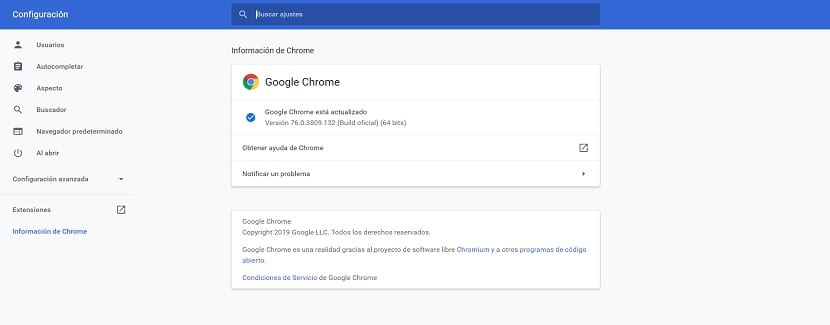
A couple of options will then appear next to it. One of them is "Google Chrome information ," which is the section we need to use in this case, so we'll go into it. This section shows us the version of the browser we currently have installed.
Furthermore, if an update is available, it will automatically search for it . Therefore, you won't need to do anything to get it. Simply wait to see if an update is actually available. If the screen says the browser is up to date, then there is no update.
As you can see, keeping Google Chrome updated is simple and takes no time at all. So, if you're unsure whether you have the latest version of the browser, or if you're waiting for an update, this method is the best way to find out.