

Slide presentations have been a staple in exhibitions, lectures, and all kinds of presentations where we need to cover a topic for many years. PowerPoint is the leading tool for this purpose, although in recent years a number of truly interesting options have emerged. Clearly, the first software that comes to mind when creating this type of content is Microsoft's tool; however, if we don't have it available for any reason, we need to find an alternative. Therefore, today we want to show you how to create a slide using Word, the word processor included in the same suite.
Perhaps you didn't know that Word can save the day if we need to create a couple of slides when we don't have PowerPoint, and here we're going to tell you how to do it easily.
Can Word do slideshows?
Taking the above into account, the first question you probably asked yourself is whether Word can actually create slides. The answer is yes, because this software can handle title outlines and insert objects to illustrate the image. However, if we're going to use Word for this task, we must be very clear that we're dealing with a word processor, so we won't have all the options of a dedicated slide creator.
This means you won't have animations or transitions when moving from one slide to another. Similarly, it's likely that centering titles and adding objects in the desired locations won't be as convenient as in PowerPoint. However , as mentioned before, Word can be a lifesaver for creating simple slides if you don't have PowerPoint.
Below we will tell you the steps to follow to achieve this and obtain a simple presentation, but with all the elements to complement any presentation.
How to make a slide in Word?
Having clear the limitations of the tool, how to make a slide in Word is a fairly simple process that will not generate too many complications.
Change the orientation of the document
To begin, open Microsoft Word and the first thing you should do is go to the "Page Layout" tab . This section has options related to margins, orientation, size, and other aspects of the page you are working on.
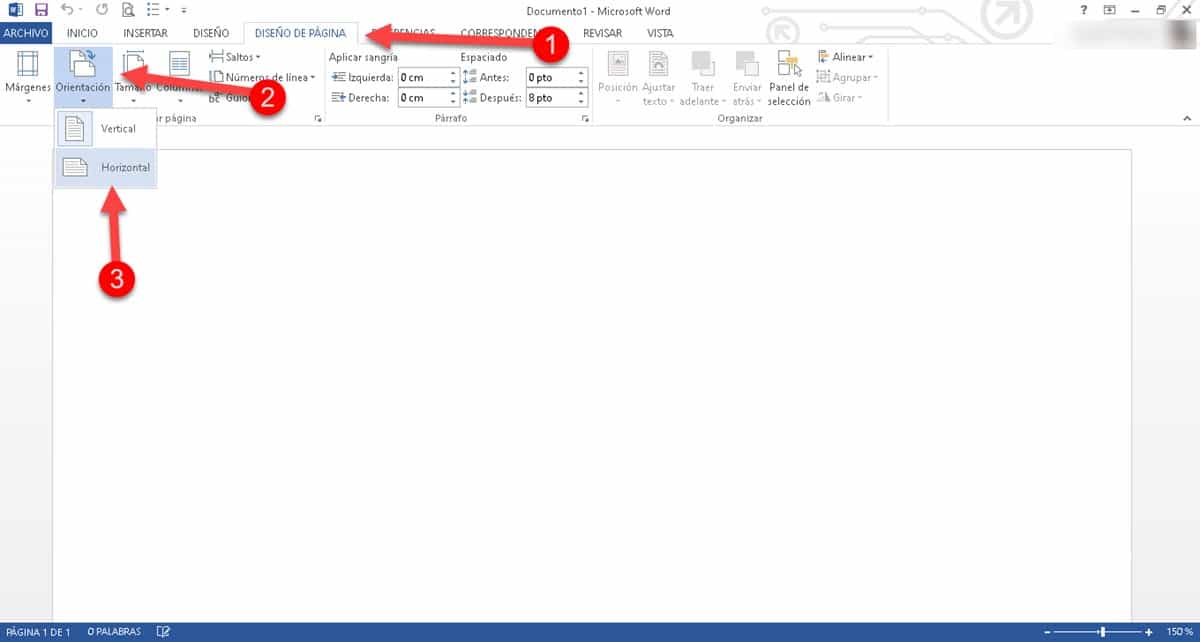
Go to "Orientation" and click on the tab that displays two options: portrait and landscape. Select the second one . This is the main feature of PowerPoint slides, so we'll start by adjusting the environment.
slide format
Next, we'll work from the "Home" tab, where you can access everything related to the slide's appearance . Here you'll find titles and subtitles in different styles, text alignment, font size, and many other formatting options to make your slide look exactly as you envision it.
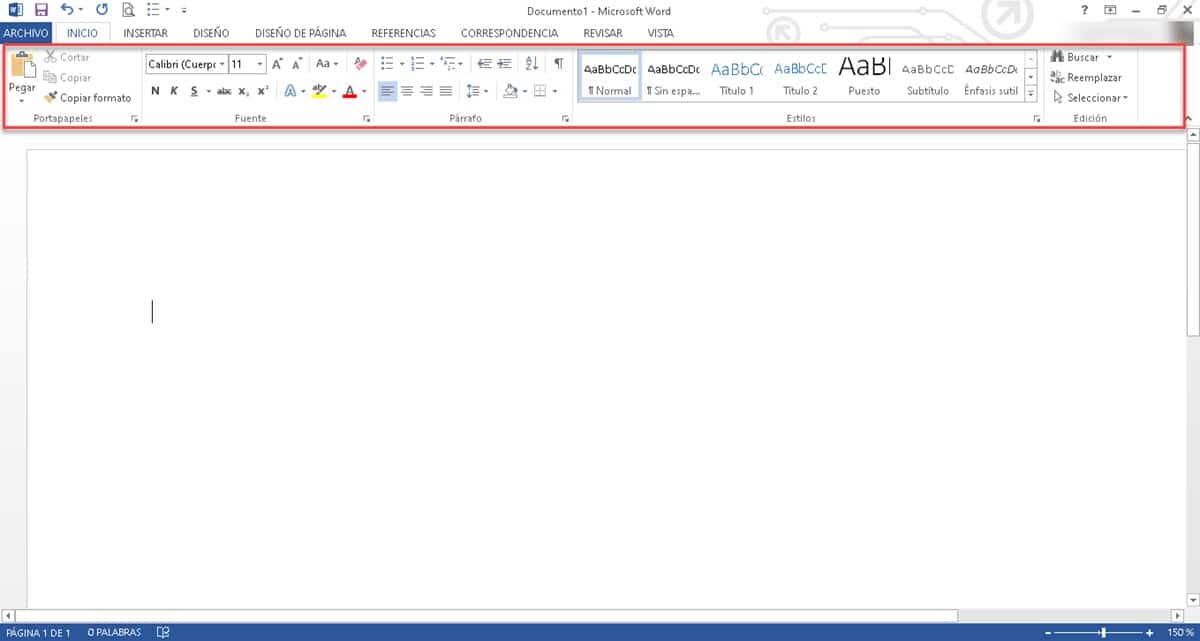
An important tip at this point is to use center alignment, as this will put all your content in the middle of the page, just like a PowerPoint slide.
insert elements
Those looking to create a slide in Word should know that in addition to adjusting the formatting, you can also insert elements, which is very useful for this task. To do so, go to the "Insert" menu and you can add tables, images, charts, shapes, and even videos and Wikipedia articles.
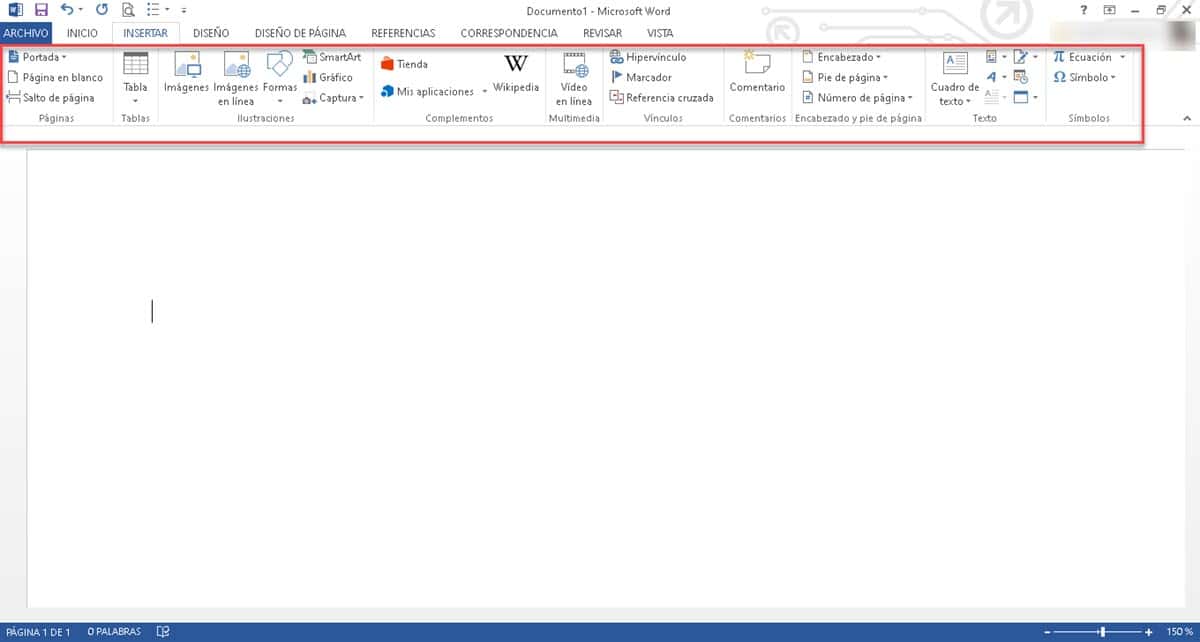
Word even offers the possibility to connect applications, so if what you have to present is subject to some additional software, you could try the integration.
see the slide
From the tabs mentioned earlier, you'll have access to all the options Word offers for creating slides. With enough time and creativity, you can achieve excellent results, even though it's a word processor. Once you've finished creating your presentation and it's time to show it, you'll need to switch to another tab in the program.
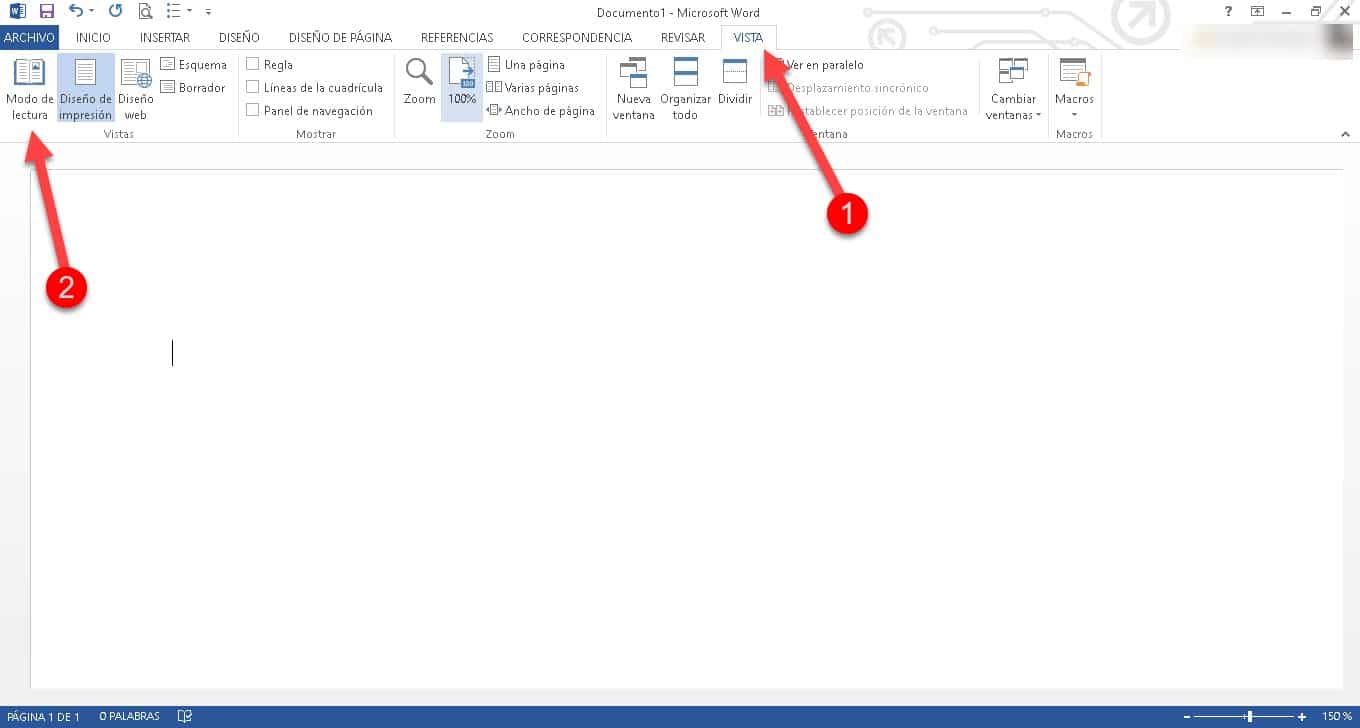
This time, we'll focus on the "View" section, where you can configure how the workspace is displayed. In the "Views" section, the first one you'll see from left to right, you'll find the different display options available. The one we're interested in for this purpose is "Reading Mode," which will remove the entire toolbar and leave only the content you've created.
In this mode, you'll see that Word displays an arrow at each end of the document, allowing you to navigate to the next or previous slide . This way, you won't have to frustrate yourself searching for ways to quickly create a presentation, including registration and payment processes . Word offers a range of basic yet powerful options to help you achieve a great result that fulfills the purpose of your presentation.
Table of Contents