

Are you tired of your computer's wallpaper? Are you looking for something different, perhaps more colorful and cheerful? In this post, we'll show you how to install animated wallpapers on Windows 10, a fun and original way to change the look of your screen.
Go ahead, the object of this entry is not those dynamic but simple wallpapers in which two images are exchanged, we are talking about real animations. Some of them, without exaggeration, authentic works of art. We explain it to you in the following paragraphs:
Something you should know if you are going to put animated wallpapers on your computer is that if you choose a video, it will consume more resources (RAM, battery) than a simple image. This is not a big problem, but it is something to be aware of.

We'll also encounter another minor drawback: Windows doesn't offer a native option to change our wallpaper. This means we have no choice but to use third-party applications , most of which are paid. The good news is that there are some really good ones, with many different options. And they're not too expensive, to be honest. Here are some of our favorites:
Desktop Live Wallpapers
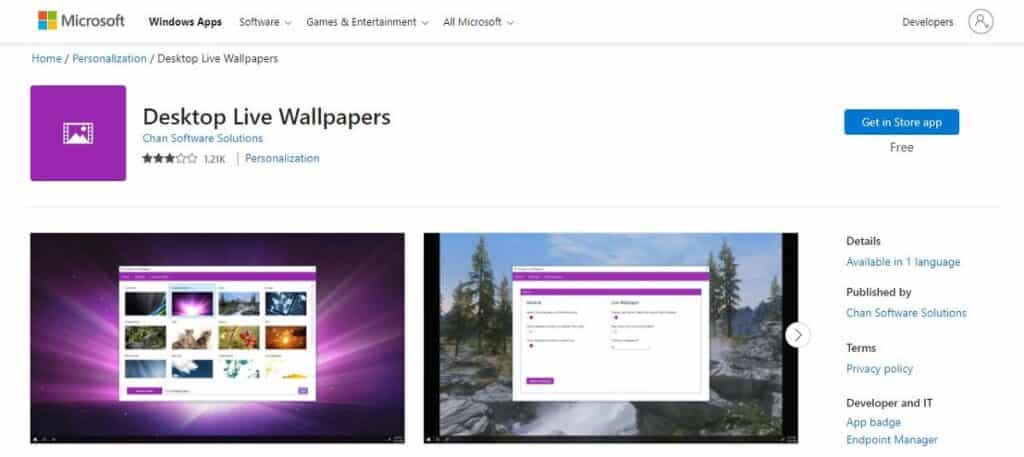
First up is the free option: Desktop Live Wallpapers , which can be downloaded from the Microsoft Store. This app lets you both install new live wallpapers and create your own.
Being free, it naturally has some limitations (for example, it only supports videos in WMV format), but it must be said in its favor that it integrates perfectly with Windows and offers a very simple user interface, within the reach of any beginner.
How to put animated wallpapers with Desktop Live Wallpapers? Once the software is downloaded and installed on our computer, just follow these steps:
- We start the program Desktop Live Wallpapers.
- Next we click on the purple button «Search folder».
- in the following folder we look for the video file that we want to add (which we will have downloaded and saved there previously).
- Finally, we press "To accept" to load the new live wallpaper.
Link: Desktop Live Wallpapers
Rainmeter
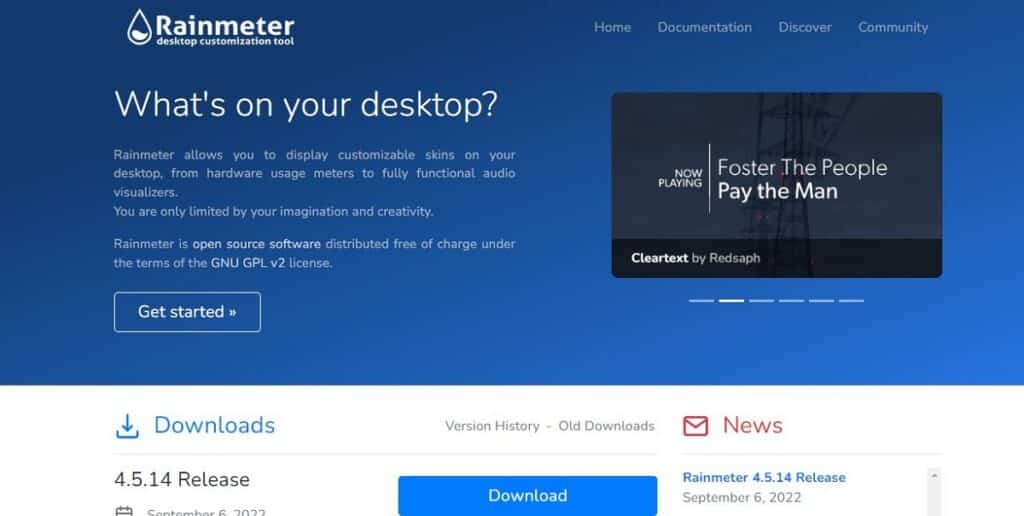
This is a second more sophisticated and complex option that you have to spend time to handle correctly. A time worth investing, because the results it offers are worth it.
The best thing about Rainmeter is that, besides being a great tool for setting animated wallpapers on Windows, it also allows you to make numerous changes to the operating system's interface. One of the advantages of using this program is that it comes with a multitude of pre-configured animated desktop backgrounds in various styles. Its selection is so comprehensive that you're very likely to find the one you want there, without having to download it from anywhere.
Link: Rainmeter
WallpaperEngine
This is the most popular option, and undoubtedly one of the best. To download Wallpaper Engine , you'll need to pay €3,99. This will open up a world of possibilities, including the ability to install hundreds of high-quality wallpapers.
The download is available through the following gaming platforms: Steam , Humble Bundle, and Green Man Gaming . The link below, which takes you to the software's website, contains the corresponding download links.
One of the most interesting aspects of Wallpaper Engine is that it has many configuration options. For example, you can define the speed of the animation, suppress the sound, etc.
After downloading and installing the application on your computer, to put your animated wallpapers you will have to proceed as follows:
- We start WallpaperEngine.
- Two tabs are displayed at the top of the screen. Animated backgrounds are found at "To find out" and in «workshop», although in the left column there is a practical search engine to facilitate the task
- Once the funds are displayed, you have to click on the one you choose, in this way it will be selected and will appear in the right column.
- The last step is to click on the option "Subscribe" to install the background permanently.
Link: Wallpaper Engine


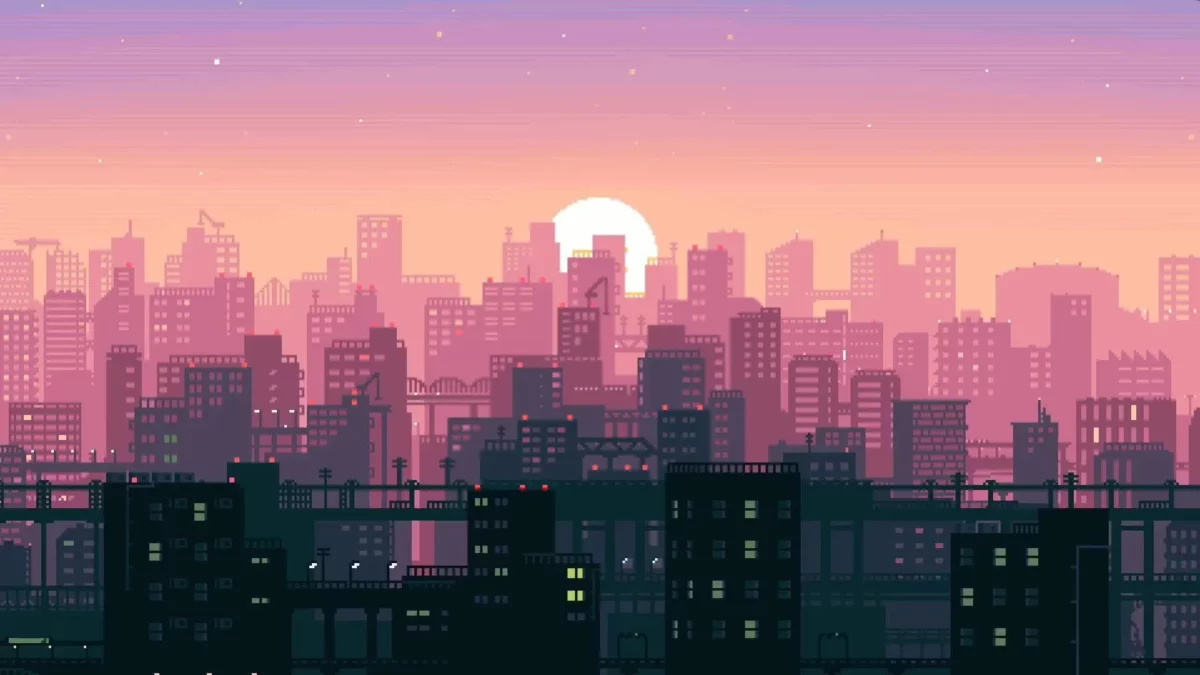
Now that you know the tools, the inevitable question arises: which animated background should you choose? This will largely depend on personal taste. The most we can do for you is show you some suggestions and tell you which themes are the most popular and widely used.
In the gallery above you have a good example of this: spectacular natural, real or fictional landscapes with animations that simulate a sunrise or sunset, Japanese anime themes, relaxing scenes such as the moving starry sky or the classic fish tank, or themes abstract with hypnotic and infinite movements.
Table of Contents