

From the very beginning of the operating system, Windows desktop folders have always been pale yellow. A true hallmark. However, new customization options have gradually been introduced for this and other aspects. If you want to know how to change the color of your folders in Windows , keep reading.
It must be said that Microsoft's plans to offer more customization possibilities don't stop at just updating the appearance of the folders. This is just the first step of a roadmap that includes numerous plans to update and give users more options in almost all aesthetic aspects.
Aesthetic changes, yes, but also functional ones . Behind the idea of using different colors for folders is the goal of helping users organize themselves better by assigning specific colors to folders of different types and uses. Naturally, it's up to each user how and for what purpose they use this color variety.

Regarding the folders themselves, the color selection isn't limited to Documents , Downloads, Pictures, and Recycle Bin . There are several tools and applications that can help you change their color. We'll focus on what's considered one of the best: Folder Painter , compatible with any version of Windows from 8 onwards.
Change color folders in Windows with Folder Painter

Folder Painter is a free software created specifically to customize our folders in Windows, assigning them different colors to make it easier to organize our tasks on the computer.
This is a free application . After downloading it to your computer (download link: Folder Painter ), you won't need to install it, as it's portable . It's a program with proven reliability. You can run it from an external storage device such as a hard drive, USB flash drive, or memory card.
After downloading the ZIP file containing Folder Painter, simply extract the folder to reveal two files: FolderPainter.exe and FolderPainter_x64.exe. Each file has a specific function depending on whether your computer is 32-bit or 64-bit . The next step is to run the corresponding file, which is available in Spanish.
Folder Painter contains 21 icon packs for folders, with a total of 294 different colors and shapes . Plenty to choose from, that's for sure. Below, we explain step by step how to add colored folders to your computer.
First of all, when executing the program by clicking on the folder whose color we want to change, the following window will appear:
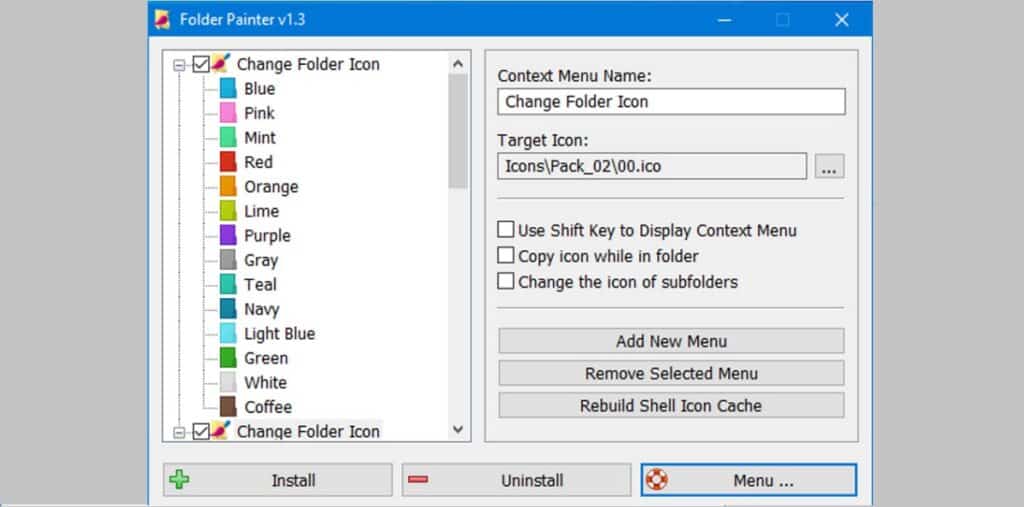
To add this color pack, click the "Install" button . Then go to "Select Folder Icon" and choose the desired color. If the selected folder hasn't changed color, press F5 to refresh.
If you wish to undo this action and restore the original values, go to "Show more options" and select "Change card icon ." Then select "Default folder icon ," after which it will regain its original yellow color.
Alternatives to Folder Painter
While there seems to be a general consensus that Folder Painter is the best application for color-coding folders in Windows, it's not the only option. There are other alternatives that offer good results and are also very easy to use. Here are a few of them:
Custom Folder
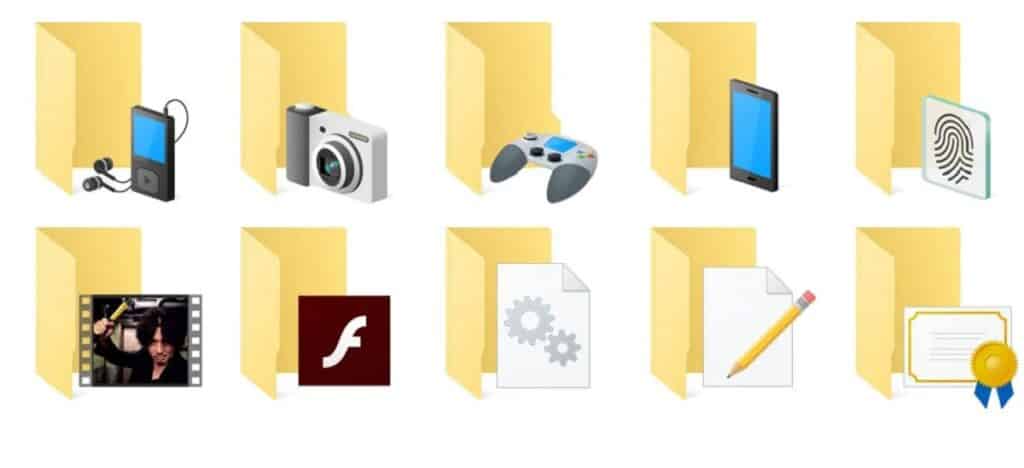
This application lets us customize our Windows folders with different colors, as well as icons and emblems. The most interesting thing about Custom Folder is that we can personalize our folders with images uploaded from our own computer (.png files), putting our creativity to the test. As you can see, it's much more than just coloring folders.
Download link: Custom Folder
Folder Colorizer2
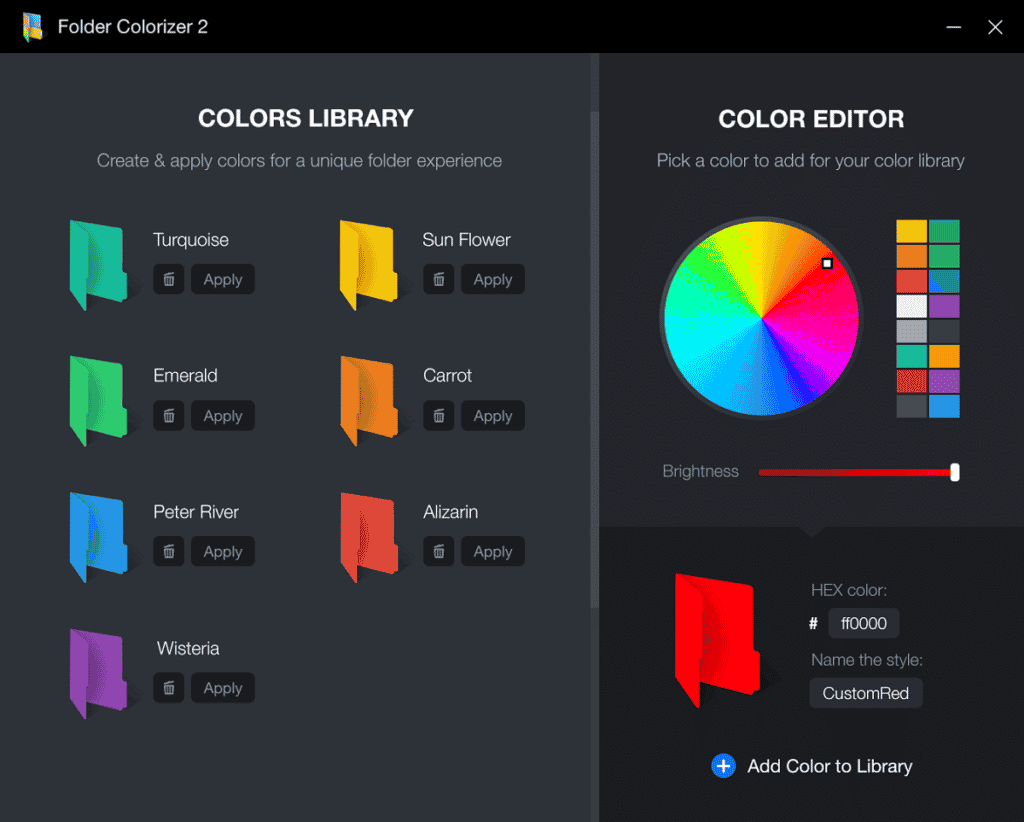
One of the most highly rated options by Windows users, especially for its simplicity. Folder Colorizer 2 is a free and very easy-to-use software for creating colored folders on your desktop. One of its advantages is its integration with the Explorer menu.
Download link: Folder Colorizer 2
FolderIco
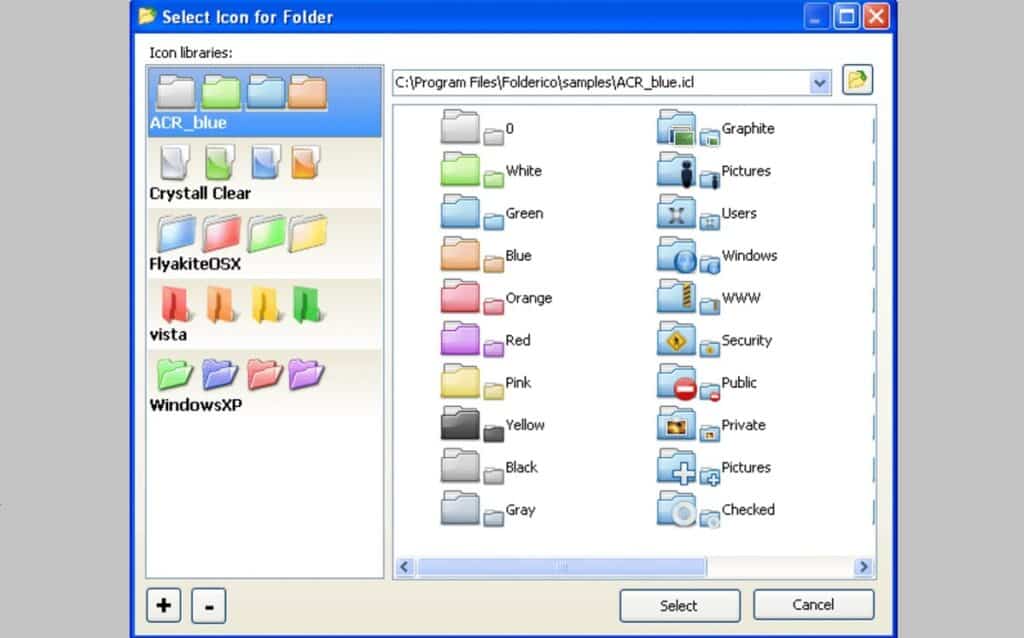
More customization options are available with FolderIco , another free application designed to change the appearance of your Windows folders, especially their color. You can also create new icons according to your tastes and preferences.
Download link: FolderIco
Rainbow Folders
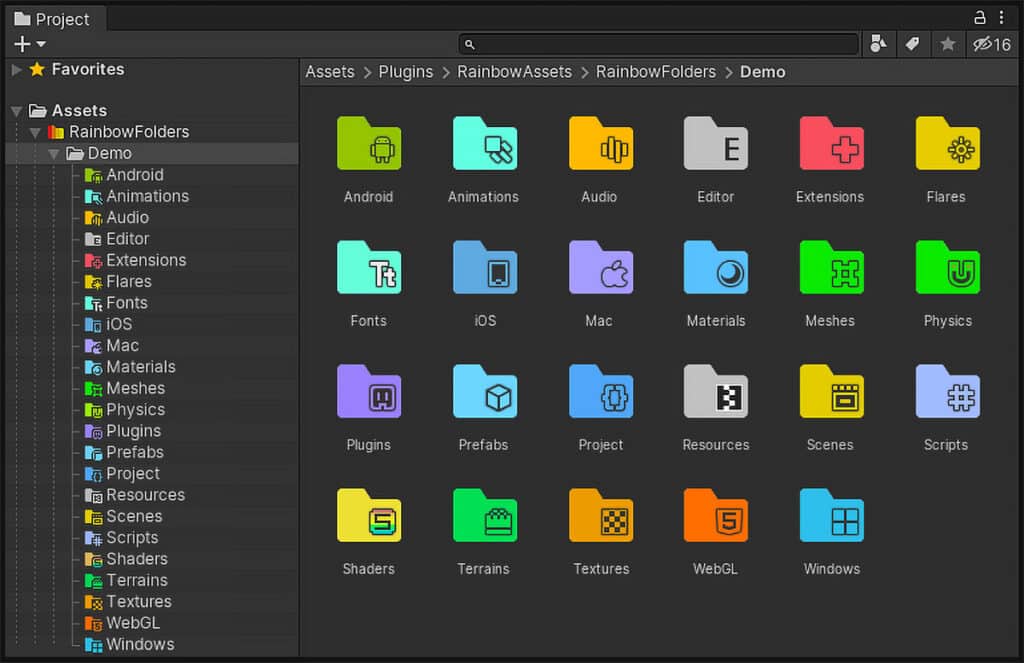
Finally, here's another suggestion for coloring your Windows folders and giving them a completely new and eye-catching look. Like Folder Painter, it's a portable application that doesn't require installation, so you can work with Rainbow Folders freely, knowing that it runs in the background and uses very few resources.
Download link: Rainbow Folders
Table of Contents