

Microsoft Teams is not only a fantastic tool for teamwork, both professionally and academically. In addition to its many practical advantages, it also offers a wide variety of customization options to its users. In today's post, we'll focus on one specific aspect and analyze how to add backgrounds in Teams.
Those of you who use this tool with relative regularity will already know that an administrator can customize some aspects of the application through the Teams Admin Center. Adding custom logos and backgrounds are some of the options listed.
Like so many other applications, the pandemic marked a turning point in the history of Microsoft Teams. Suddenly, it became a tool used on a massive scale . For those unfamiliar with it, it was a revelation; for those already using it, it opened up a whole new world of possibilities.
With success came refinement (sometimes it's the other way around). Among other things, custom backgrounds were added . And because they were so popular, the catalog of backgrounds quickly expanded. An original and simple way to make our meetings and gatherings more enjoyable.
In principle, the appearance of Microsoft Teams can be easily changed via the "Reset" option. In this way, we can go from a light theme to a dark theme and vice versa in a matter of seconds. In addition, any user can customize the aesthetic appearance of the meeting or remove the background effects from the "More options" menu. Finally, admins can also customize apps in the Teams store to provide a personalized experience for users.
But let's not rush. Let's explain how to set a background in Teams and other possibilities step by step:
before a meeting
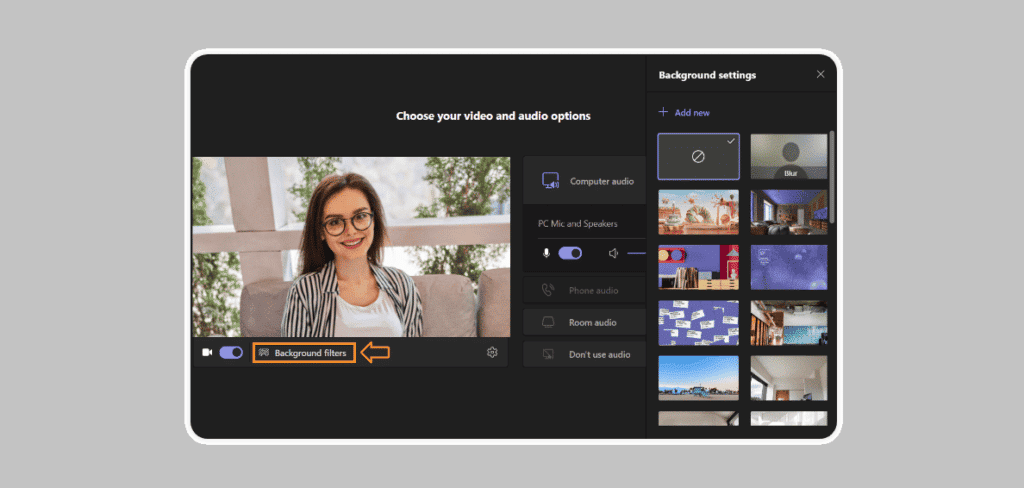
Experts say that a meeting begins with the preparations . So, it's a good idea to choose a suitable background before the attendees start introducing themselves. Setting a custom background is really easy; just follow these steps:
- First, we must flip the switch to open the possibility of putting a background, which in the image above appears below the screen on the left, next to the video camera symbol.
- Then you have to Click on the button marked in orange.
- After this, a menu will open on the right with all the available funds. Simply select the one you want or upload your own using the button "Add".
All ready. With the new background we wanted already installed, the meeting can begin.
during a meeting
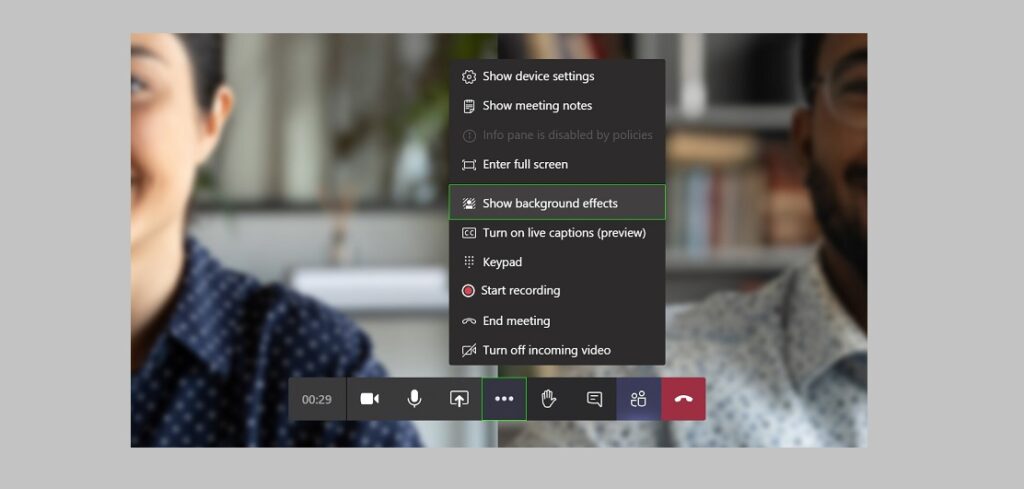
We may not have had enough time or farsightedness to fund Teams before our meeting. Or we just may have thought it wasn't that important. In any case, you can always rectify on the fly.
The meeting is already underway and we dare not touch anything. However, changing the background is a very simple operation. Imagine the effect it can have on the meeting when you do it… This is how you can do it:
- On the toolbar, click on the three dots icon. This will bring up the menu for "More Actions".
- Then we select the option "Apply background effects."
- Finally, all that remains is to choose one of the funds and click on "Apply".
And that's it. The background will be uploaded to the application without disturbing the progress of the meeting in the least.
Upload our own funds to Microsoft Teams

It's true that the app offers a huge catalog. Furthermore, the images are organized by theme, and you can refine your searches with the search tool. Even so, for the most discerning users, all those backgrounds won't be enough, as they're looking for something special, unique, and personal—a background that reflects their own style. In such cases, the saying "if it doesn't exist, make it yourself" applies.
Fortunately, Microsoft has left a small window open for uploading custom backgrounds, although this is only valid for the downloadable version. Here's how it works:
Prepare the image to upload
In order to ensure good viewing and sufficient quality, the image size should be as follows:
- Maximum width: 1.920 pixels.
- Maximum height: 1.080 pixels.
- Resolution between 100 and 300 pixels per inch.
To find good photos and illustrations, we suggest visiting one of the many websites for downloading backgrounds available online. The recommended format is .png.
Save image
To upload a background image in Teams, you must first save it in the folder on your team where the application will look for it. This location is the "Backgrounds" folder , which you can access via this path:
Drive C: > Users > AppData > Roaming > Microsoft > Teams > Backgrounds
To use this method, copy the image you want as your Teams background and paste it into the "Uploads" folder . This will make it available whenever you're in the application, using either of the two methods described above.
Table of Contents