

For weeks, the introduction of a major feature in Gmail had been announced: the ability to schedule emails . This was a feature many users eagerly awaited in Google's email service. Finally, this feature is now a reality in all versions of Gmail, including the desktop version.
Therefore, below we show you the steps to follow when scheduling an email using Gmail. This is so that users who will be using this feature on their computer know how it's done. It's a simple process that gives us access to this very useful function.
This new Gmail feature is presented as a good option for business users . Many people in the business world need to be in contact with people who live in other parts of the world, using a different time zone. Therefore, being able to schedule when an email is sent is very useful. This way, it can be sent at a time when we know the recipient will read it and be able to reply or take specific action.

It has been integrated into all versions of this email service. Therefore, you will be able to schedule an email in the desktop version. It is also available in the Android and iPhone apps . It is very easy to use in all cases, so it presents no problems for users. The steps to follow in the desktop version of Gmail are as follows:
Schedule an email in Gmail

The first thing we need to do, therefore, is open Gmail in our computer's web browser. Once we're in, we need to compose a new message. So, we click on the compose button in the upper left corner of the screen. A new window will then open where we can write the email. We can either compose the message first and then schedule it, or we can start by scheduling it and then create the text—whichever we prefer.
To schedule an email, click the arrow next to the send button, the blue button at the bottom of the email. You'll see a down arrow to the right of the send button. Clicking this arrow will open a small menu with the option to schedule the email . Clicking this option will open a small window on your computer screen.
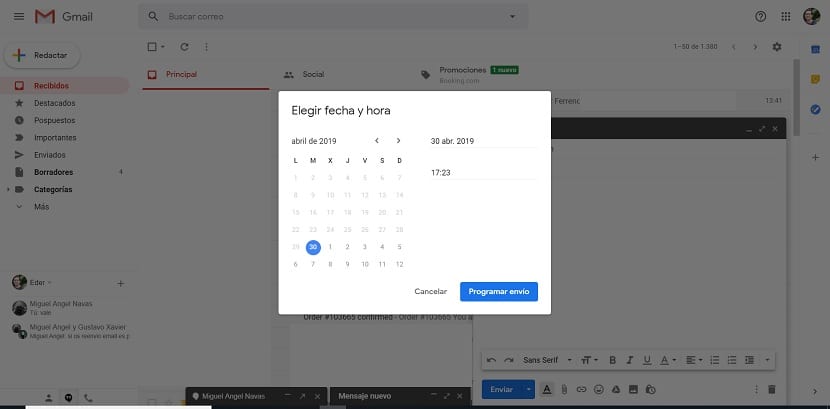
Gmail provides a set of default times when we can send the email. If one of these times is convenient, we can easily select it. However, we also have the option to choose the date and time we want to send the email to this person. If we do this, we need to click on the fourth option, which is to choose a date and time. A new window will then open. In this window, we'll have a calendar where we can select the date.

Along with the calendar, we also have the option to select the specific time we want Gmail to send the message . This is something each user will choose. Therefore, once you've selected the desired sending date, simply click on "Schedule send," which is the blue button. A box will appear asking if you're sure this is the message you want to send. If you've finished editing the text, just click "OK." Otherwise, you'll need to schedule it after you've finished writing it, or schedule the message and edit it later.