

The Windows network settings are very efficient and straightforward for users to view information or adjust settings. Generally, these processes, like those in other sections, only require a few clicks. However, since access isn't frequent, finding the right options or commands can be challenging. Therefore, today we'll discuss how to view active network connections in Windows. This will allow you to see the available interfaces, the traffic they're handling, and the applications involved.
In this way, it is a process that is worth knowing if you are working on the network configuration of your Windows operating system.
Why do I need to see active network connections in Windows?
Knowing how to view active network connections in Windows is very useful for various needs related to both network traffic and network interfaces . Regarding traffic, it's important to see active connections because it allows us to determine if any suspicious programs are sending data to an unknown server. For example, if your connection is behaving unusually, such as a sudden slowdown, we could identify if the cause is malware consuming bandwidth with data transfer.
In Windows, there's a section called Network Connections where you can see the network adapters on your computer . This is useful for checking if any are working, configuring IP and DNS addresses, and viewing them. Therefore, it's generally essential knowledge for any user involved with Windows network management.
In this sense, we are going to show you the different ways that Windows offers to see the active network connections on the computer.
How to see active network connections?
The process of viewing active network connections in Windows will be divided into two parts. The first part will show you the available network interfaces, and the second part will show you the programs that create network connections from your computer to external servers.
From the Network Connections section
Windows has a section dedicated to displaying the network adapters connected to the computer, and from there, you can view all the information related to them. This allows you to configure and view the computer's IP and DNS addresses, as well as the MAC address of the network hardware and the data packets sent and received in bytes.
Accessing this section is very simple. To begin, press the Windows+R key combination. This will open a small window where you must type the following command and press Enter:
NCPA.CPL
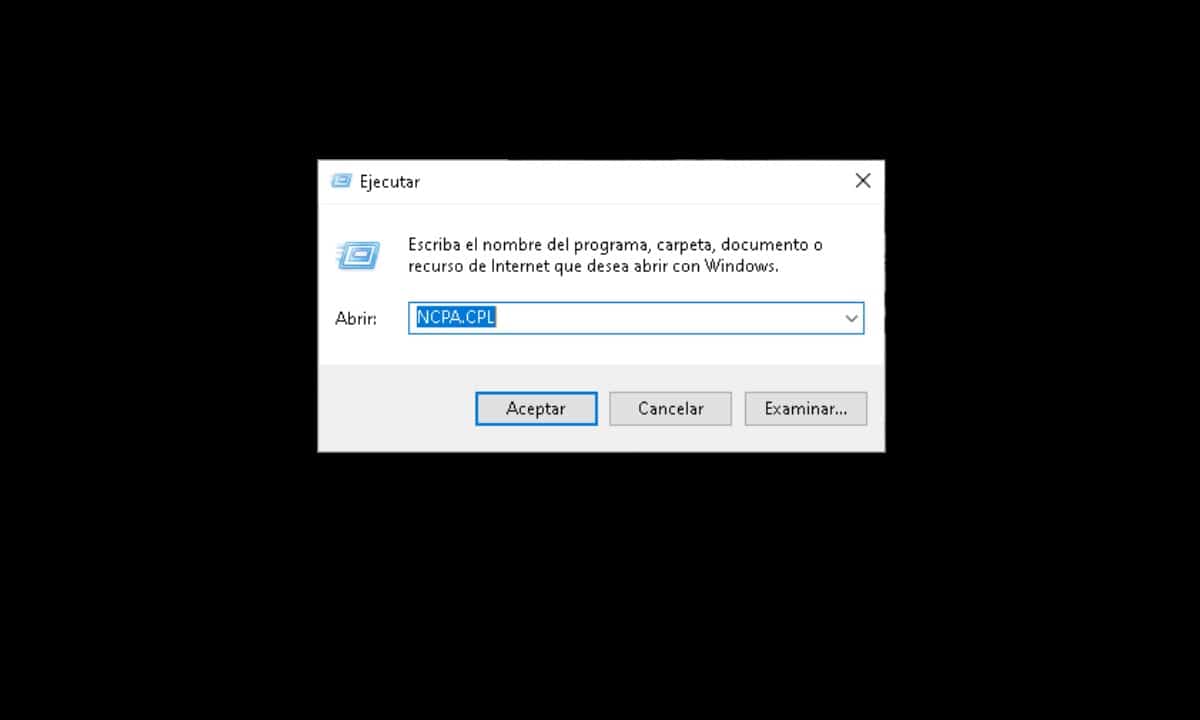
A window labeled Network Connections will immediately open, displaying a series of icons. These represent the different network adapters on your computer, from Wi-Fi to Ethernet. To view information about each one, simply right-click and then select "Status".
Meanwhile, regarding the network device configuration, you should click on the “ Properties ” option.
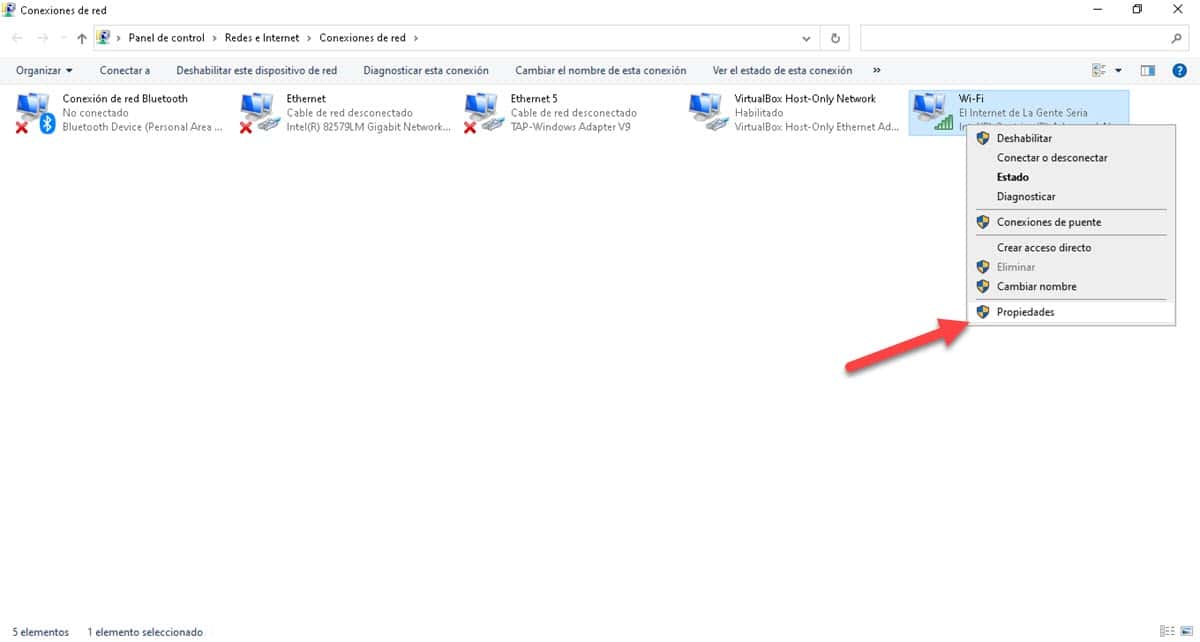
The Network Connections section is important because it allows us to see if a network interface is actually working. For example, if you buy and connect a Wi-Fi adapter to your computer, you can simply log in here to check if it's operational.
From the Command Prompt
To supplement the information we accessed using the previous method, we can go to the command interpreter. From there, we can see which network connections are being generated on our computer. In the previous section, we could see the traffic measured in bytes; however, from here, we can see the details of that traffic, including its origin and destination.
To view this data, we need to open a Command Prompt with administrator privileges. To do this, open the Start Menu, type CMD, and click on the "Run as administrator" option that appears on the right.
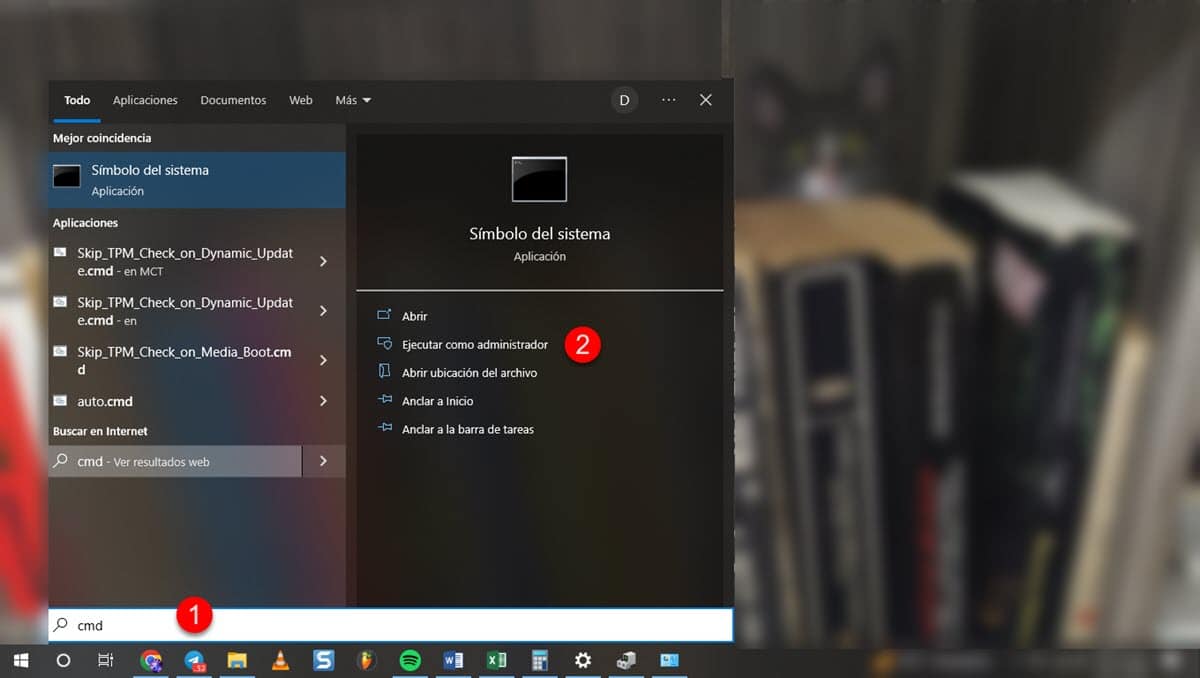
When the window is displayed, then enter the following command and press Enter:
NETSTAT
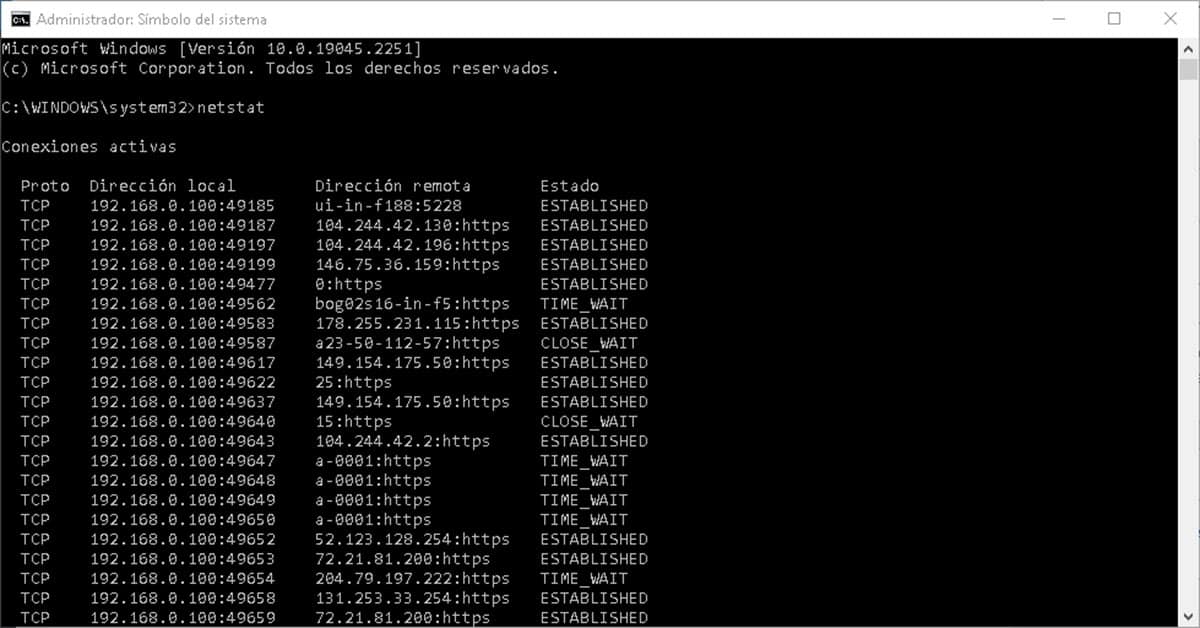
In a matter of seconds, a list will be generated showing the local IP address, the port it's using, and the remote address . This will allow us to determine if any program is sending data to an external, suspicious, or unknown server, based on the applications and programs we use.
Additionally, we have the possibility of giving a better view of the information displayed by the command. To do this, enter the following and press Enter:
NETSTAT-B
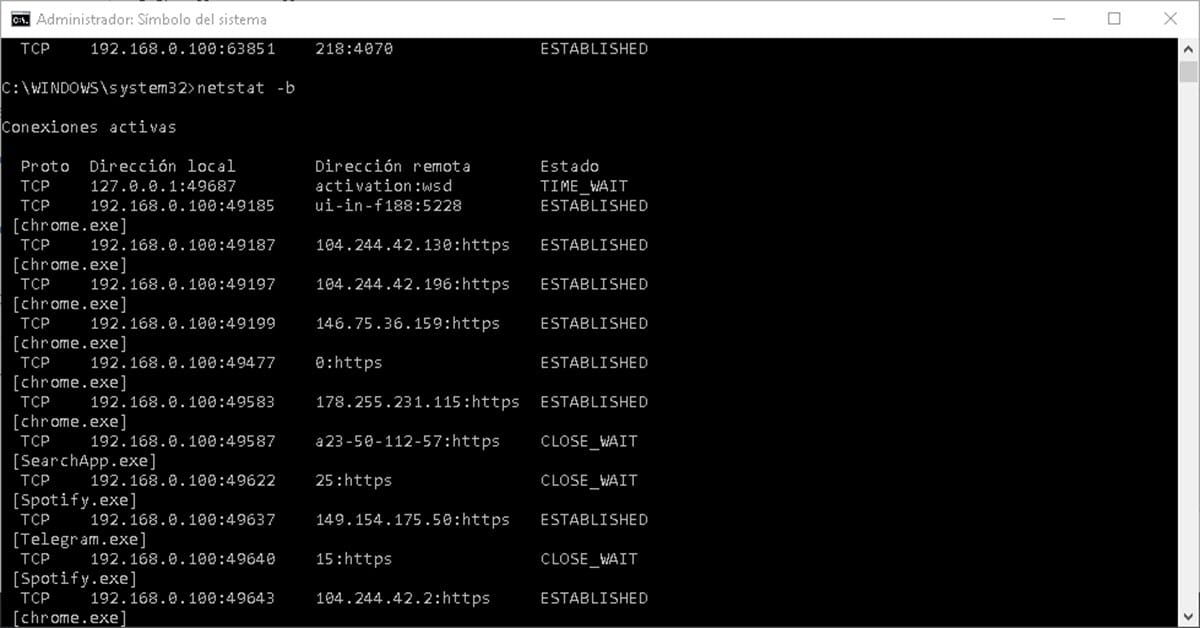
With this, the list will be ordered according to the active programs. In this way, you will be able to see the network connections generated by Chrome, Telegram and all the software running on your computer.
Table of Contents