

Today, millions of users rely on Google for a variety of tasks, from email to creating documents and managing passwords. The latter is one of the platform's greatest strengths, given that online security is paramount. Therefore, we want to show you how to easily view your saved passwords in Google . This will allow you not only to see which passwords are being stored but also to manage them.
For this task we are going to review a couple of methods whose results may be different from each other, so it is worth knowing them to delve into the information we can obtain.
How to see my saved passwords in Google? 2 ways
Saving our passwords in Google is one of the measures we've taken as users to streamline our online processes. At a time when we have accounts on dozens of sites and reusing passwords isn't advisable, we need a simple solution. That's where Google's password manager comes in, offering two features: the passwords we manage in Chrome and those saved in our Google account.
While they should be the same, sometimes we inadvertently choose not to save a password in the browser that we've already stored in Google. Managing this information is important because it allows us to take advantage of the password manager's features. This way, you can change passwords that are at risk due to a security breach, for example.
On the other hand, if you have outdated passwords, you can easily correct them using this tool . Passwords are the last line of defense for our accounts and services, so it's essential to know how to access your Google password manager to keep it clean and up-to-date.
In that sense, we are going to review the two native ways that Google offers to review the Password Manager.
View passwords in Google Chrome
Chrome's password manager is an excellent utility that lets you save your account passwords and have them readily available in forms. This way, all you have to do is click or press Enter to log in. It's a secure mechanism because, to view your saved passwords, you'll need to enter your Windows password . Therefore, if someone else gains access to your computer, they'll need to know your local password to see your passwords.
To access this section, click on the three-dot icon in the upper right corner of the interface . This will open a menu; we're interested in "Settings".
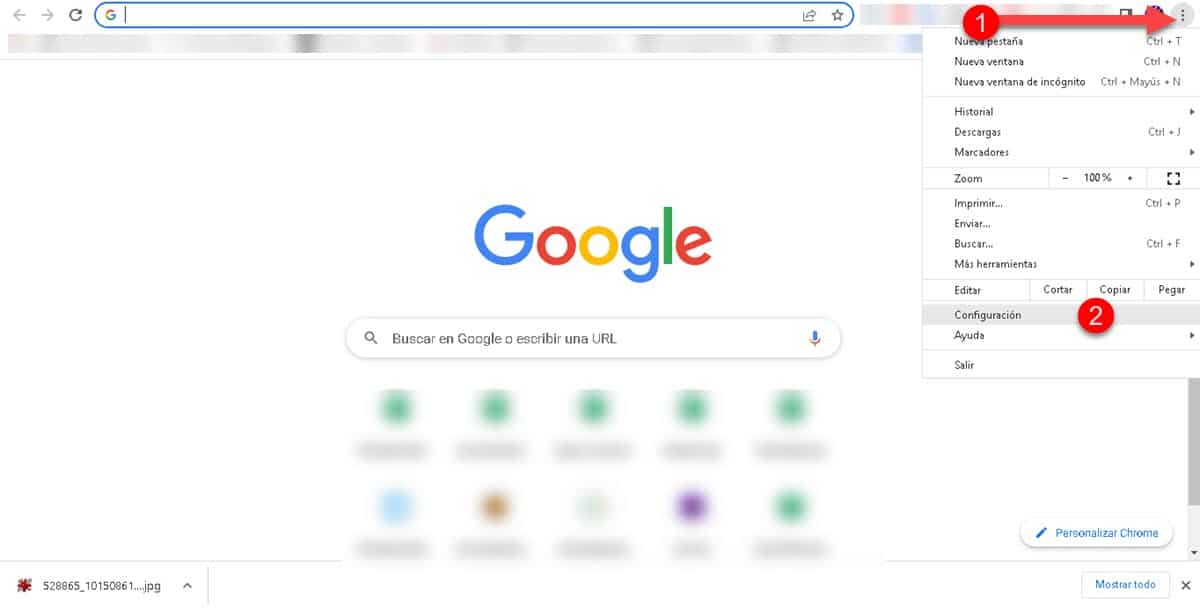
Click it and a new tab will be displayed with a search bar and an options panel on the left side. Enter Autocomplete.
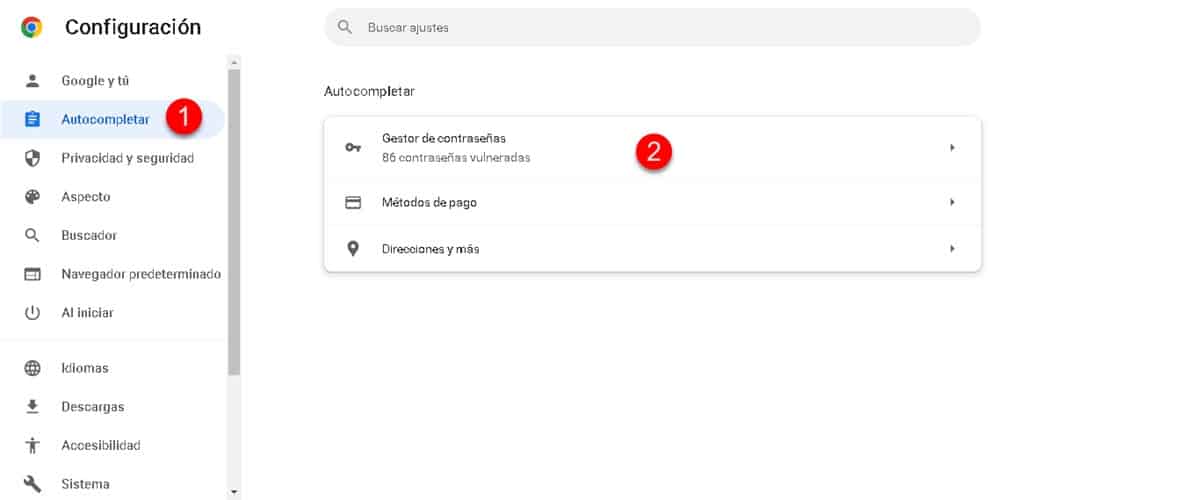
This will take you to a new screen where the first option is Password Manager, click on it to enter.
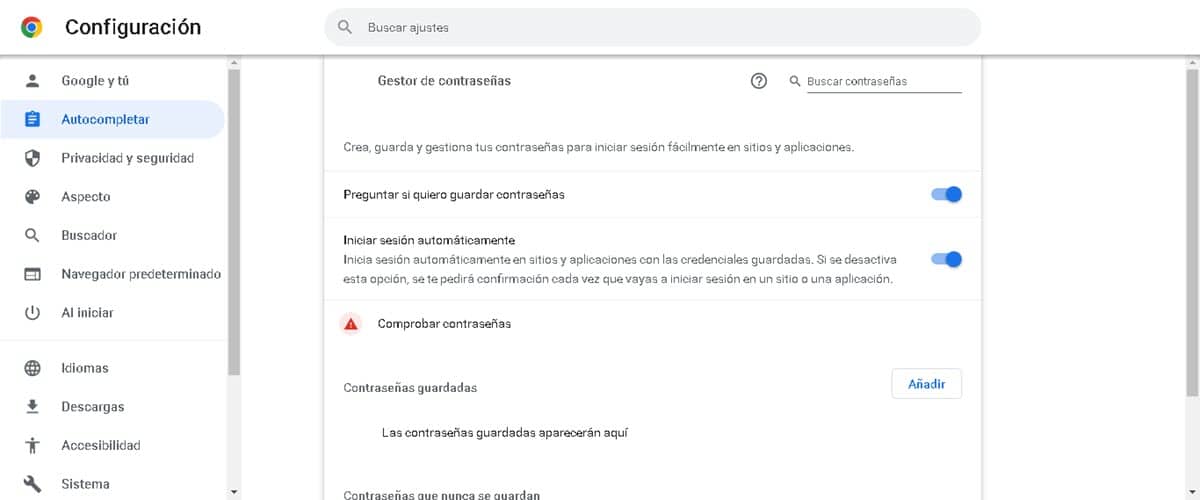
You'll immediately be in the password manager interface. In the upper right corner, you'll see a search bar where you can enter the website name or username whose password you want to view . You can also scroll down a bit to see the list of passwords saved by the browser. Next to each password, there's an eye icon. Clicking it will prompt you to enter your Windows credentials. Do so, and you'll immediately see the password.
View the passwords saved in your Google account
On the other hand, our Google account also stores passwords that may or may not be the same as our Chrome passwords, which is why it's worth checking both. To learn how to view passwords saved in Google, start by following this link.
This is the direct link to the account management section offered by Google. From here you can make all kinds of adjustments, from changing information and privacy settings to viewing stored passwords . To do this, go to the "Security" option located in the left sidebar.
Next, scroll down to the "Sign in to other sites" section where you will see the Password Manager option.
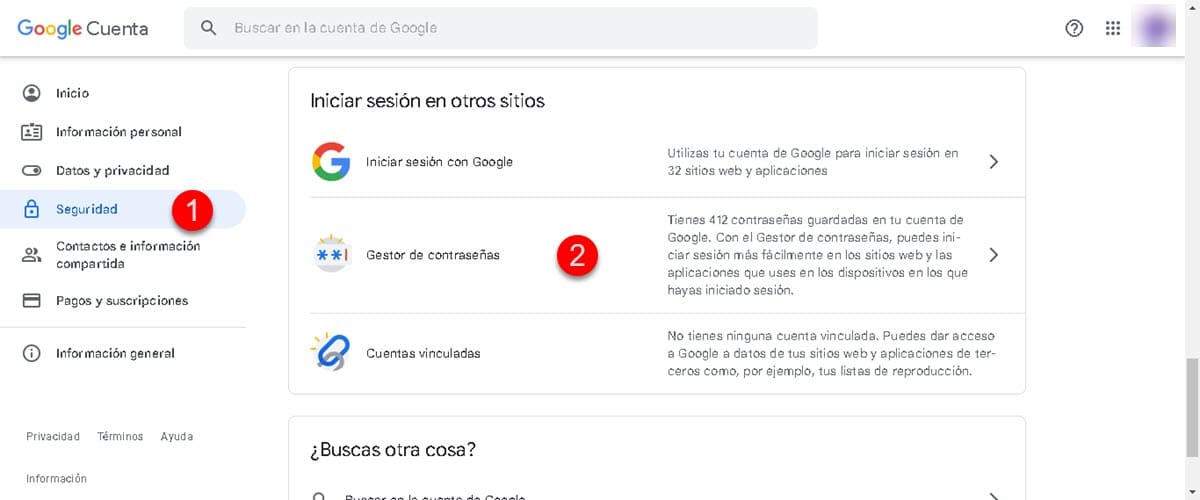
Click on it and you will go to an interface similar to that of Chrome, with the entire list of passwords saved in your account and a search bar to locate them easily. Additionally, it has a password review button with which you can check if any of your passwords should be changed due to being leaked.
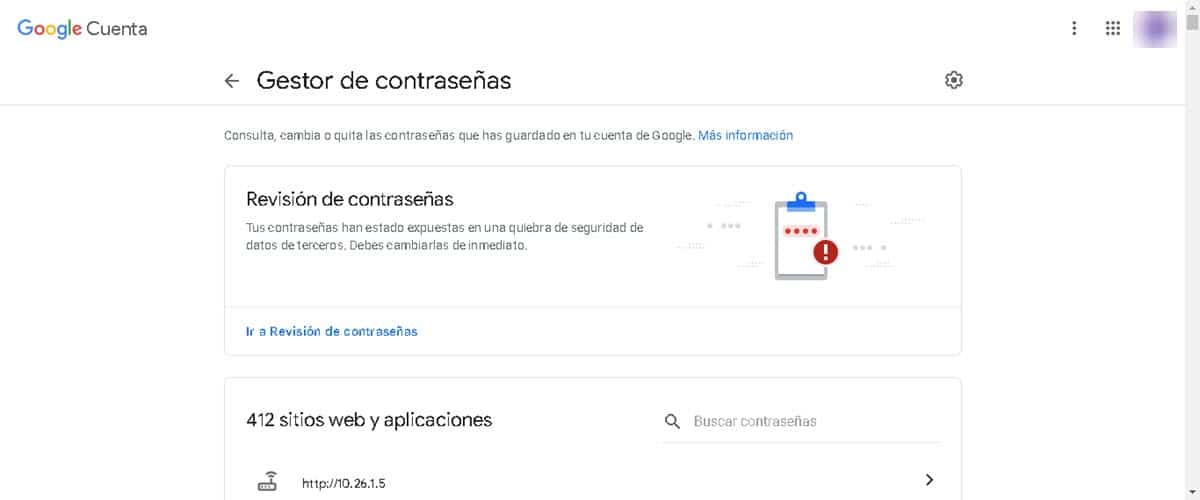
Finally, it's also worth noting that you can quickly access Google's Password Manager by following this link . The link in question is simply the web address of the tool: https://myaccount.google.com/security . Just paste it into your browser and you'll be taken directly to where your passwords are stored.
Table of Contents