

When it comes to staying organized, it's helpful to use a tool to keep your appointments and events well-planned. Google Calendar is a great option , as it allows you to maintain clear control and overview of your events. Furthermore, you can create your own events, such as scheduling appointments or interviews with others, which is useful in a work environment.
Therefore, if used in this way, it's important to know how to share an event. We can create an event or appointment with someone , and by sharing that event, we ensure that the person has that information. Google Calendar gives us this possibility, thanks to its sharing function.
The steps are quite simple. First, you need to access Google Calendar , which you can do via this link . This will take you to the calendar associated with your Google account. You may already have events or appointments scheduled there. But if you want, you can create a new one if you don't have any in your calendar.
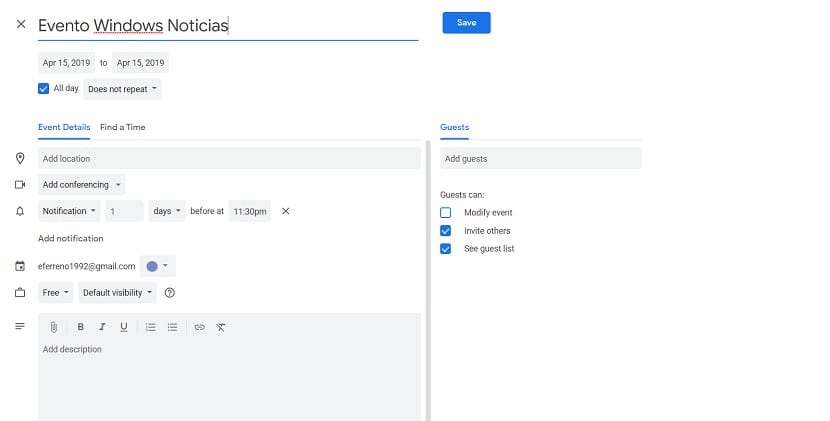
Simply click on a day in the calendar to create an event . You can give it a name and add details such as the time and location. This way, all the event details are always available. You can access more information by clicking on "More options," as shown in the image above. Once the event is created, you can share it with others whenever you want.
So, in the top window, we can already see an option we're interested in, on the right side of the screen. It's the "Guests" option . Below it, Google Calendar displays a box where we can enter the names of the people we want to share this specific event with. To do this, we need to enter their email addresses in the field, and options will appear. These are likely people we're already in contact with via email, so it's just a matter of selecting their names from the list.
We can invite as many people as we want to this Google Calendar event. We also have a couple of configuration options. We can allow these people to make changes to the event or not. We can also decide whether we want them to be able to invite other people, or whether we want them to be able to see the list of invited guests. These are three options we can choose from simply by checking or unchecking the corresponding box in the list.

This way, once we've chosen the people we want to invite and decided what they can and can't do, we just need to click the blue button to save the changes. Google Calendar will ask if we want to send an email invitation to the people we've invited, so they have it in their Gmail accounts. We click "Send" so they receive the message in their inbox. This way, they'll have their invitation in their Gmail inbox right there, conveniently, and can see the event information we've shared.
Undoubtedly, it's a great way to organize a date or event with friends . It allows you to have all the information about it in one place, so everyone involved can easily access it. Therefore, using Google Calendar is a good way to keep your schedule organized, especially when planning events with friends. It's very simple to use; you can access it anytime from your Google account.