
While the overall user experience in Windows is quite good, no system is completely perfect. Therefore, it's common to encounter error messages when performing certain tasks. This time, we want to specifically address the message that says, "The application could not be started; the side-by-side configuration is incorrect ." It's a somewhat confusing message, but we'll explain everything you need to know about it.
For programs to run on a Windows computer, several software components are required . The error we're dealing with today is an example of this, and we'll see how you can fix it.
Why do I get the message "could not start application parallel configuration is not successful"?

As mentioned earlier, this message doesn't initially offer much information about the problem's origin. However, experience has provided clues as to what's happening, and it turns out to be a bug with the Microsoft Visual C++ runtime libraries.
Programs, in general, require a series of prerequisites to run correctly. Some of these prerequisites are integrated into the system during the installation process; however, the rest are expected to be present in the environment where the program is installed. In this case, the error in question occurs when the software you want to launch cannot find a compatible version of Microsoft Visual C++.
That's why our troubleshooting process will move from the simplest to the most complex so that you can run the program you want without a hitch.
Steps to fix “could not start application parallel configuration is not successful” error
Run the program as administrator
The first solution we'll try to resolve this issue is to run the program you want to open as administrator. It's likely that the software can't run Microsoft Visual C++ due to insufficient privileges, causing the error.
In that sense, our first test will be to go to the executable of the program in question, right-click and run it as administrator.
Repair with DISM.EXE
If the problem persists, we'll use the Deployment Image Servicing and Management tool. This command-line service scans and repairs issues in Windows 10 installations . It can resolve many system errors, including the "Application could not be started; side-by-side configuration is incorrect" error.
To begin, open a command prompt with administrator privileges, type the following command and press Enter: sfc /scannow.

Next, we will run the DISM.EXE tool with the image repair service. We do this by entering this command and pressing Enter: DISM.exe /Online /Cleanup-image /Restorehealth.

Finally, try running the software you want to open again.
Event Viewer and C++ update
This test is a bit more advanced because it requires accessing the Event Viewer and then going through a download and installation process . However, it's a simple process with a high probability of resolving the error.
The first step will be to run the program in question so that the error appears.
Then, we will open the Event Viewer by clicking on the start menu and typing its name and then clicking on it.
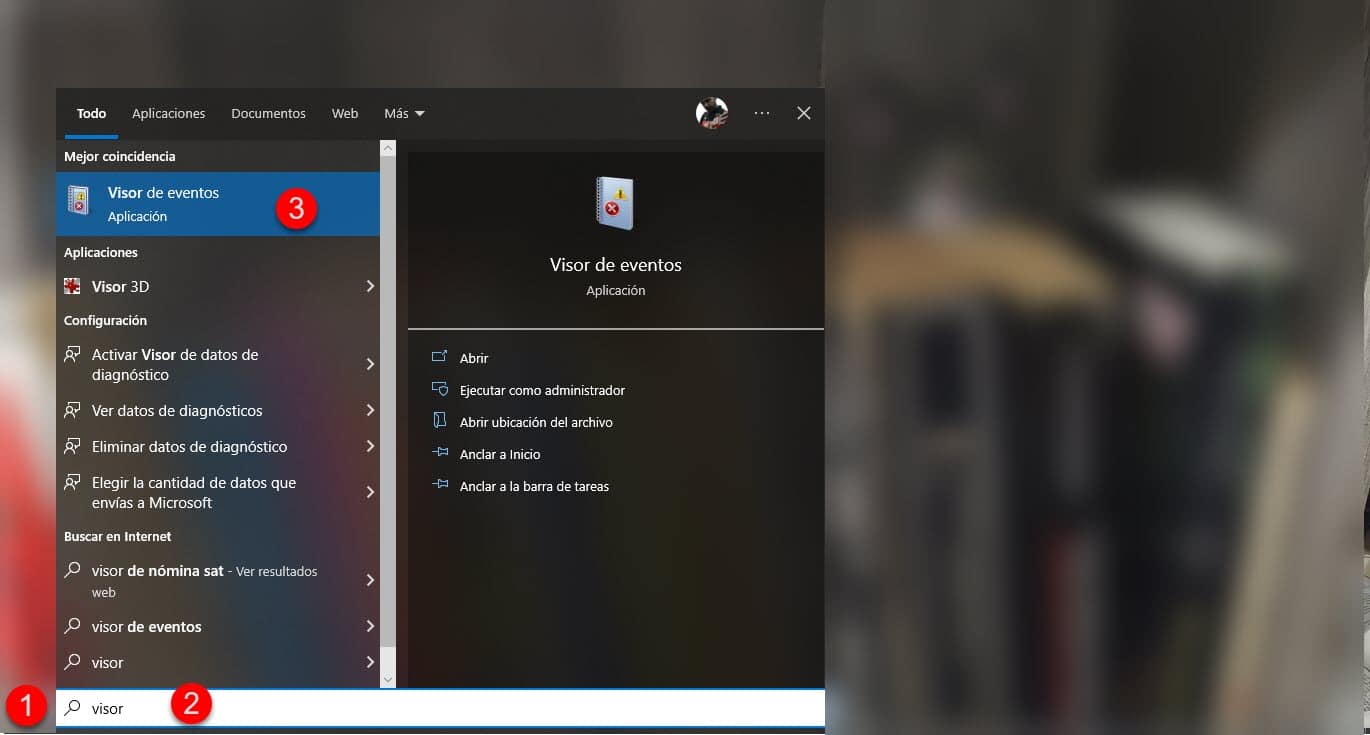
Maximize the window and in the event log section, you'll see the "Error" category. Expand it by clicking the "+" button. The most recent error recorded is precisely the one we want to fix.

Click on it and right below you will see a description of the error; however, we are interested in the C++ version number it indicates.

Next, go to the Microsoft Visual C++ repository and download it. Then, start the installation process, restart your computer, and test the program.
The registry editor
If none of the previous options have solved your problem, then we'll work with a delicate but potentially very effective alternative: editing the Windows Registry. This is something we must handle with extreme care . Therefore, we suggest you follow the instructions precisely to avoid causing further problems.
To open the Registry Editor, press the Windows+R keys, type Regedit and press Enter.

The Registry Editor will immediately open, and our first step will be to follow this directory path: Computer / HKEY_LOCAL_MACHINE / Software / Microsoft / Windows NT / CurrentVersion / SideBySide / Winners
Now, you need to locate a directory that begins with X86_Policy and has the .CRT extension . Click on it and enter the 9.0 folder.
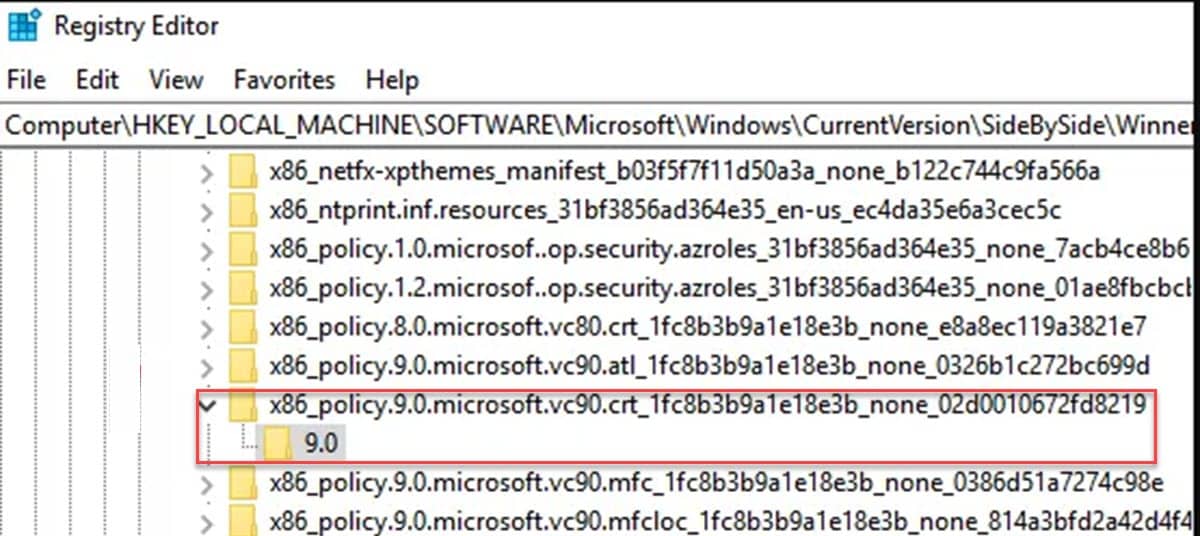
Next, we need to look at the entries that appear on the right side of the window. Specifically, we want the value in the "Data" column for the "Default" entry to be the highest value we see in the directory.

If not, we'll copy the highest value we see and paste it into Default.

To do this, double-click on the entry with the highest value, copy the number and repeat the process in the Default entry, pasting the data you just copied.
Table of Contents