

Google Translate is an essential tool for millions of users worldwide. Its presence has steadily increased over time, making it easy to use in more and more places. One such place is Google Sheets , Google's spreadsheet service, which can be easily integrated into Drive. This functionality is also available here.
So, we can automatically translate text that we enter into these Google Sheets spreadsheets. It's really easy to do. This can certainly be incredibly useful for many users. Therefore, we'll explain how to do it below.
This translator function is available in a selection of languages , including Spanish. Therefore, you can translate from other languages to Spanish, or from Spanish to other languages. This is something you can do depending on your needs. Best of all, it's not complicated.
Languages available in Google Sheets with Translate

First, we'll list the languages you can use in Google Sheets when using the translator. Each language also has a code or abbreviation , which is important to know since you'll need to use it. But it's never too difficult to remember. The available languages are:
- ES: Spanish / Castilian
- EN: English
- AR: Arab
- HI: Indian
- PTPortuguese
- ITItalian
- TL:Tagalog
- RU: Russian
- JA: Japanese
- KO: Korean
- GE: German
- FR: French
- VI: Vietnamese
- ZH: Chinese
- CAR: Detects the language automatically
If we already understand the available options , we can easily start using this trick in Google Sheets. We'll explain all the steps below. They're very simple and shouldn't present any problems. Ready to find out what we need to do?
Automatically translate in Google Sheets
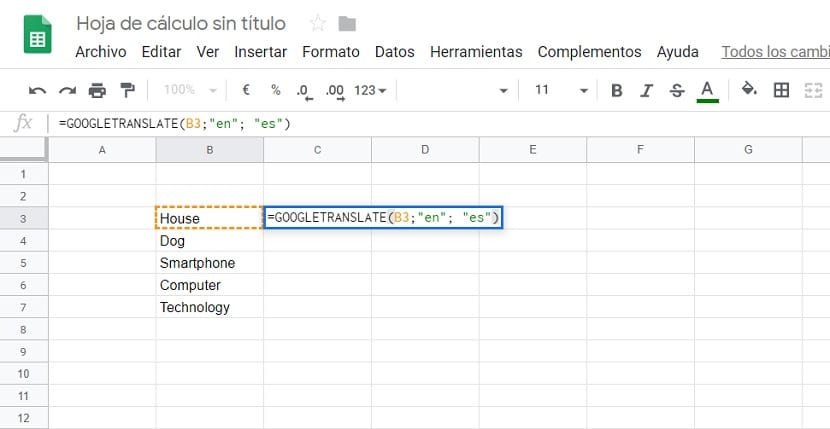
The first thing we need to do is enter the words we want to translate into a column . Therefore, we enter the words in the desired language, English in this case, in the first column. We leave the column to the right empty because this is where the Spanish translations will appear. To use the translator in Google Sheets, we have to use a formula, as if we were performing a mathematical operation.
In the first line, where the Spanish words will go, we need to write this: =GOOGLETRANSLATE. A suggestion will appear below; click on it. Then, in the next step, we'll need to choose the languages. To do this, we need to open parentheses and enter the text, the abbreviation for the source language, and the target language . It would look something like this: =GoogleTranslate("text"; "originaltextlanguage"; "translationlanguage"). In the last two fields, enter the language abbreviations, using the ones shown above.
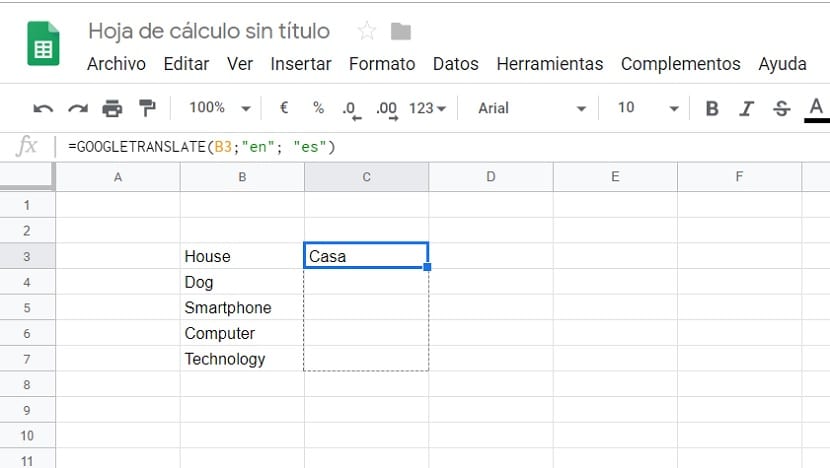
In the text entry field, you'll usually need to select the cell where the text is entered. It would then look something like this: =GoogleTranslate("B4", "EN", "ES"). Once you have this, simply press Enter, and the translator will do its work. In a couple of seconds, the translation in the desired language will appear in the row next to the first word . This makes translating in Google Sheets incredibly easy. Plus, you don't have to repeat the process every time.
Just like when using mathematical operations in spreadsheets, we can drag this. We need to place the cursor in the bottom right corner of the cell and then drag down . This way, the formula is cloned in the rest of the cells in Google Sheets. This way, we have the translation ready at all times.
Table of Contents