

The present and the future continue to point towards a deeper understanding of collaborative work, teamwork, and communication. Currently, almost all organizations operate under these models and, therefore, use tools that allow them to manage this dynamic with ease. An interesting example is Google's online office suite, where an entire team can work on the same document, leave comments, and more. In that sense, today we want to talk about an excellent option for these purposes, created by the same company that makes Windows. So, let's explore how to use Microsoft Teams on a Mac.
This is a comprehensive communication option for work teams that will allow you to keep everything that has to do with your work dynamic organized, updated, and available.
What is Microsoft Teams?
As we mentioned earlier, the present and future of organizations points to projects based on teamwork. Furthermore, these teams don't necessarily have to be in the same geographical or physical location, which can make the dynamics somewhat challenging. While options like Google Docs or Sheets offer interesting ways to manage this, some groups require more immediate contact.
This is how Microsoft Teams arrives, presenting itself as a solution that allows work teams not only to stay connected in real time, but also to manage files and create channels to discuss projects or any other aspect of teamwork. In this way, we can see it as a virtual office that also offers the possibility of receiving add-ons to enhance its functions and adapt the experience to the group's needs.
It's worth noting that Microsoft Teams is a cross-platform application, so it's available for mobile devices, PCs, and Macs. If you're an Apple user, here we'll show you some of the basics of using this tool.
Sign in and create or join a team
Once you've installed Microsoft Teams on your Mac, simply go to your application drawer and launch it. You'll then need to sign in with your Microsoft 365 credentials.
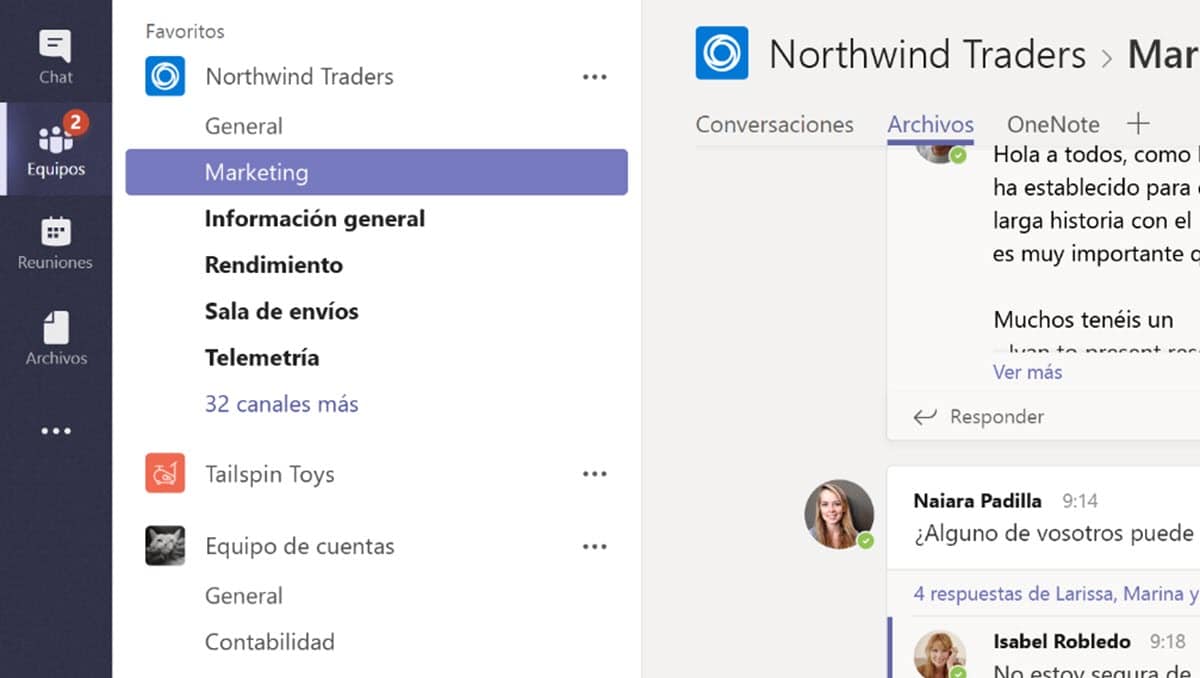
Once inside the application, you will have the option to join a team or create a new one. To do this, click on the “Teams” button in the left sidebar and then go to the option at the bottom labeled “Join or create a team”.
This will show a screen with the possibility of creating a new team or in case there is one previously created in your organization, you will have the option to join.
It's important to note that teams refer to groups of people involved in the same department or project . In this sense, teams are made up of channels designed to organize communication. This way, you can create channels for sharing files, organizing calendars, general conversations, and even entertainment.
If you decide to create a new team, the process only requires you to name it, and then you'll be prompted to add the members. Additionally, during creation, you'll have the option to make it public or private, so only the people you add can join.
Start a conversation with a person
Teams not only promotes team communication, but you can also have private chats with anyone within the organization. It's really easy; just click the "Chat" button located above "Team" in the left sidebar.
Next, click on “ New Chat ” and this will open a small box where you must enter the person's name or address, the message, and then send it.
Share and send files

This is one of the fundamental functions of Microsoft Teams, allowing you to share files in channels or send them in private chats . To do this, simply click on the paperclip icon, which will display several options:
- Recent files.
- Search across channels and teams.
- OneDrive.
- Upload from the computer.
As we can see, the application offers several ways to capture the file we want to share. In this regard, the ability to browse our OneDrive cloud storage and also to access files from our computer is very useful . Furthermore, it's worth noting that you can share photos, videos, documents, programs, links, and more.
Search files, people or messages
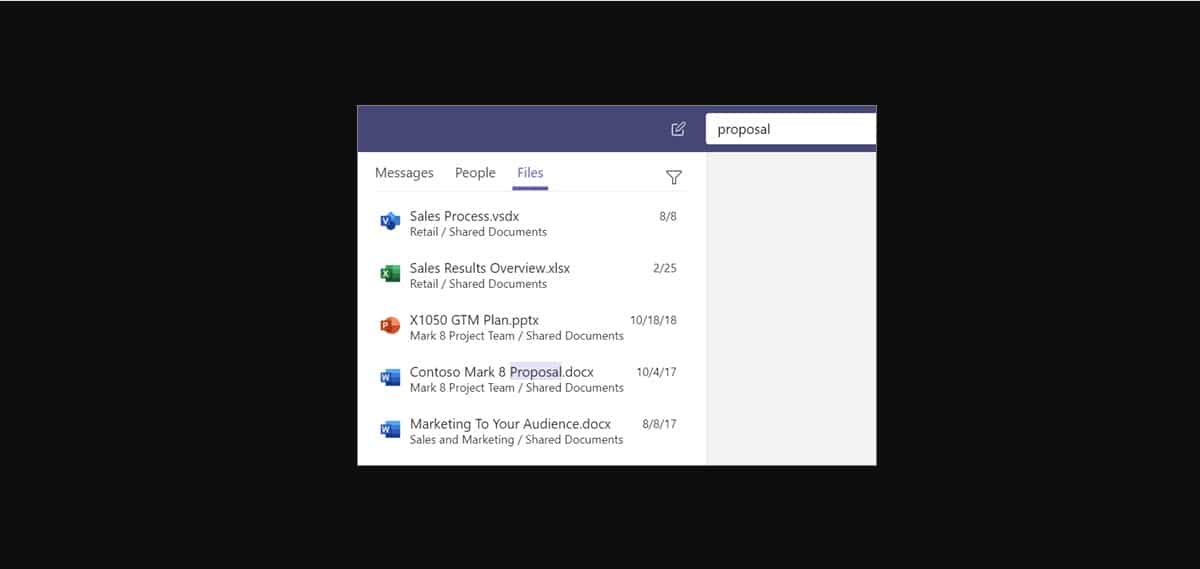
Another important aspect of using Microsoft Teams on a Mac is search. The tool has a very efficient search engine that allows you to find anything in seconds. To do this, simply click on the search bar at the top of the screen and type the keyword or the name of the person you want to find.
Right away, you will see the results being filtered and you will see 3 tabs in the left panel: People, Messages and Files. Select the one you want based on what you are looking for and that's it.
Table of Contents