

It's very likely that at some point you'll want or need to use Google's reverse image search . This method is designed so you can find a photo that's the same as or similar to one you have or one you've already found. It's presented as a very useful feature for users, but not everyone knows how to use it.
Therefore, we'll show you how to use this feature in Google . This way, if you need to find a specific photo in a different size, or if you're looking for similar photos for any reason, you'll find it very easy to access them using this function.
When using reverse image search, we have several options available . We can upload the reference photo from our computer, if we already have it. Alternatively, we can use the URL of a website, so that's the image we need to use for this purpose. Both options are equally valid in this case.

Reverse Google Photos Search
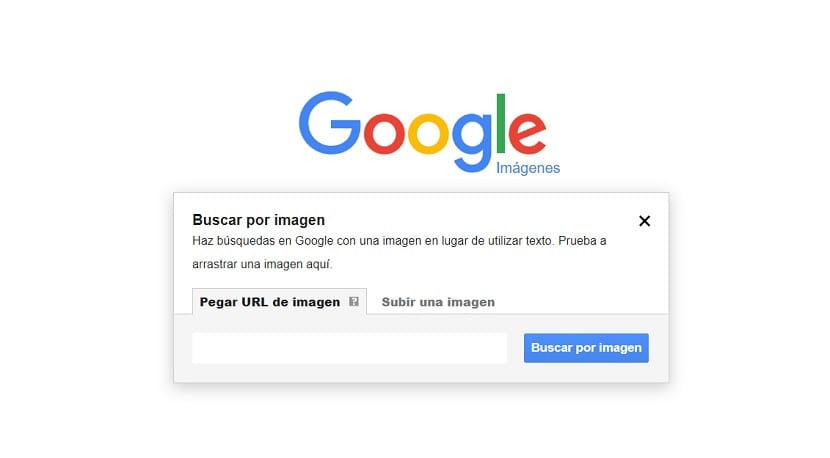
The first thing we'll need to do is go to Google Images. We can do this by visiting their website or by clicking on the word "Images" at the top of the search results page; either option will take us there. Once we're on Google Images, we need to use the "Search by image" option , which we do by clicking on the camera icon.
So now we have access to this Reverse Image Search section. The first step is to ask us which image we want to use as a reference to find similar photos. As mentioned above, we can use two methods for this: we can upload a photo from our computer directly, or if we don't have that photo, we can enter the URL of a photo we've seen and want to use. We choose a method and then click "Search by image ," which is the text displayed on the blue button.
So, Google is going to show us the search results in this case. The first thing we will see, in the upper part, is the image that we have uploaded in this case, together with a text that the search engine considers is the one that accompanies the search for this word. This text is in many cases something incorrect, so do not give it too much importance. We can see that you see a table with similar images, in addition to some pages that have used the photo you have uploaded, if there were any in this case.
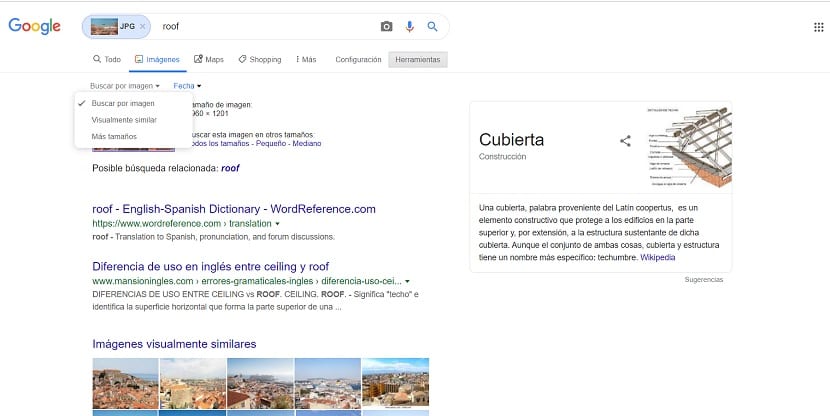
If you click the tools button in the upper right corner, you'll access a small menu. This menu allows you to further customize or refine your Google search, helping you find more relevant results. It offers two options: Search by image and Search by date. The first lets you choose the search type, whether you want to find the exact same photo or images related to the one you uploaded.
The date option allows us to better determine or choose the age of the photos we want to search for. You might be looking for something very recent, so you can specify the time period you want to use from the various options Google provides, or even choose a custom range. This way, the search will be personalized at all times, and we'll be able to find the results that best match what we're looking for in this specific case.