

Google Docs is Google's document editor , which we can access from our Google Drive account. It's a convenient option, as it doesn't take up space on our computer and allows us to access it from anywhere, anytime, and using all kinds of devices. It has one clear drawback: we need an internet connection to access this editor.
Although there are times when we don't have an internet connection but need to edit a document , we have good news: Google Docs allows you to edit offline. However, this is a feature that you have to activate within the editor itself.
This way, even when our internet connection fails , we can continue working on a document as normal. We can edit it without any problems, just as we always do. This can be very convenient for many users of the editor. This process can be activated on all devices. We'll show you how to do it from your computer.

Activate the offline option in Google Docs

First, we need to access Google Drive, where we'll find our documents in the cloud . We can do this with a new document we've created, but it's also possible with documents we already have stored in the cloud. In any case, once we're in Drive, we need to open a document using Google Docs.
Once the document is displayed, we need to access its options. Click on the File menu, located in the top left corner of the screen. This will open a context menu within the document, offering several options. Simply click on "Turn on offline access." This will allow you to access the document in Google Docs even without an internet connection. Using this option adds the document to the offline mode within the editor.
Therefore, the next time we enter Drive and want to open a specific document, in this case the one we have just modified, it will be possible, when we do not have an Internet connection. If there are documents that we want to be able to edit in these situations, we have to repeat the process with each of them. So if there are enough of them, the process may become somewhat tedious for users. But there is another way in Google Docs.

Enable Offline Option: Second Method
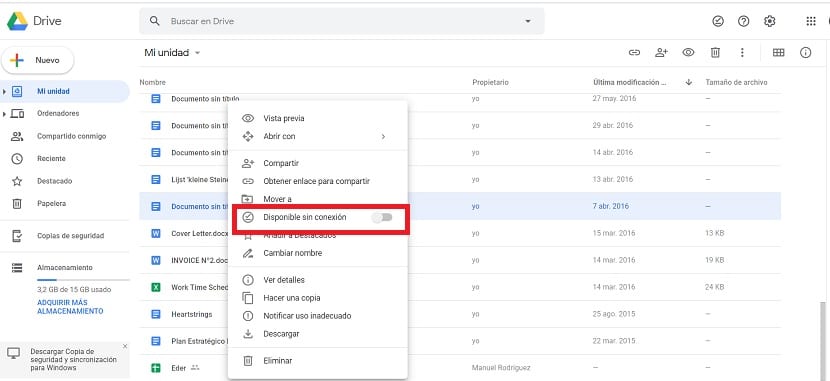
There's a second way to do this, without having to open each document individually . So, if you're planning to enable this option in multiple Google Docs documents, this might be of interest. It allows you to do the same thing, but in a faster way. First, you'll need to open Google Drive.
Within Drive, we need to find the document we want to work on offline. We won't open the document in this case; instead, we'll use a different method. Right-click on the document. A context menu will appear with several options. One of these options is to enable offline access . Simply toggle the switch next to this option. Once you do this, the offline access feature will be activated.
This means that when we want to edit a document in Google Docs without an internet connection, it will be possible. We simply have to access it and we can edit it as usual . Furthermore, the changes we make will be saved, so when we resume working, everything will be exactly as we left it. This is a very useful feature in many situations.