

PDF is probably the most popular document format in the digital world. This file type is not only present in all areas, but in many of them, it represents the standard. In that sense, it's common to receive contracts, spreadsheets, books, and generally any type of document packaged in this format. This means that at some point, we might need to know how to write in a PDF file, and the good news is that here, we're going to show you the best ways to do it.
Let's remember that PDF files often have the peculiarity of being protected against editing and this means that our hands are tied when trying to apply an edition. However, there are ways to add the text we need and we are going to show you how next.
Why do I need to write to a PDF file?
As we mentioned earlier, PDF files are ubiquitous in any field where documents of any kind are handled. Therefore, it's almost certain that at some point we'll find ourselves in a situation where we need to add text to a PDF. This might happen with a form, for example, for opening a bank account or applying for a credit card . Similarly, if you write documents that are then shared as PDFs, you've probably wondered how to edit a PDF file quickly.
Inserting annotations is another common need for those who work with PDF books. This allows you to read any work and add notes directly to the document. Writing in a PDF file is one of those tasks worth knowing how to do, so you're prepared, since it's something you'll likely need to do sooner or later.
How to write to a PDF file? The 3 best options
The first thing to note about writing to a PDF file is that there's no native way to do it in Windows . Therefore, working with documents in this format requires using third-party tools. For this reason, we'll recommend some alternatives for working both locally on the operating system and online.
Adobe Acrobat

Our list of recommendations begins with a giant in the field, one that has been on the market for over 20 years, fulfilling the task of viewing and editing PDF files. Adobe Acrobat is one of the most comprehensive options for working with PDFs, allowing you to do everything from opening them to applying all kinds of edits, such as adding text, annotations, images, and more . However, it's worth noting that it's a licensed program, which limits its user base. If you're a user who needs to write on PDFs or apply various edits on a daily basis, then it's a worthwhile investment.
On the other hand, it's not a very resource-friendly program. Therefore, you'll need a powerful computer to ensure a good experience while using it.
The process of adding or editing text is as simple as clicking on the area you want to modify or create and start typing.
able word
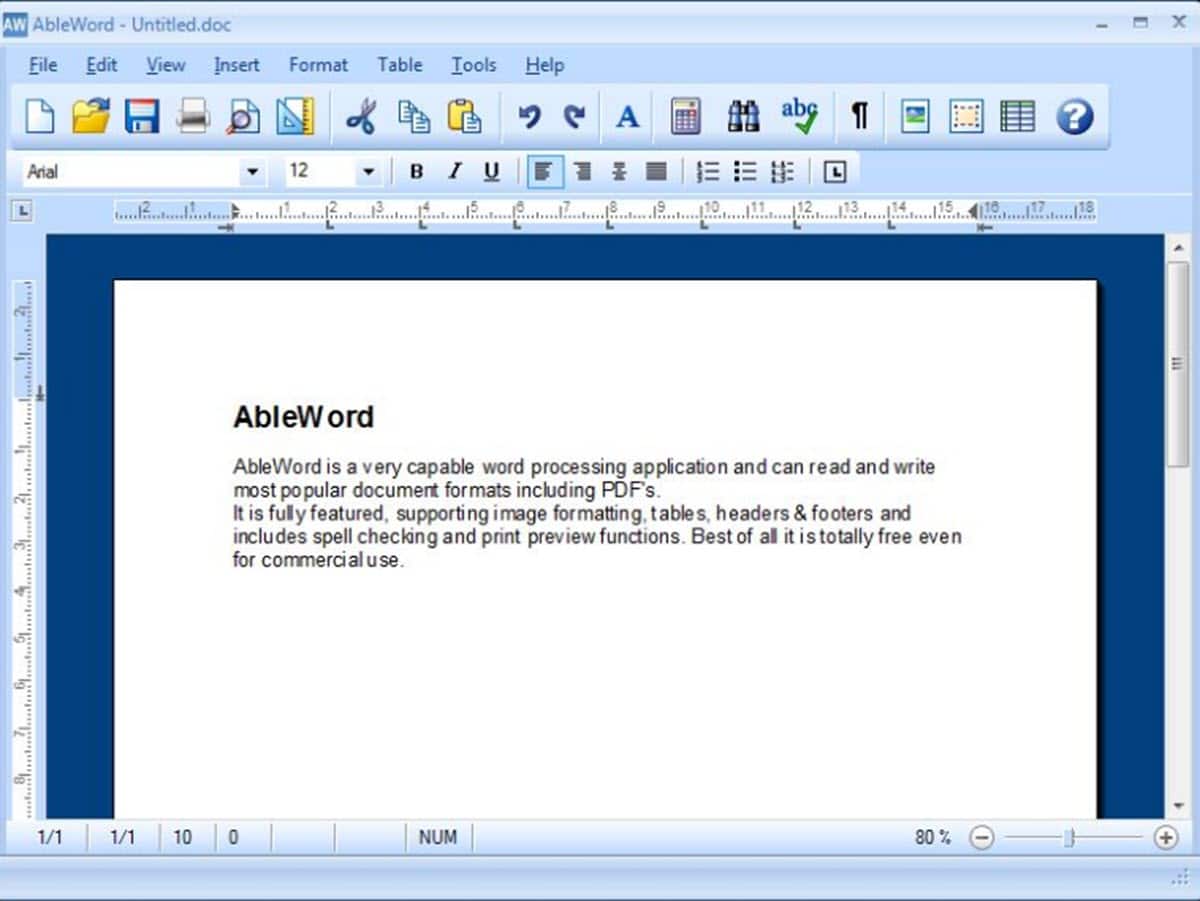
AbleWord is one of the hidden gems in the world of PDF viewing and editing for Windows. It's a word processor that supports various formats, including the one we're discussing today . What's more, it has the great advantage of being completely free, so unlike the previous option, you can download and install it immediately without worrying about a license.
If you're specifically looking for how to write on a PDF file, this is an excellent option because it performs the function efficiently and effectively. However, being a free program, it's also somewhat limited in its capabilities, something to consider if you have more advanced needs.
From AbleWord, all you have to do is load your document and select the area on which you want to write or that you need to modify and the field to insert the text will immediately be enabled.
ILovePDF
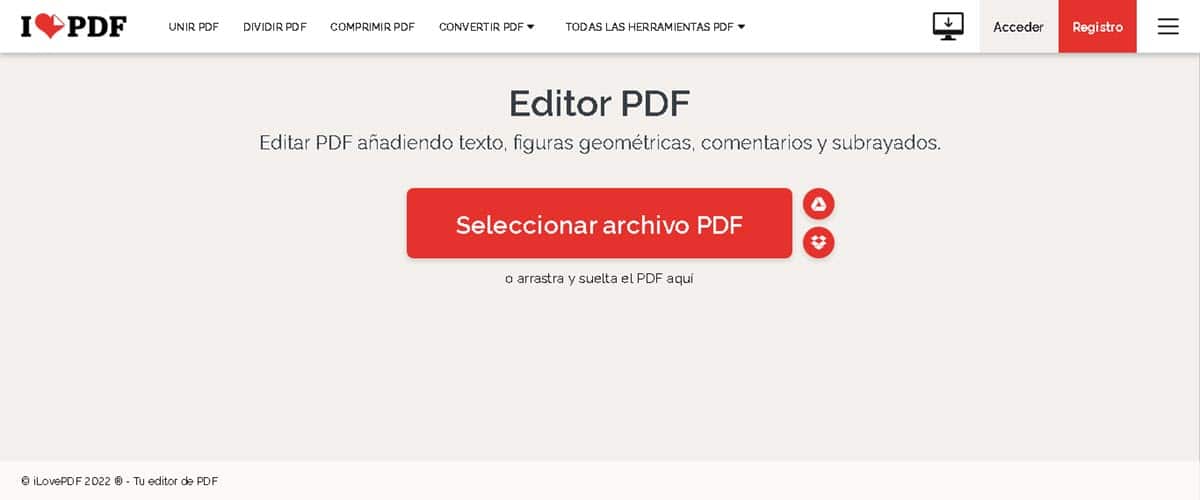
Now we enter the realm of online alternatives, and we must mention the service best rated by users on the internet for these purposes: ILovePDF . This site offers a whole range of tools to perform various types of operations on PDF files, from merging documents or deleting pages, to adding images or modifying sections and inserting new text.
Upon entering the page, those looking to write on a PDF file will need to click on the "Edit PDF " option. Afterward, you will be taken to the area where you need to upload the document, and then you will be in the workspace, ready to write whatever you need.
ILovePDF is not only characterized by being free, but also extremely easy to use and with very efficient and effective results. In addition, it has a whole series of complementary options with which you can support your activities with PDF files.
Table of Contents