

Installing Windows on a computer is one of those tasks that Microsoft has been gradually simplifying, leading to the easy process we have today. Previously, to install this operating system, we needed a disc with a copy of the software. However, CDs fell out of use, giving way to ISO images, a much more convenient method than physical discs. So, if you want to obtain an ISO image to install Windows 10 or 11, we'll show you how to do it using the Media Creation Tool.
This is a tool provided by Microsoft to facilitate the updating and installation of its operating systems. It offers a native and secure option for downloading a copy of Windows, avoiding third-party websites.
Media Creation Tool functions
While we'll focus here on creating a copy of Windows using the Media Creation Tool, it's worth exploring its capabilities in various scenarios. One of its most useful functions is upgrading the operating system. So, if you have a computer running Windows XP, 7, Vista, 8, or 8.1, simply running the application will upgrade it to Windows 10.
On the other hand, we have the creation of installation media, which is precisely the function we will use to obtain the ISO image . This option appears for the purpose of updating computers that are not connected to the internet. The function we mentioned earlier requires an active internet connection on the computer to carry out the process. Therefore, for scenarios where there is no internet connection, we can create installation media on a USB drive.
Similarly, it's a very useful alternative because it allows us to have a USB drive ready to install Windows 10 on any computer. On the other hand, if you don't have a USB drive handy, you can also just obtain the ISO image. Let's review each of these processes.
Steps to obtain an ISO image
If you want to obtain a Windows 10 ISO image, you don't have to resort to third-party websites, torrents, or other alternatives. Microsoft offers the option of obtaining one using the Media Creation Tool, which you can download from their own servers. This ensures that you're downloading a malware-free file and that the system you install is completely clean from the start.
Download Media Creation Tool
Our first step will be to download the tool, and to do so we just have to enter this link.
There you'll see a section labeled "Create Windows 10 Installation Media," and right below it you'll find the "Download Now" button . This will start the application download immediately.
Get the Windows 10 ISO
Once you have the executable, double click on it and wait for the first screen with the terms and conditions to appear.
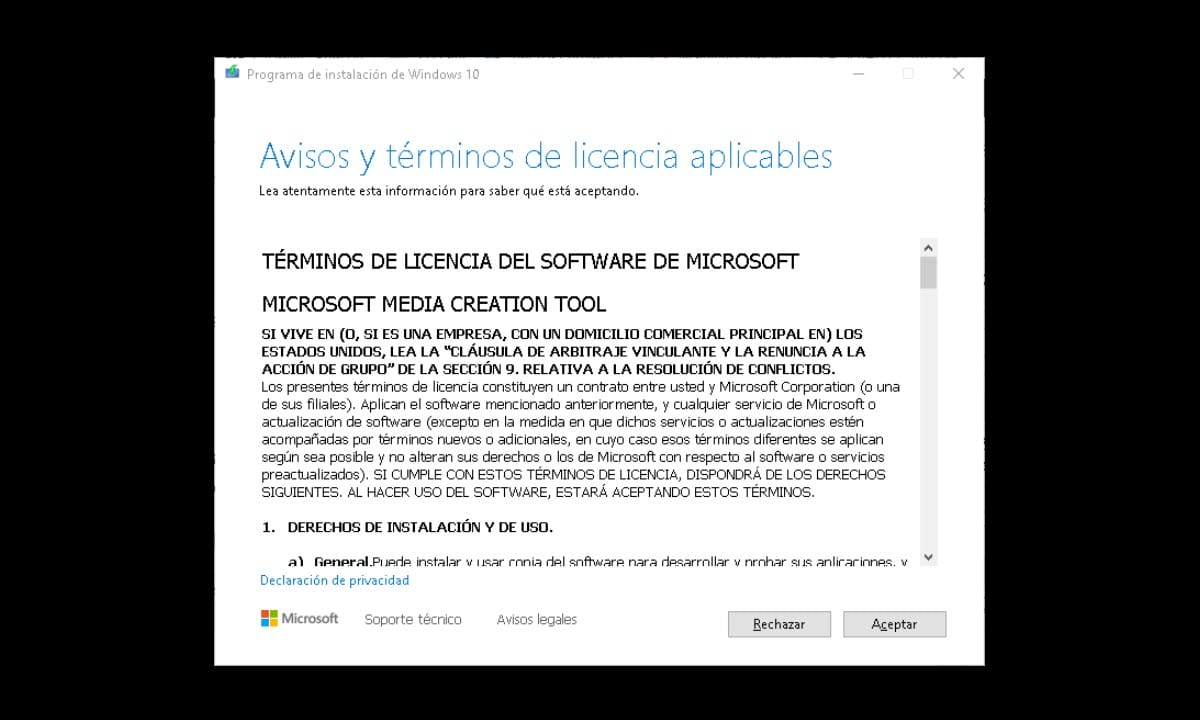
Click on "OK" and you will go to the next section where the wizard asks what do you want to do? and displays two options: Update this PC now and Create installation media.
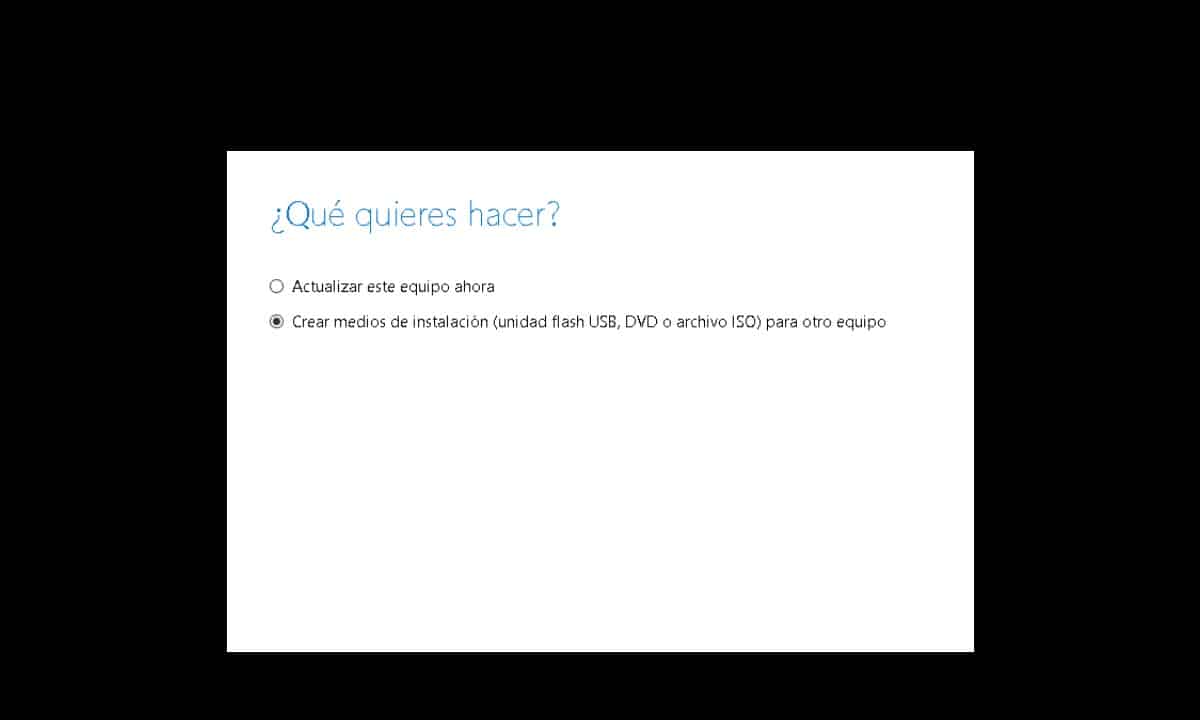
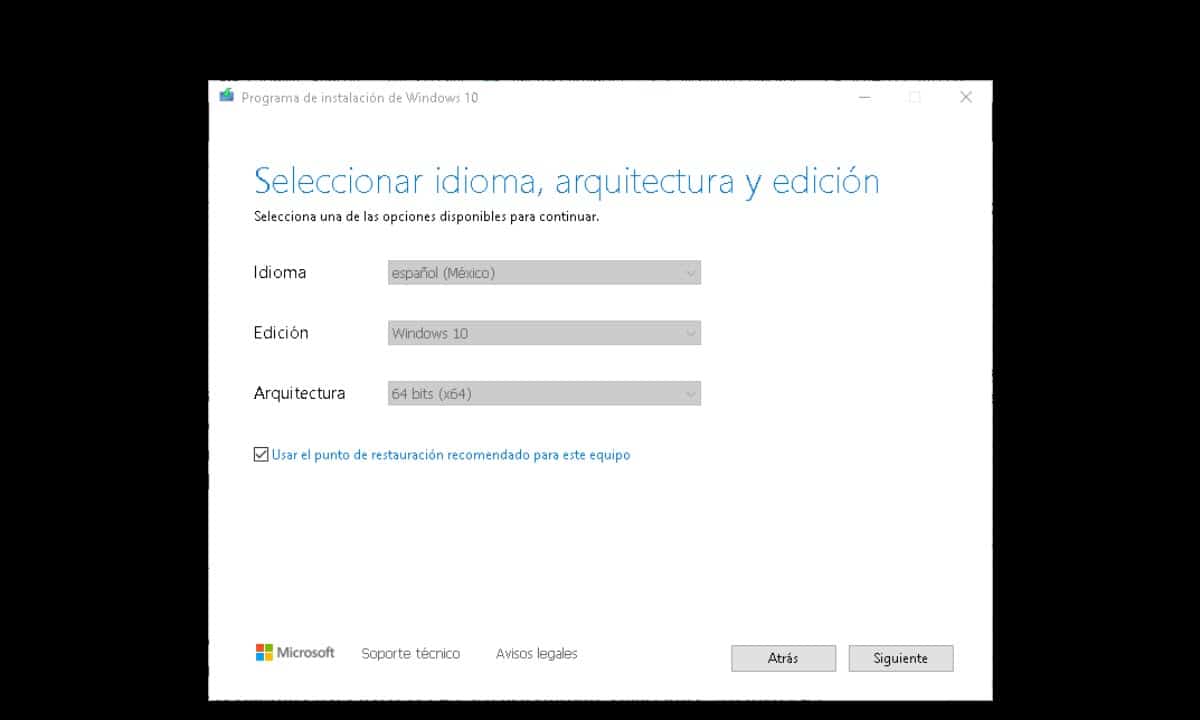
We're interested in the second option, so select it and click "Next." Next, you'll choose the language, edition, and architecture of the Windows 10 you want to install. Then, click "Next."
Right away, the wizard will present a couple of options: USB Flash Drive and ISO File.
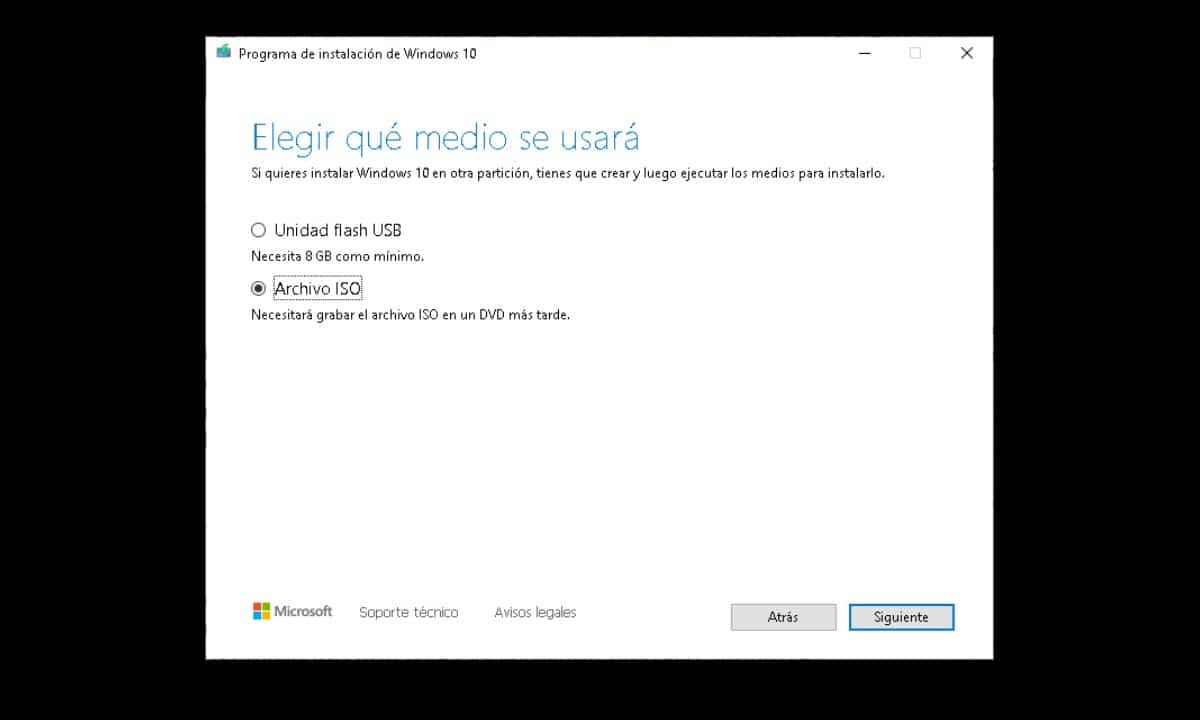
This refers to the type of installation media you want to use, so the first is to create a USB and the second is to download the ISO. In that sense, select "ISO File" and click "Next" to display the Windows Explorer window and choose where you want to save the file.
In this way, you will have an ISO image ready to make any USB memory bootable.
Create a USB installation media
As mentioned at the beginning, in addition to obtaining an ISO image, the Media Creation Tool application allows us to prepare a USB drive for installing Windows as if it were a physical disc. To do this, run the tool and follow the same process described earlier, until you reach the section regarding the type of media to be used . At this point, instead of choosing " ISO File ," select " USB Flash Drive " and click " Next ." It's important to note that you must have already connected the USB drive.
The program will detect it and we only have to click on next to start the download process of the operating system and later, the set-up of the USB that you connected.
These two procedures are essential for any user or technician looking to install Windows on a computer. It's also worth noting that the Media Creation Tool can create Windows 10 and Windows 11, so you can follow the same steps to get the latest operating system . It's a very easy-to-use tool, and all you need is a good internet connection to complete the task quickly.
Table of Contents