

Over the years, security has become an increasingly fundamental factor for operating system users. Microsoft has therefore refined this aspect in various versions of its software, aiming to provide greater protection for users' experience and data. However, a very basic need remains unmet in Windows environments: the ability to password-protect folders. Therefore, we will show you the different ways available to do this and prevent unauthorized access to your sensitive information.
If you have files that you want to keep safe, under a password and you don't know how to do it, here we will give you the simplest and easiest options to use to protect your data.
Ways to put a password on a folder in Windows
As mentioned earlier, Windows doesn't offer a native mechanism for password-protecting folders. This is a significant shortcoming of the operating system, forcing users to rely on third-party tools . While this addresses the immediate need, entrusting sensitive information to another company can sometimes be counterproductive. Therefore, we will now detail the safest and most effective processes for accomplishing this task.
Knowing these methods is essential, because it will allow you not only to know a variety of ways to protect your folders, but also to leave behind the old practice of simply hiding files.
Using Winrar
The first method we'll present for password-protecting a folder is through a compression application. In reality, it can be any compression application, as most offer the option to apply passwords . However, for our example, we'll use WinRAR because it's the most popular of its kind and is installed on almost every computer. Furthermore, it's worth noting that this is one of the easiest and most secure ways to password-protect a folder.
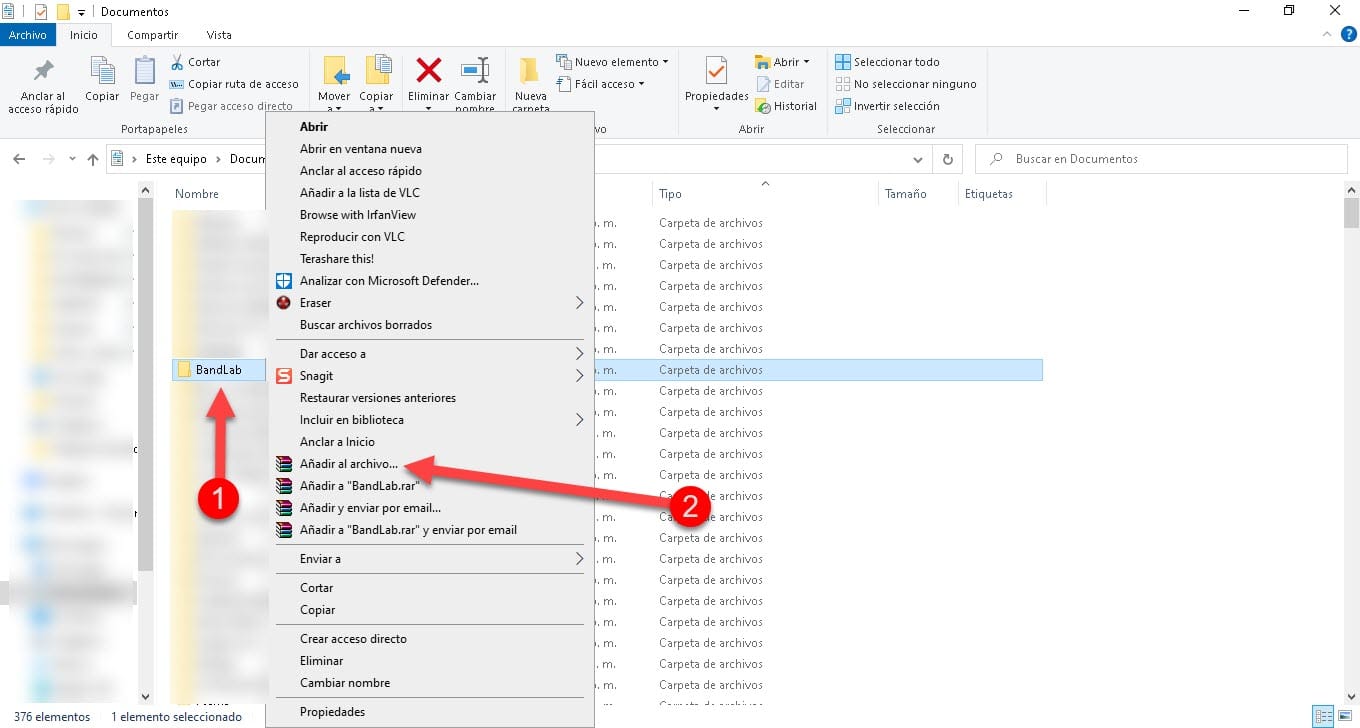
To begin, locate the folder you want to protect and right-click it. Then, click on the " Add to archive... " option in the context menu; this will open a small window.
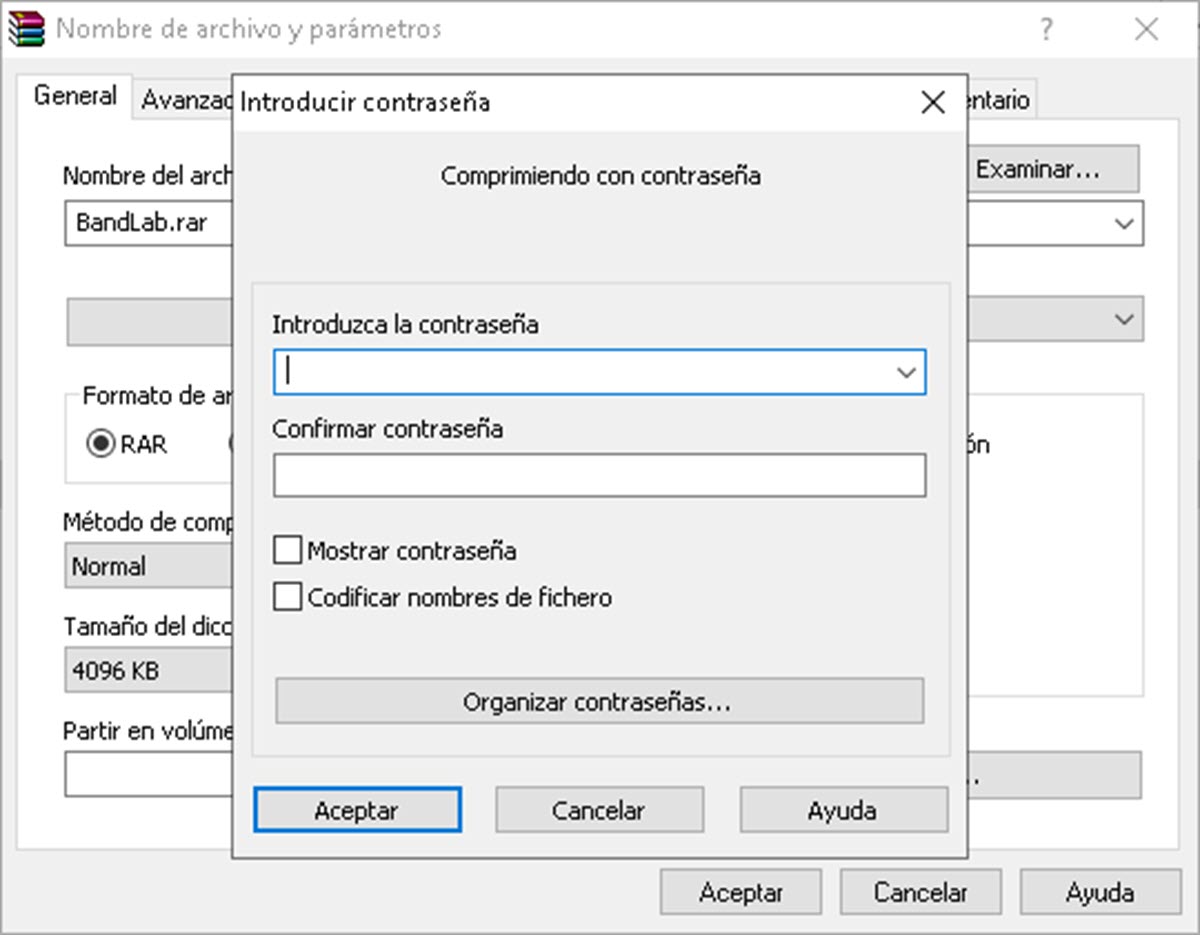
In the bottom right corner, you'll see the " Set Password " button. Click it and enter the password you'll use to protect the file. Finally, click " OK ."
Now, delete the unzipped folder and keep the zipped file. When you want to see the files, just double click on it and it will immediately request the password to display the content.
Through a script
Previous steps
This method might not be the most user-friendly, but it's a way to password-protect a folder in Windows without needing any additional applications. Instead, we'll use a script that generates a BAT file which will prompt for the password when accessing a folder.
To better understand, a script is simply a set of commands that execute a series of actions for a specific purpose—in this case, protecting a folder . A BAT file, on the other hand, is simply an executable file that we generate using the list of commands provided by the script.
Additionally, we must highlight that, to carry out this procedure correctly, we must have the option of not showing hidden files enabled. To do this, open Windows Explorer, go to the "View" tab and uncheck the "Hidden items" box.
Create the script and BAT file
Now we'll get straight to the point. First, we'll create a Notepad file. To do this, right-click on an empty space in File Explorer or on the Desktop, then go to " New " and select " Text Document ," giving it the name you want.
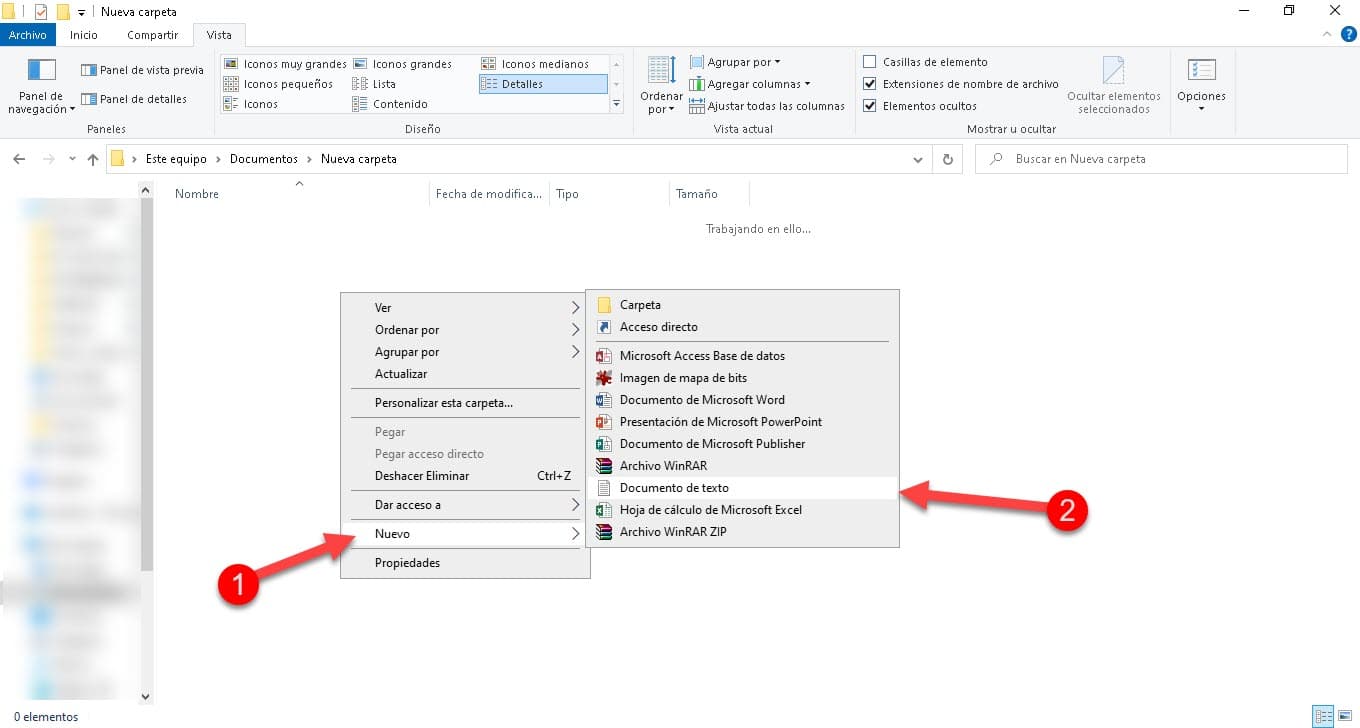
Immediately open the text file and paste the following:
class
@ ECHO OFF
title Folder ProtectedFolder
if EXIST «Control Panel. {21EC2020-3AEA-1069-A2DD-08002B30309D}» goto UNLOCK
if NOT EXIST ProtectedFolder goto MDLOCKER
: CONFIRM
echo Do you want to hide the ProtectedFolder? (Y/N)
set/p "cho="
if% cho% == S goto LOCK
if% cho% == s goto LOCK
if% cho% == n goto END
if% cho% == N goto END
echo Invalid choice.
goto CONFIRM
: LOCK
ren CarpetaProtegida «Control Panel.{21EC2020-3AEA-1069-A2DD-08002B30309D}»
attrib + h + s «Control Panel. {21EC2020-3AEA-1069-A2DD-08002B30309D}»
echo Folder locked
goto End
Unlock
echo Enter the password to display the ProtectedFolder
set /p "pass="
if NOT %pass%== CHOOSE-PASSWORD goto FAIL
attrib -h -s "Control Panel. {21EC2020-3AEA-1069-A2DD-08002B30309D}"
ren «Control Panel.{21EC2020-3AEA-1069-A2DD-08002B30309D}» CarpetaProtegida
echo Folder Unlocked Successfully
goto End
AIL
echo Invalid password
goto end
: MDLOCKER
md ProtectedFolder
echo ProtectedFolder created successfully
goto End
: End

Next, we need to replace the script variable identified as "CHOOSE-PASSWORD" with the password we want to add . To do this, simply delete the existing text, type in your desired password, and you're done.
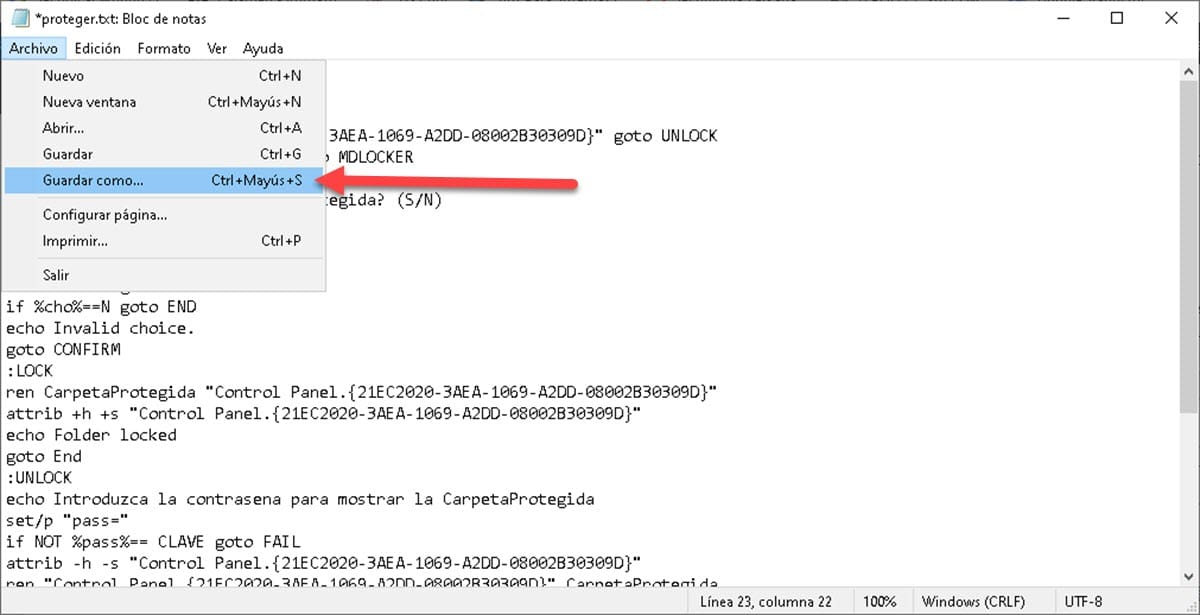
We will now save the file in BAT format. To do this, click on " File ," select " Save As, " and this will open the Windows Explorer window. Now, click on " Save as type " and choose " All Files ," then give the file the name you want with the .BAT extension.
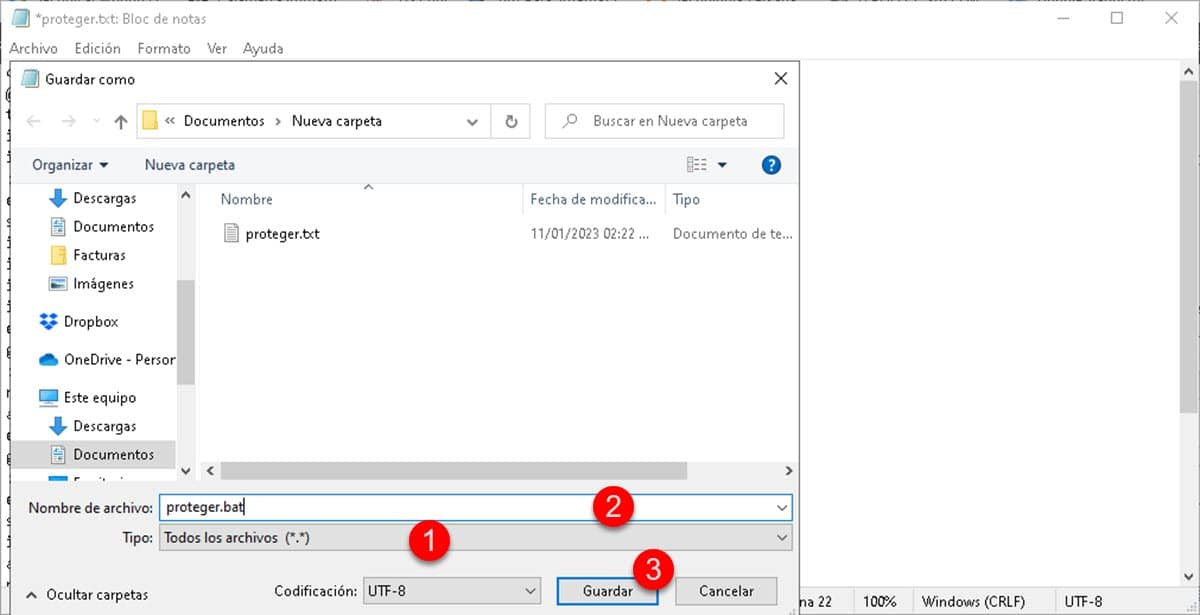
Next, click on the executable file you just created, and you'll see a new folder appear . Open it and store whatever you want. When you're finished, double-click the executable again, and the folder will be hidden. When you want to access it again, double-click your .BAT file, and a Command Prompt window will appear asking for your password.
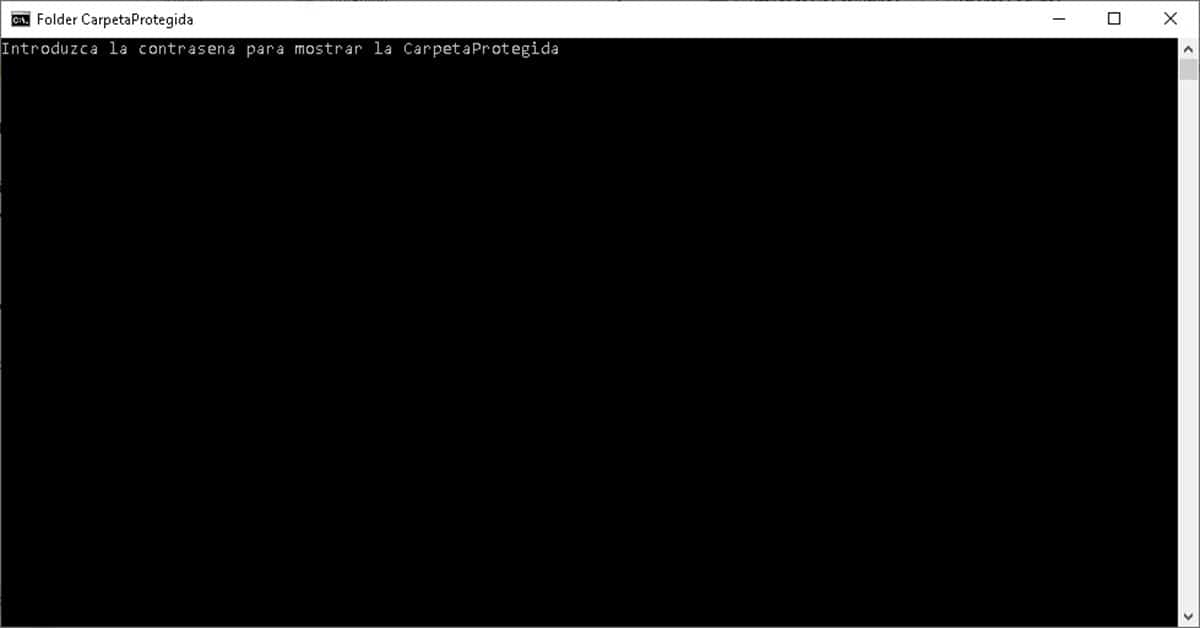
It should be noted that, for everything to work correctly, the executable must be in the same directory as the protected folder when you double-click it.
Table of Contents