

Our computer's hard drive is important in many ways. One is that we store a large amount of data on it, which is likely important or private. Therefore, we don't want anyone to have access to it at any time. One solution in this case is to password-protect the drive.
This is something we have available, although many people are unaware of it. Therefore, we're going to show you how to password-protect this hard drive . This will help prevent anyone from accessing this data without our permission.
This process involves encryption, for which we use a tool provided by Microsoft . Many of you will probably be familiar with it, as this tool is BitLocker. It's a program that encrypts your hard drive or any other storage device you choose and allows you to set a password, thus protecting it. Very easy to use.

BitLocker is usually installed by default on all versions of Windows . You can check your computer to see if you have it. If you don't have it installed, you can easily download it at any time from this link provided by Microsoft. So, if you don't have it, you can get it anytime without any problems. Of course, it's a free application to download.
Password the hard drive
We need to open the computer's file explorer and go to This PC. There, we need to locate the drive we want to password-protect. It doesn't have to be a hard drive, as we can also do this with external drives, such as a laptop or a USB flash drive. Therefore, we can perform the same process with any type of storage device we use in Windows.
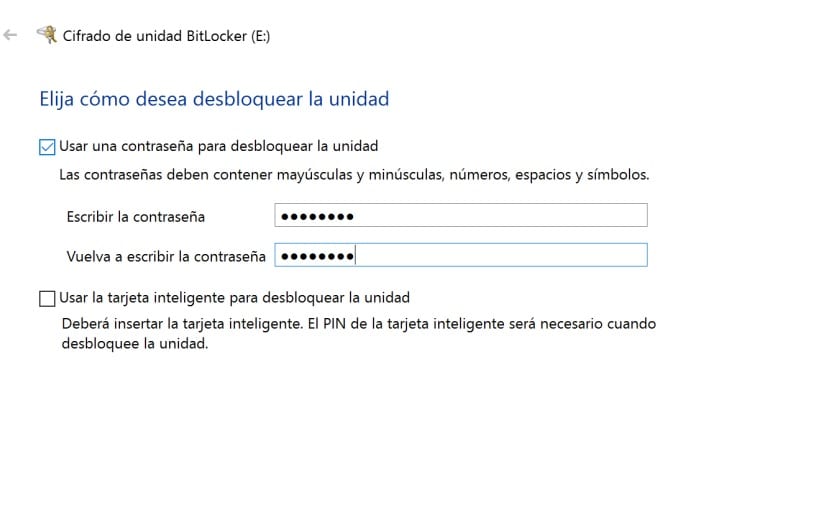
Right-click on the hard drive. A context menu will appear on the screen with several options. One of these options is "Turn on BitLocker ," which will activate this process at all times. A new window will then open, starting the process. The first screen you'll see allows you to choose a method. You can click on "Use a password," and then you'll need to enter the password you want to use to lock the drive. You'll need to enter it twice in this case.
Next, we're asked how much of the hard drive we want to encrypt. The first option, encrypting the space in use , is faster and more useful for us, since what we want is for the data stored on it to be inaccessible without a password. So we choose the first option. Finally, it will ask us which mode we want to use for this process. The best option in this case is to use compatible mode.

This is how we've encrypted this hard drive. This means that anyone trying to access it will need the password we've set. This prevents unauthorized access, making it a good way to protect the information on the drive. Furthermore, this process can be applied to any other type of storage device. So, if you have a USB drive or a portable HDD containing data you don't want to lose, you can easily encrypt it and prevent unauthorized access.