

When we buy a new computer, the operating system includes a large number of pre-installed programs . These allow us to start using the computer normally. However, many of these pre-installed programs are useless . They simply take up valuable storage space on the computer.
Furthermore, they also consume resources. So, if they're programs you're not going to use, you can remove them. The good news is that removing these pre-installed programs from your new computer is very easy . That's what we're going to show you next.
By removing these programs , we'll free up space on our computer . More importantly, we'll reduce the number of running processes , significantly lowering resource consumption.
In Windows 10, removing these pre-installed programs is very simple . The first step is to open System Settings. There, you'll find a section called Update & Security . Open that one.

Once we've entered Update & Security, we'll find a menu in the left-hand column . One of the options in that menu is called "Recovery ." We then click on that option, and a new screen will appear.
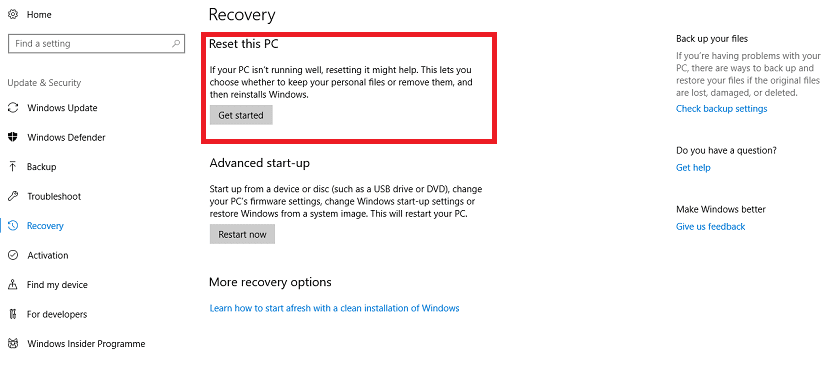
The first option that appears is to reset this PC . Click the "Get started" button. Doing this will delete all pre-installed programs that aren't part of Windows 10. This way, all those programs you don't need will be removed. However, if you've used something and want to save it, you'll need to use an external drive.
If we only want to remove one or two programs from Windows 10 , the best thing to do is go to the control panel and remove them manually.