

A few days ago, we informed you about Google's upcoming plans for its Chrome browser across all available platforms. Google wants to start ranking websites based on their security, specifically whether or not they use the HTTPS protocol . The HTTPS security protocol prevents unauthorized access to information between you and the server, while the HTTP protocol allows this. Google wants to make internet browsers increasingly secure, and to that end, it will begin ranking websites according to their security at the beginning of the year.
Although it will begin at the start of the year, the Mountain View-based company usually starts classifying websites based on their content . Those offering Torrent links have become Google's primary target, and in most cases, access can be blocked using the image at the top of this article, which states that the website is deceptive. Google and its algorithms aren't perfect, so even if access is blocked immediately, there's always a way to bypass the block. Below, we'll show you how to do it using the Windows 10 version of Chrome.
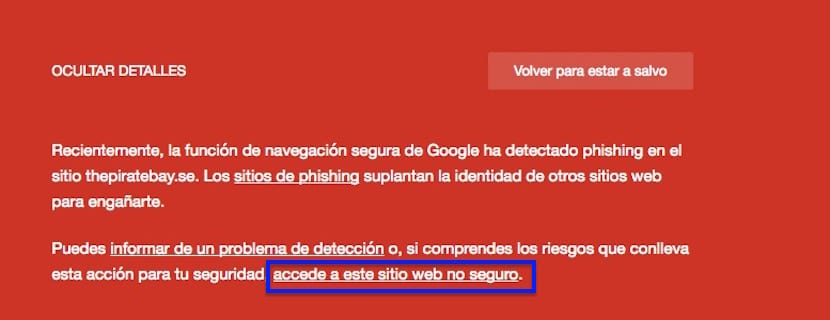
- When we enter the web page that we want to visit and the image that heads this article appears, we continue reading until we find the DETAILS option. We click there.
- Chrome will show us more information about the reason why you have blocked the page, giving us the option to report if you have made a mistake. But since we are interested in accessing, we pass on the option to access this non-secure website.
- When pressing, the web page that we wanted to visit will automatically open without any type of blocking until we need to access again.