

Occasionally, problems arise in Windows that prevent the operating system from performing optimally. One issue that some users have recently experienced is Windows consuming 100% of the RAM . This shouldn't happen and undoubtedly causes a lot of frustration for users. Fortunately, there is a possible solution to this problem.
This problem directly impacts computer performance . Therefore, it's important to resolve it as soon as possible, as it may cause issues opening programs or slower internet browsing.
Therefore, we need to find a solution to end this problem in Windows. So, what do we need to do? The first thing we should do is run a diagnostic and assess the state of our computer. Therefore, the first step is to press Control+Alt+Delete and select Task Manager.

Therefore, we need to check the memory status and which process is consuming the most memory . This way, we're prepared to solve this problem. In these types of situations, the problem may originate from two possible sources:
- Faulty controller: Another possible option is the one problem resides in a controller that is out of date or has been poorly executed. Therefore, RAM performance could be affected. Usually it is the video. Therefore, it is best to update it.
- Browser: May the highest consumption of RAM comes from our browser. You could be experiencing a seizure of malware. Therefore, we must scan the computer to detect the threat that could exist.
What if this doesn't solve the problem? This RAM issue in Windows might originate elsewhere. One of the most common culprits is the stokrnl.exe file . This file is located in the notification management system. Therefore, we should disable it to stop it from using so much memory. In this case, the steps to follow are:

- Enter the setting Windows
- Click on work
- In the menu on the left click about notifications and actions
- Look for the option "Get notifications from applications and other senders"
- Turn it off
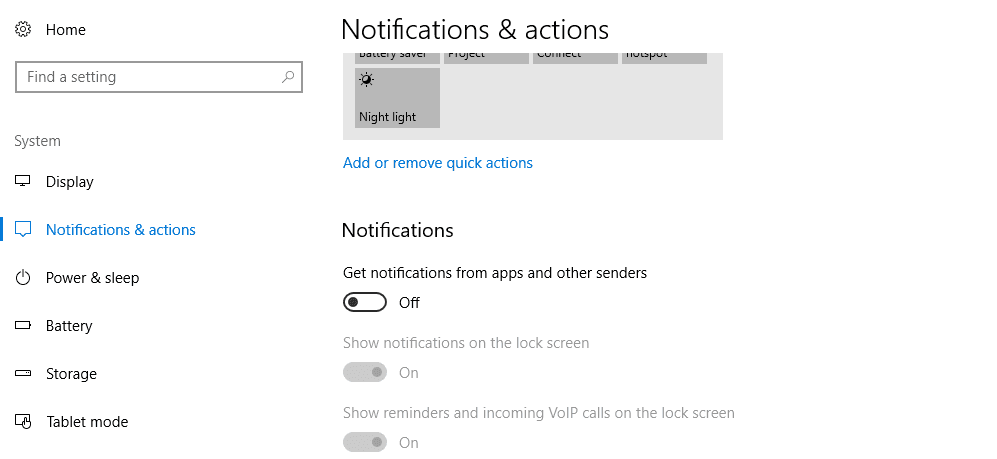
By doing this, the problem with 100% RAM usage in Windows should have been solved.