

When we write a document in Word , many words are flagged as incorrect by spell check. This can be quite annoying for many users. Therefore, many people wish they didn't have spell check enabled while writing a document , as this would allow them the freedom to write whatever they want.
If you want to disable Word's spell checker, it's possible . It's not too difficult to do. So, if you're tired of the problems the spell checker can cause, this tutorial will be very helpful.
It's a simple process that we can complete in a couple of steps. This way, especially if you're writing in another language, you won't have any problems with Word's spell checker . And this way you can enjoy greater freedom when writing in a document.
The first thing we need to do is open Word and create a blank document . Once we've done that, we need to go to the Review menu . At the top of the document, you'll find several options. One of these options is called Review, so we simply need to click on it.
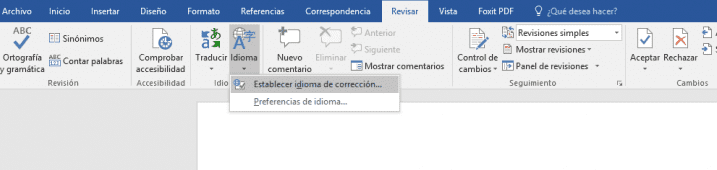
Clicking on this brings up the full review menu below . We see several options. We need to find the Language option , as you can see in the image. Clicking on it opens a drop-down menu with two options, one of which is Set proofing language . We then select this option.
Next, a pop-up window appears with many language options . However, what we want is to disable Word's spell checker. We see a checkbox at the bottom that says "Don't check spelling or grammar ." It's usually not selected, so we need to check that box . We do that and click OK.
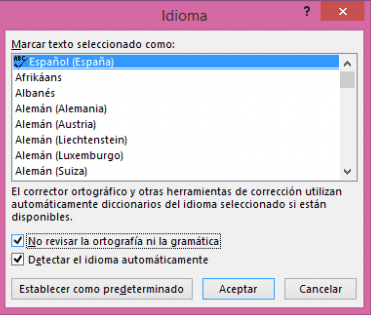
This will disable Word's spell checker . If you wish to re-enable it, the process is the same.