

The Steam video game platform was one of the first to arrive on the market and become a permanent fixture, a platform that allows us to buy virtually any title in digital format . It also serves as the launcher for all the games we purchase on the platform. But it has one problem: it's very slow.
Steam is incredibly slow, both when opening and when navigating the application. Why is that? Because it includes a sort of web browser that gives us access to all the games available on the platform. But of course, unless we want to search for or buy a new title, what's the point?
None. If you regularly use this platform to play the games you've purchased, the best thing you can do is disable the built-in browser and only have access to the library so you can quickly open your games.
From within the application itself, in the settings options, we cannot configure it to only display the window with the titles we have purchased. When we open Steam, the application creates the Steam Client WebHelper process, which allows us to navigate the store.
Open Steam without the browser
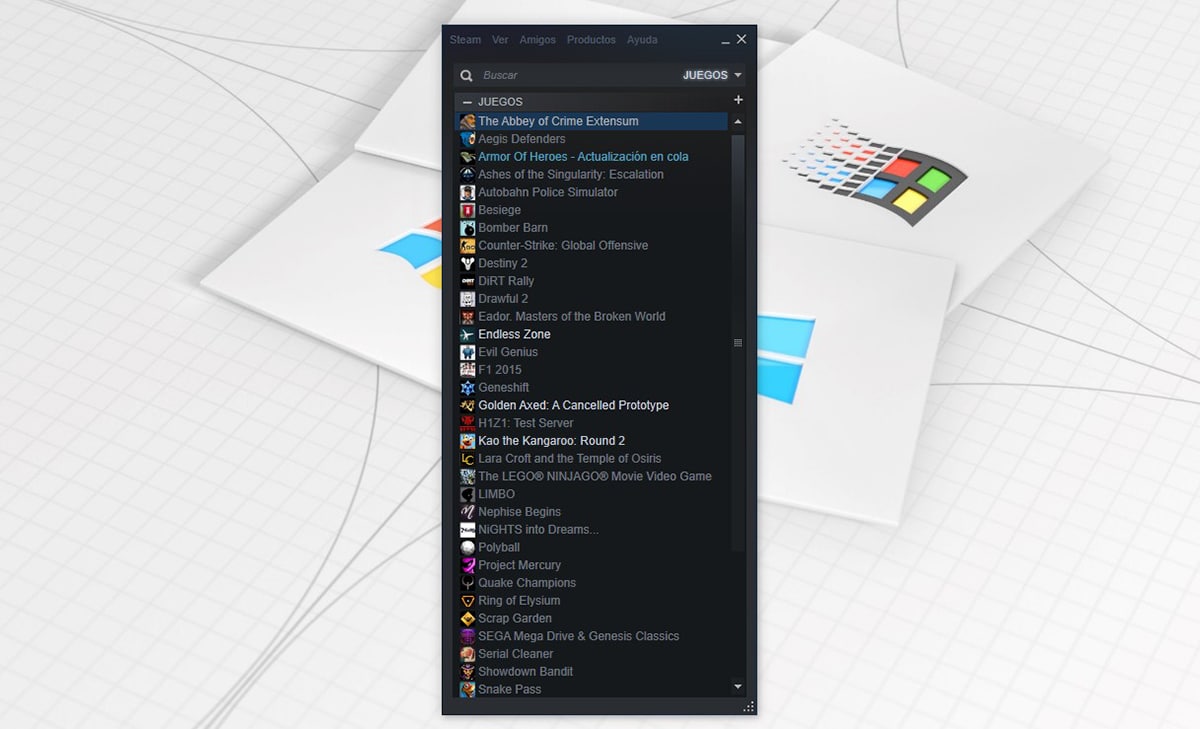
As I say in computing, for every problem, there is a solution and in the case of Steam with the library there is also one. If you want that every time you run Steam, only the window of the titles you have acquired opens, such as the image above, we must Create a shortcut on the desktop (for example) with the following command:
"C: \ Program Files (x86) \ Steam \ steam.exe" -no-browser + open steam: // open / minigameslist »
When creating the shortcut, you must include the quotation marks ; otherwise, the path you set won't be recognized. If you want to access Steam again with access to your library, simply use the shortcut in the Start menu.