

Paint is one of those classic programs that we still use regularly in Windows 10. It's easy for most people to use, although it can always be helpful to know certain tricks that allow us to use the program even more effectively. A good way to do this is by using keyboard shortcuts . We can use some for specific actions.
This way, when using Paint on your computer , you'll be able to perform certain actions more efficiently and work more effectively with this popular program. These are sure to be useful options for you, allowing you to use Paint much more effectively.
There are some keyboard shortcuts that it is essential to know if we intend to use Paint on our computer. With them we make actions that are more immediate and allow a much more efficient use of the well-known photo editing program or creating drawings. The commands we can use are:
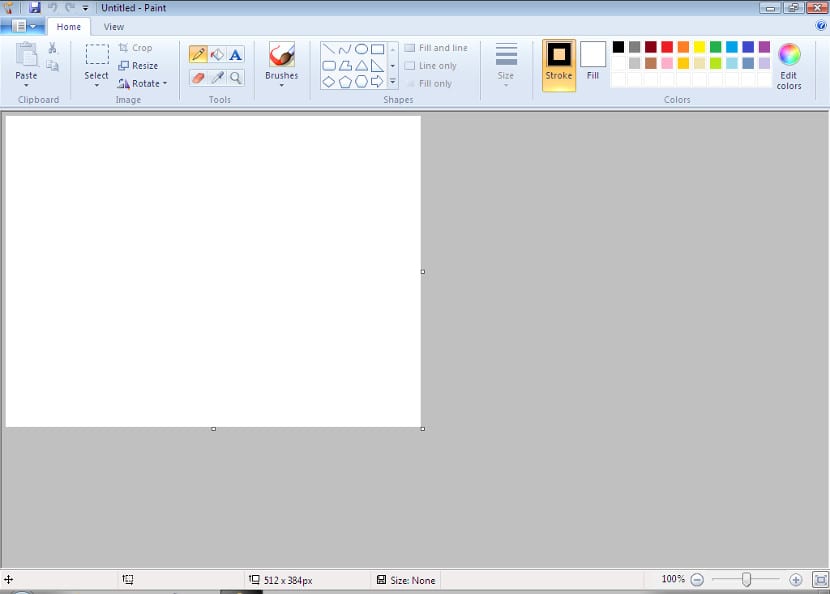
- CTRL + A: open a new blank image.
- CTRL + G: save the current image.
- CTRL + P: print the current image.
- F12: save as.
- CTRL + Shift + E: Enter the properties of the image we are working on.
- CTRL + V: paste elements that we have copied from the clipboard.
- CTRL + E: select the entire image.
- CTRL + W: resize the photo.
- CTRL + Shift + X: Crop the image to contain only the currently selected part.
- CTRL + Page Up: Zoom in.
- CTRL + Page Down: Zoom out.
- F11: work using full screen mode.
- CTRL + R: activates or deactivates the display of the rulers.
- CTRL + D: activates or deactivates the grid that is placed over the image loaded in Paint.
Thanks to these simple keyboard shortcuts, using Paint on your computer will be much easier . So don't hesitate to use them, because you'll surely find them useful and helpful.