

When we get a new computer, or even on the ones we use daily, we always find applications we practically never use. However, this is something we usually notice when we don't have enough disk space and are looking for ways to free it up. In that sense, uninstalling unwanted applications in Windows 10 is a very effective process that will allow us not only to recover space but also to significantly improve system performance . Therefore, today we want to show you the various ways to do it so you can choose the one that is most convenient or best suited to your needs.
These types of applications are usually included from the factory or even, many times, they are installed by ourselves for a single use and by not being removed immediately, they end up consuming resources unnecessarily. So, let's see what are the alternatives available to get rid of them.
What are PUAs?
Unwanted applications are defined as any software present on a system that has no significant or recurring use and that, therefore, could be removed at any time . This term should not be confused with bloatware, since, although this type of software is usually uninstalled, it is not always unwanted.
Thus, we can distinguish an unwanted application from any other by its frequency of use, its importance to the user, and whether or not it was installed by the user . This last point is relevant because there is a category of unwanted software that is silently installed during the installation process of another program. For example, you might start installing an antivirus program and then end up installing a file cleaner as well.
Steps to uninstall unwanted apps in Windows 10
From the Start Menu
The first way we'll show you to uninstall unwanted applications in Windows 10 is quite simple and perhaps the fastest. To do this, we'll use the Start Menu, which contains all the applications installed on your system. Click the Start button or press the Windows key on your keyboard, then locate the application you want to uninstall and right-click it. This will bring up a menu with several options to open the program, and you'll also see the Uninstall option . Click it, and in a matter of seconds, the uninstallation wizard will begin.
This way is really easy and although it allows you to uninstall unwanted applications in Windows 10, it might not work if the number of programs increases.
Windows has always had a menu aimed at managing the uninstallation of programs and over time it has come to what it is today: the Applications and Features section. This is located in the Windows 10 Configuration and from there we will have access to all the programs with the possibility of eliminating or repairing them, if possible.
To get to this area we have two options:
- Enter Settings by pressing the Windows+I key combination and then enter “Applications”.
- Right-click on the Start Menu and then select “Apps and Features”.
Immediately, you will see the corresponding window display with all the applications installed in the system. Click on the one you want to uninstall and the oriented buttons will be displayed to execute the action
Uninstall unwanted apps in Windows 10 with third-party programs
The third way we recommend for uninstalling unwanted applications in Windows 10 is through third-party software, that is, applications developed outside of Microsoft. These alternatives are particularly powerful and offer additional options beyond those included in the native uninstaller . In this regard, the application we recommend for these cases is Bulk Crap Uninstaller.
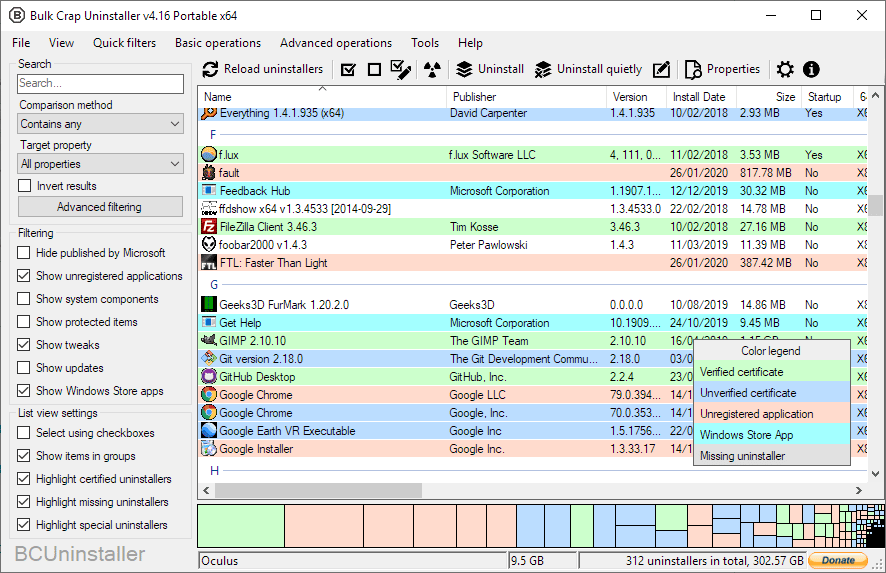
This is a somewhat older program, but very powerful, with a large number of options that enhance the application uninstallation process . One of the most useful features is the ability to remove programs in bulk; you can select the ones you want to remove, and the program will do it all with a single click. It also includes a silent uninstall option, allowing you to remove any software without any pop-up windows or notifications.
From its interface, you can see the size of installed programs, their location, and whether they are configured to start automatically . This is crucial for managing your computer's resources, as unused applications might be launching with Windows and slowing down the startup process. Best of all, it's a completely free application, so you can download it immediately and start uninstalling programs without paying for licenses.
Bulk Crap Uninstaller has other advanced features that are worth exploring if you have additional needs when removing programs.
Table of Contents