

Formatting is one of the basic processes we perform more or less daily in Windows. When we need to erase all the data from a storage drive, we use this function located in the "This PC" section. However, it's possible that during the process, the system will display an error message saying that Windows couldn't complete the format. This situation might seem to leave us with no options, but that's far from the truth.
Therefore, here we will give you the information you need about this error, why it can occur and its possible solutions.
Why was Windows unable to complete the format?
The process of formatting a disk or storage drive involves giving the file system a specific structure . Thus, we can see that there are various structures or formats, such as NTFS or FAT32, which we can apply to a disk from the operating system. Generally, this task completes successfully, although we may encounter situations where Windows is unable to complete the formatting.
This can be due to several reasons, the most common are:
- The storage drive is damaged.
- The storage drive has bad sectors.
- The storage drive is write-protected.
- Viruses, malware and other malicious files.
However, there are some alternatives that we can take to solve this problem and format that memory or USB disk.
What to do when Windows could not complete the format?
If after trying several times, the result is still the same, then try the following alternatives.
Check the USB ports
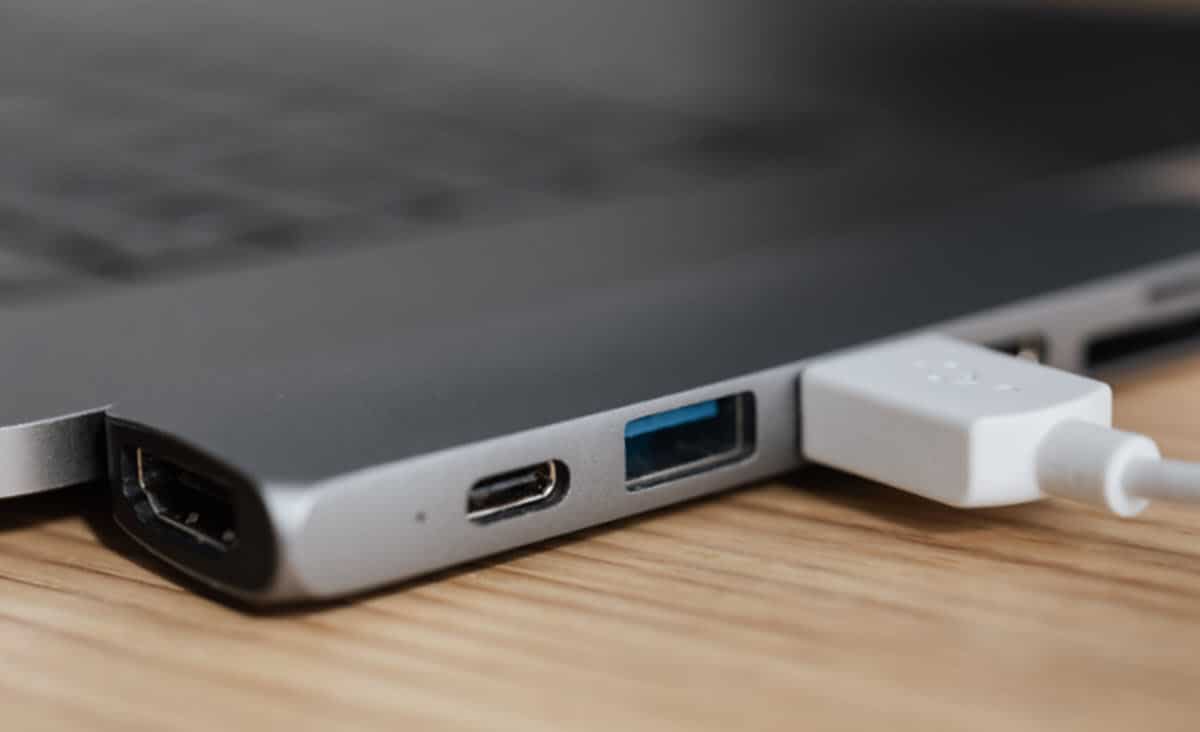
It's always necessary to start with the basics, and in that sense, we're focusing on the USB ports. The idea is to test the memory stick in each of the computer's ports and attempt to format it. If you get the same result in all of them, then we've ruled out a hardware problem and can move on to the next test.
Use Windows Disk Management
Disk Management is a Windows feature that, as its name suggests, provides everything necessary for managing hard drives and storage devices in general . Therefore, we will test this tool for formatting a USB drive.
To open it, right-click on the Start Menu and then select “Disk Management”.
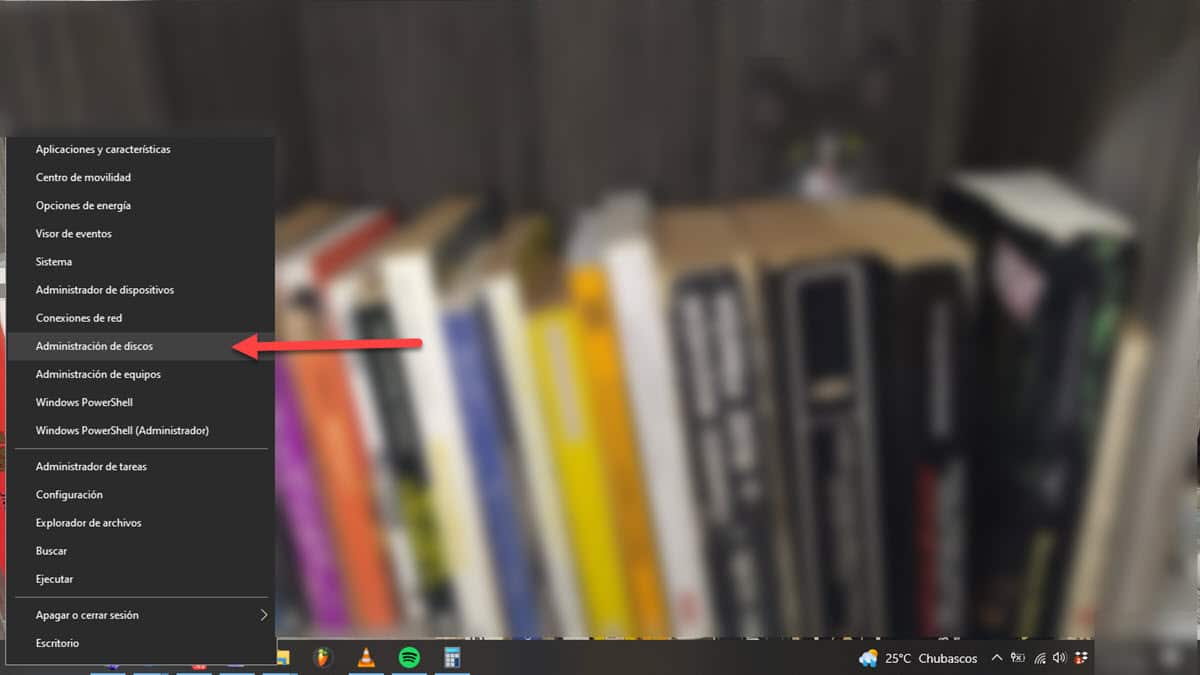
A new window will open and you will see a list with all the disks connected to the computer. Also, at the bottom you can see them in a much more graphic way.
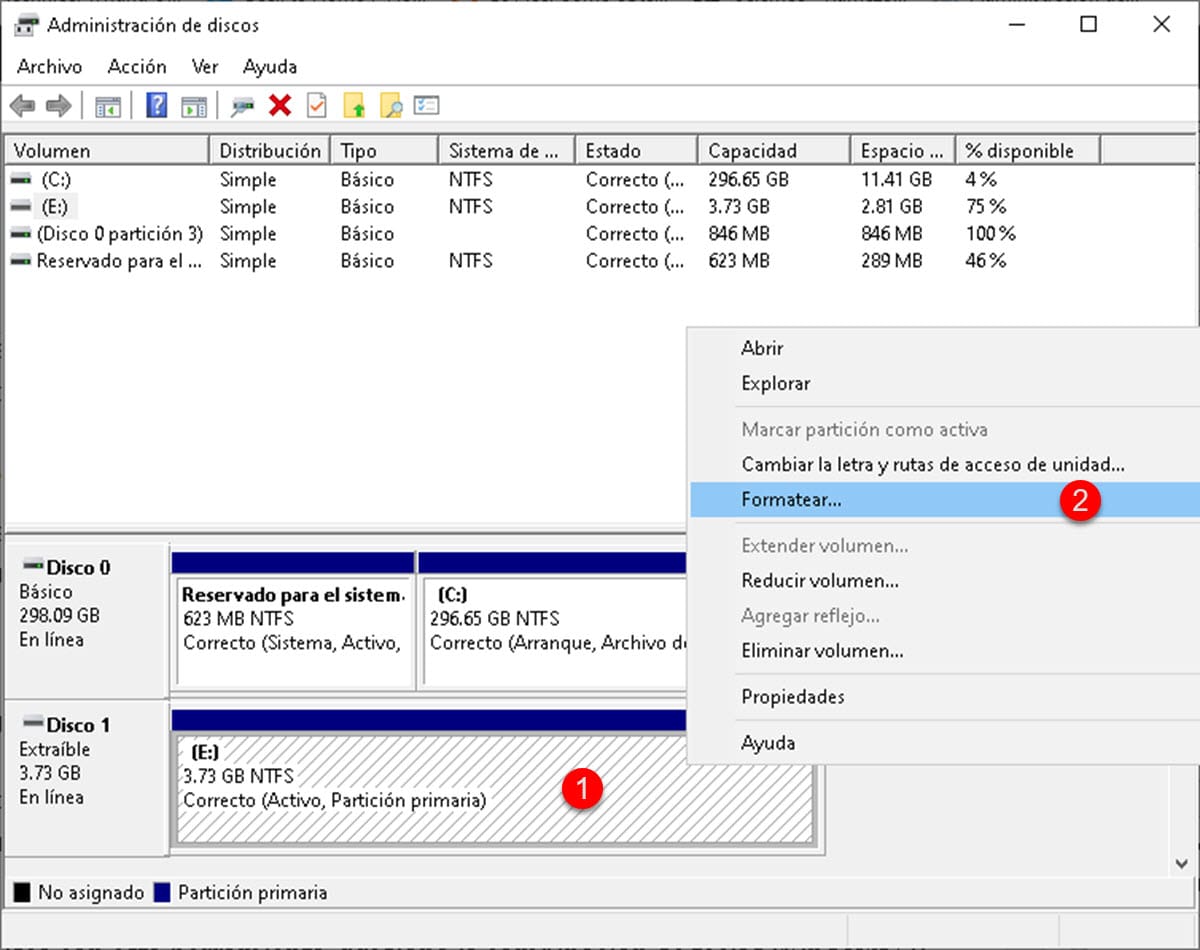
Right click on the USB stick that is giving you trouble and then choose “Format”.
Format using Diskpart
Diskpart is a native disk management tool that runs from the command line . It has been integrated into the Microsoft operating system since Windows 7 and has a very broad scope for performing tasks on disk drives.
To format your drive with this tool, press the Windows+R key combination, type CMD and press Enter. This will display the command line.
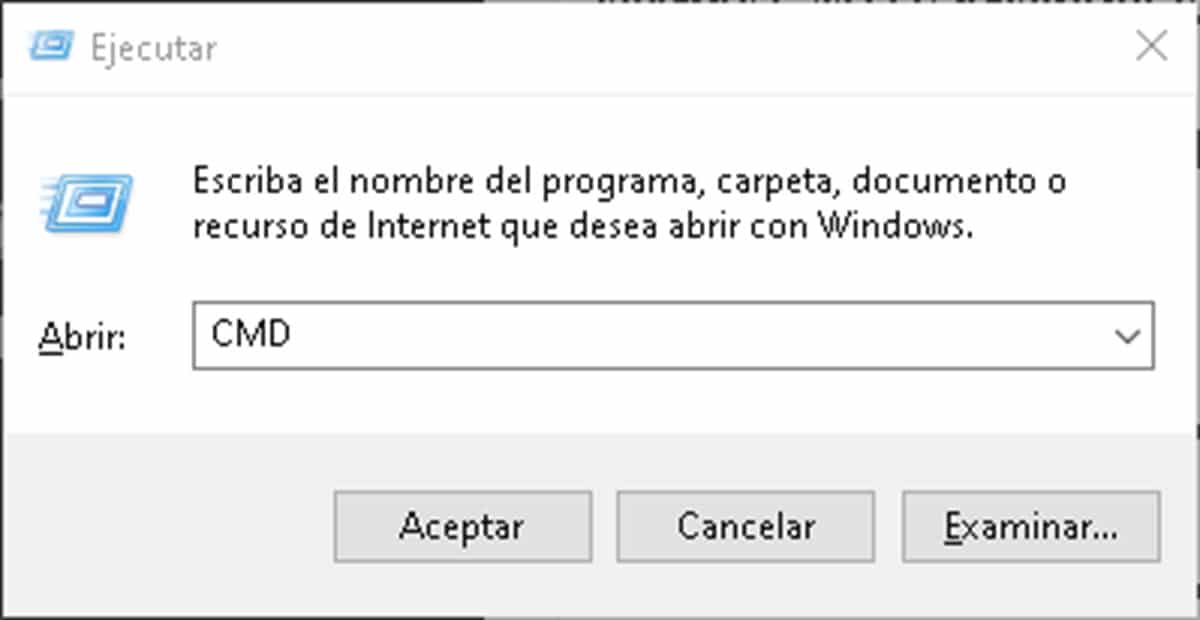
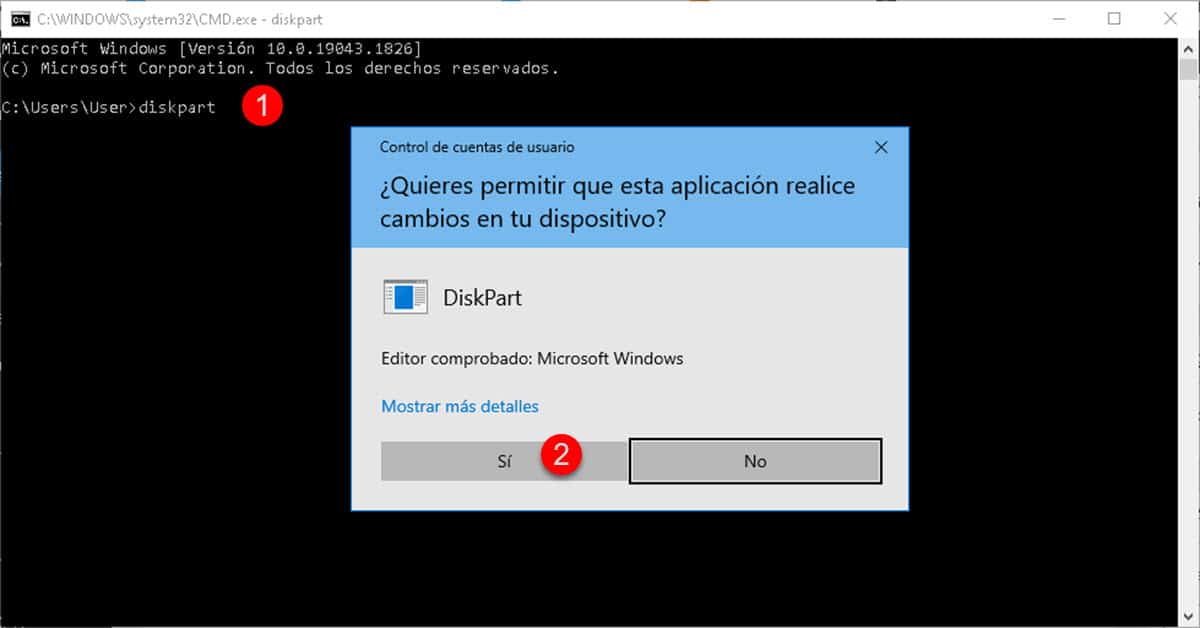
Now type Diskpart and press Enter. This will launch a new application and it will open in a new window.
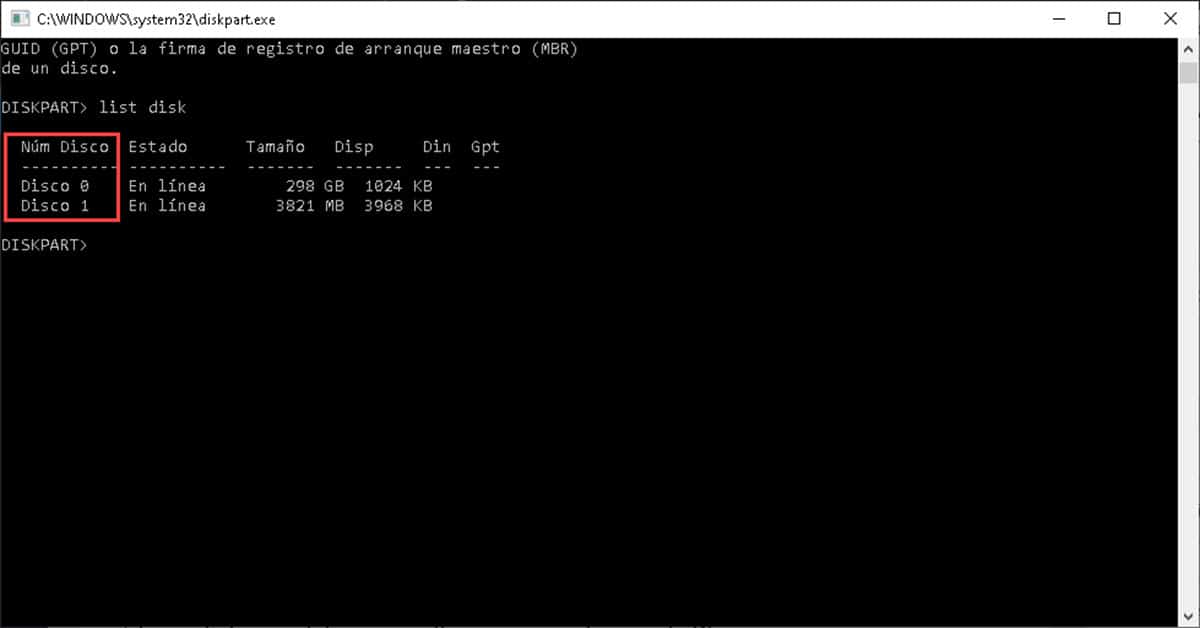
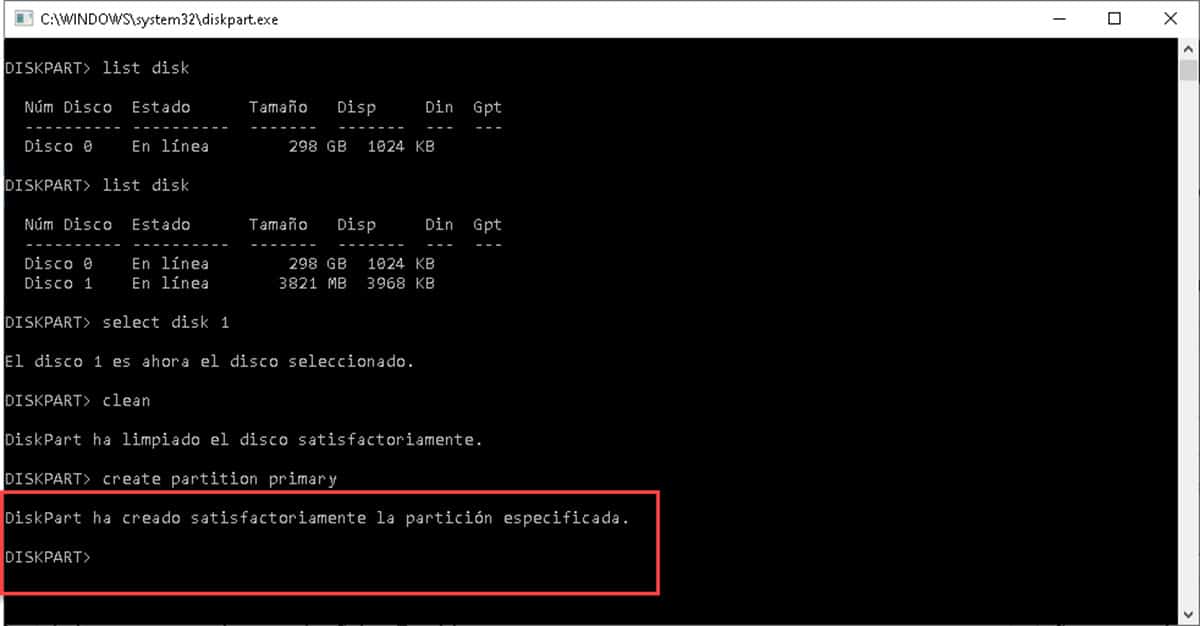
Type the following command in the Diskpart window: List disk and press Enter. You will see how a list is generated with all the disks connected to your computer. You can know what your USB memory is by identifying it by its storage space. However, the data that is not of most interest is the number in the “Num disk” field.
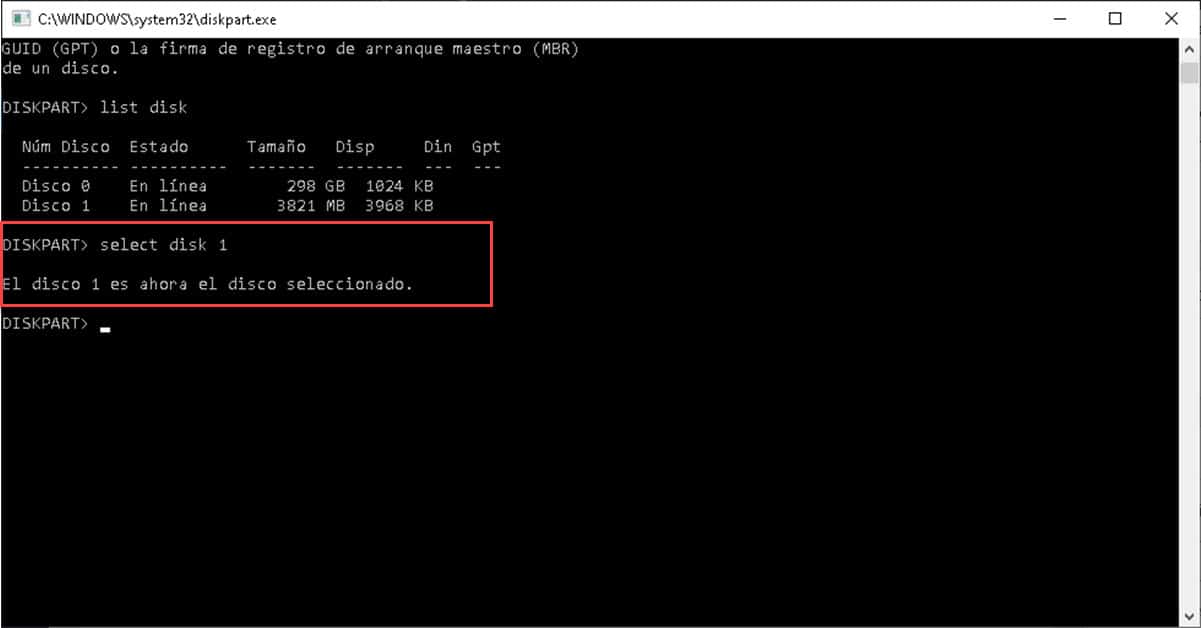
Immediately, enter the following command Select Disk next to the number of your USB stick and press Enter. You would have something like: Select Disk 1.
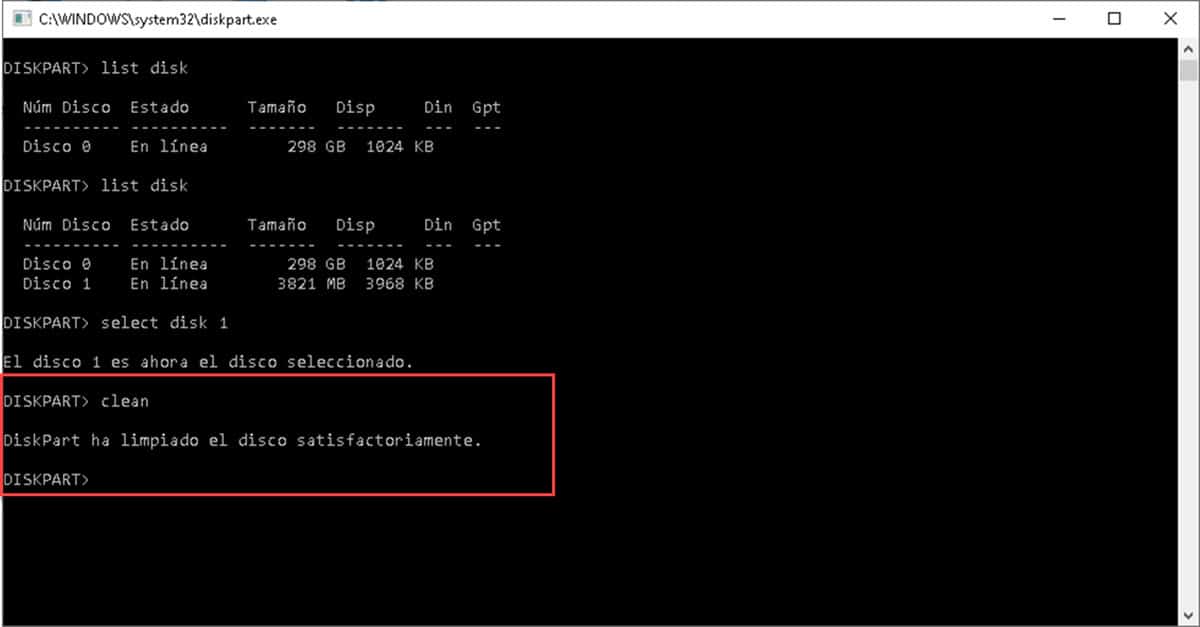
At this point, we have chosen the USB memory to work on it. Our next step will be to delete all your data and for this, we use the Clean command.
Next, we must create a partition in memory and to do this enter the following command: Create partition primary and press Enter.
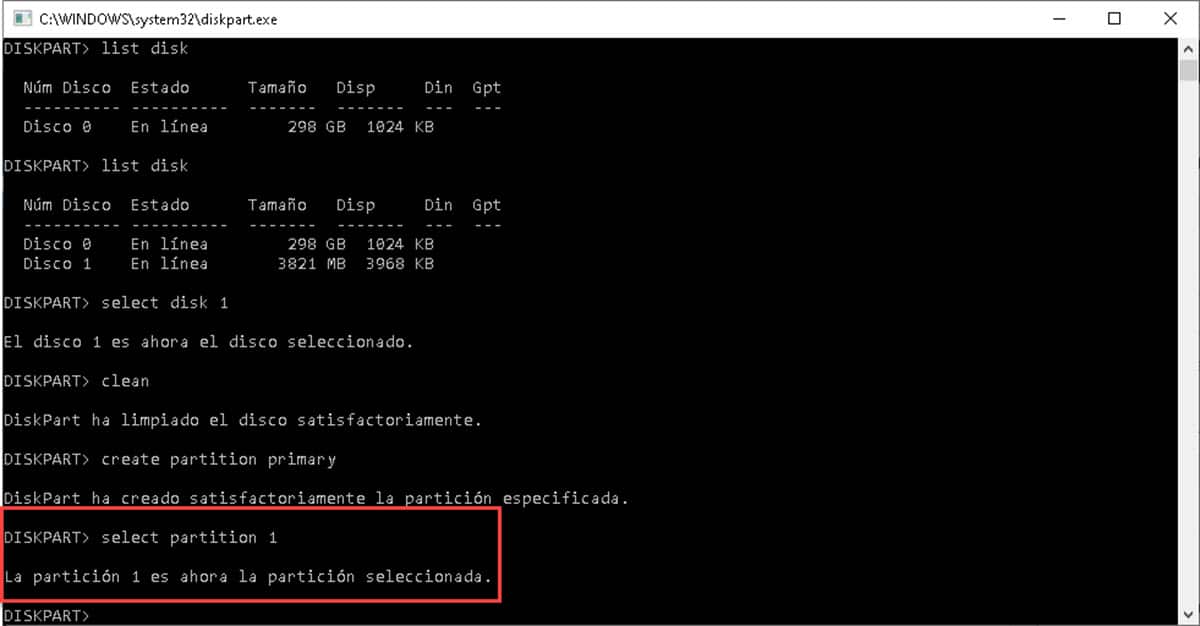
Next, we have to select the partition that we just generated to format it. We achieve this with the command: Select Partition 1.
If you want to apply the FAT32 format, enter the following line: Format fs=FAT32 label=”usb name” quick and press Enter.
For its part, to use the NFTS format, the command is the same but replacing FAT32 with NFTS.
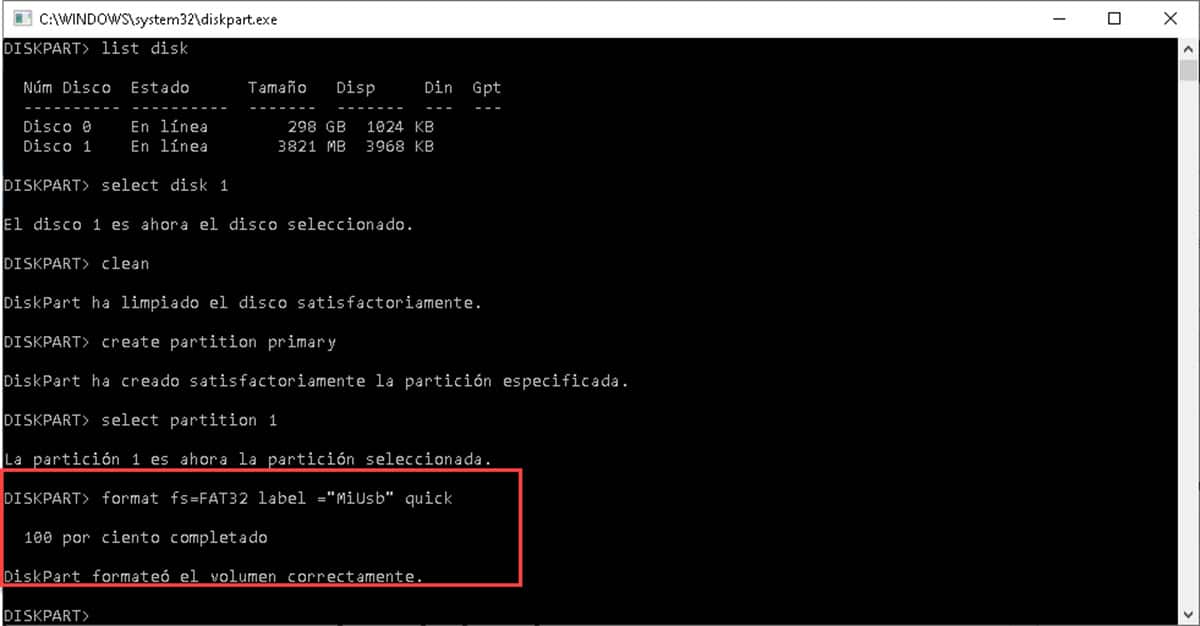
Where it says “USB Name” enter whatever you want to identify the drive.
Finally we will activate the partition and give the disk a label. To do this, type Active and press Enter.
To assign the label enter: Assign letter=F. You can replace the F with the letter of your choice.
Occupy a third-party app
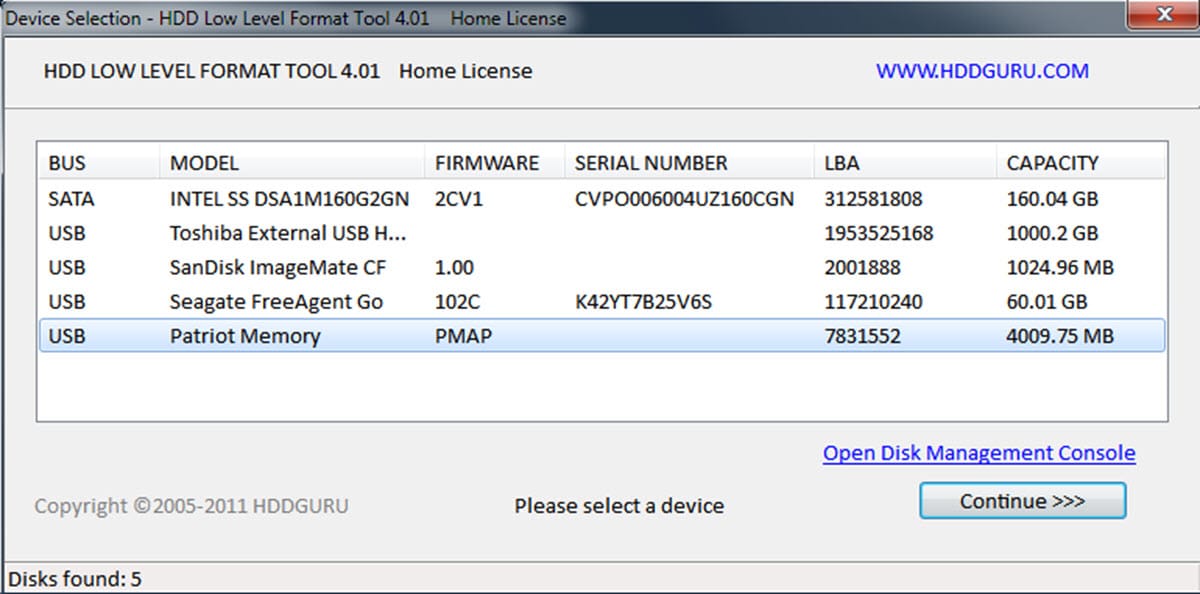
If the above hasn't worked, then we'll need to use a third-party tool . One of the most effective and free options we can recommend is HDD LLF Low Level Format Tool . It's a very lightweight application with the power to perform low-level formatting. This means that if your USB drive has bad sectors or other logical problems, you'll be able to fix them.
The process is quite simple: first, connect the USB drive or memory stick to your computer, and then run the application. It will detect all connected devices, and you'll then need to select the one you want to format and click "Continue." The system will display some notifications explaining the implications of a low-level format. If you're sure, accept, and the process will begin immediately.
Once finished, you'll just need to run the formatting task from the native Windows tool , which should complete the process. Otherwise, the device is most likely damaged.
Table of Contents