
Wireless connections have arrived to eliminate all the inconveniences caused by cables. In cases like networks, they have proven to be even more efficient; however, the same cannot be said for peripheral devices. If you're here, it's likely that your wireless mouse isn't working on Windows 10. Therefore, we'll follow a troubleshooting process to help us find a solution.
In addition, in case you have to replace it, we will present you with some of the best alternatives that you will find on the market.
How does a wireless mouse work?
Before delving into the issue of a wireless mouse not working in Windows 10, it's important to understand how it works. This type of device consists of two components: the mouse and the receiver. The receiver connects to the USB port, the hardware driver is installed, and it begins receiving the signal emitted by the mouse.
In this way, we can better guide ourselves when determining where the fault is that prevents the correct operation of the wireless peripheral.
Wireless mouse not working in Windows 10? Follow these steps
Try all USB ports

The first step in troubleshooting is always the simplest, but it can save a lot of time in resolving the problem. Therefore, the first thing to do is exhaust all available USB port options on the computer.
Many laptops have one USB 2.0 port and the rest are the older version . This means that a wireless mouse might only work with one port on the computer, so it's important to try them all.
check the batteries
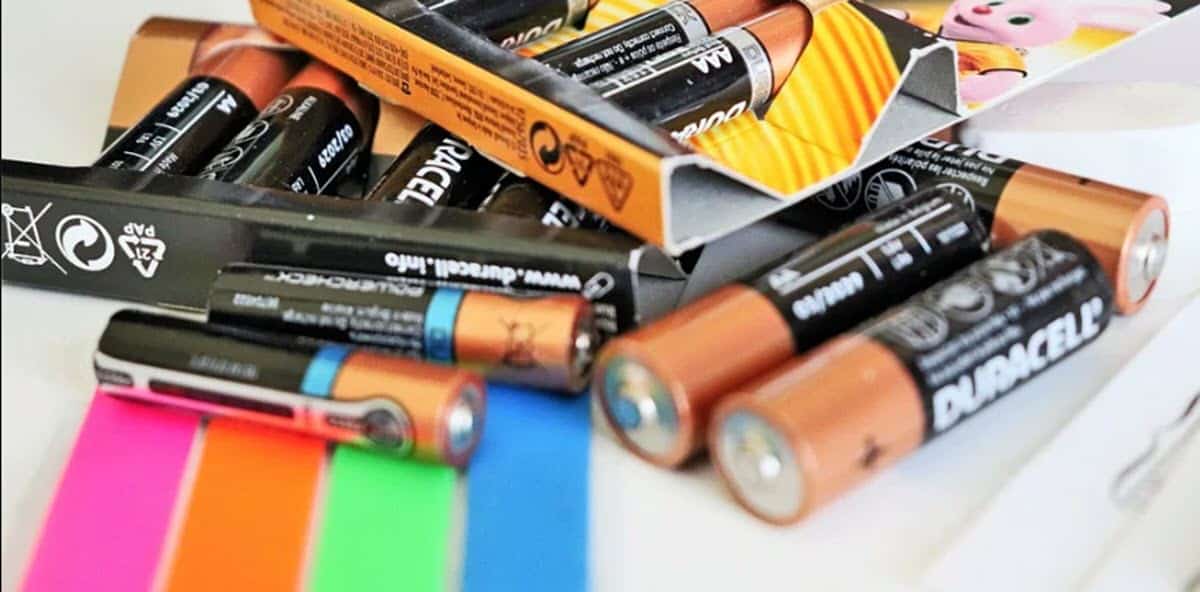
Another simple check to see why your wireless mouse isn't working on Windows is to look at the batteries. These types of peripherals are battery-powered, and if the batteries are dead, the mouse won't turn on . Therefore, before looking at the drivers, it's best to make sure the mouse is using fresh batteries.
Check everything related to the drivers
Drivers act as the bridge between hardware and the operating system; therefore, no device will function without them being installed. When you connect a wireless mouse, the receiver also includes the function to automatically install the drivers . If this doesn't happen, or if the installation fails, there is most likely a compatibility issue.
In this case, it's best to look for information about the mouse on the manufacturer's website to check if it's compatible with Windows 10.
Disable selective suspension of USB ports
This step is useful for those who connect their wireless mouse to their computer and it stops working after a few minutes. This could be due to a setting in the power options that suspends USB ports that are inactive or not in use for a certain period of time. However, we should rule out any scenario where the USB port itself is the problem, so it's best to disable this option.
To do this, open Windows 10 settings by pressing the Windows+I key combination. Then, go to the " System " section.
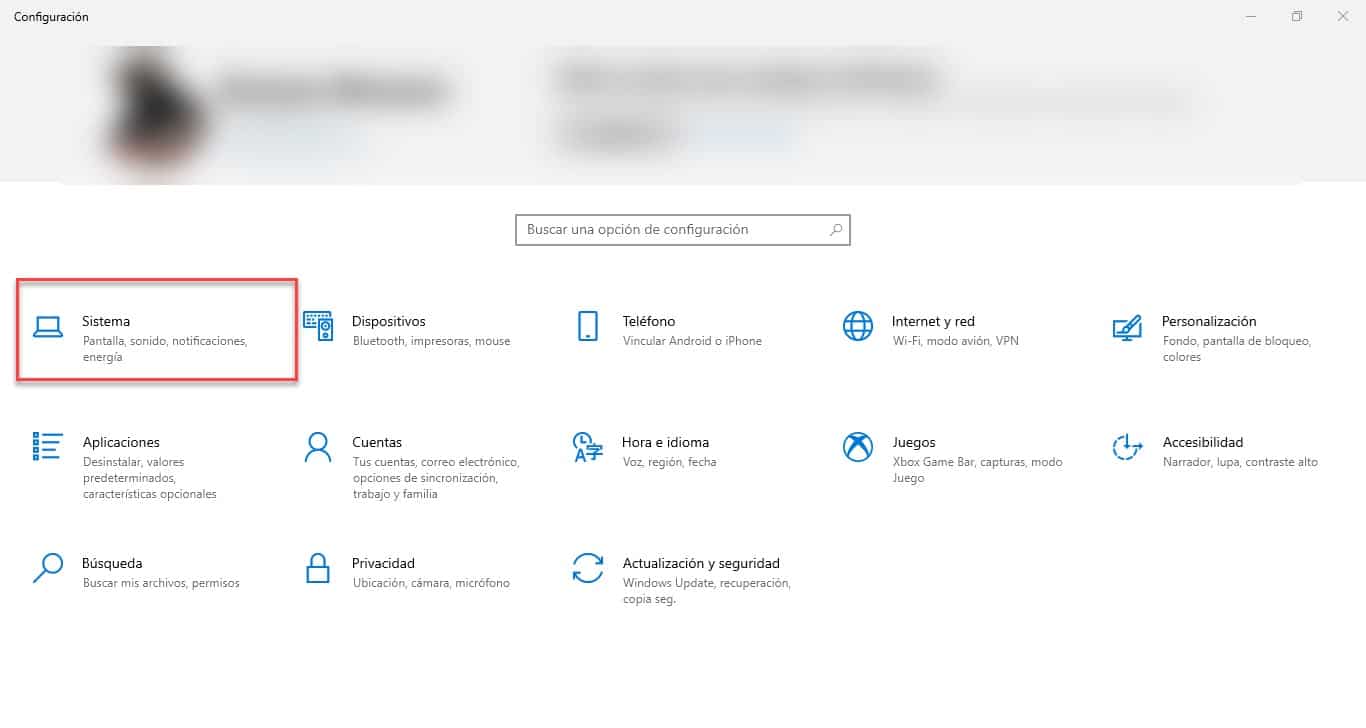
Next, click on the " Power & sleep " option in the left sidebar. Now, go to " Advanced additional settings ".

This will open the old Control Panel window, under Power Options. Click on " Change plan settings ".

You will be taken to a new window where you will need to click on " Change advanced power settings ".

Now, you will see a small window, where you should locate " USB Settings " and click on the "+" button to expand the " USB Selective Suspend Settings " option.
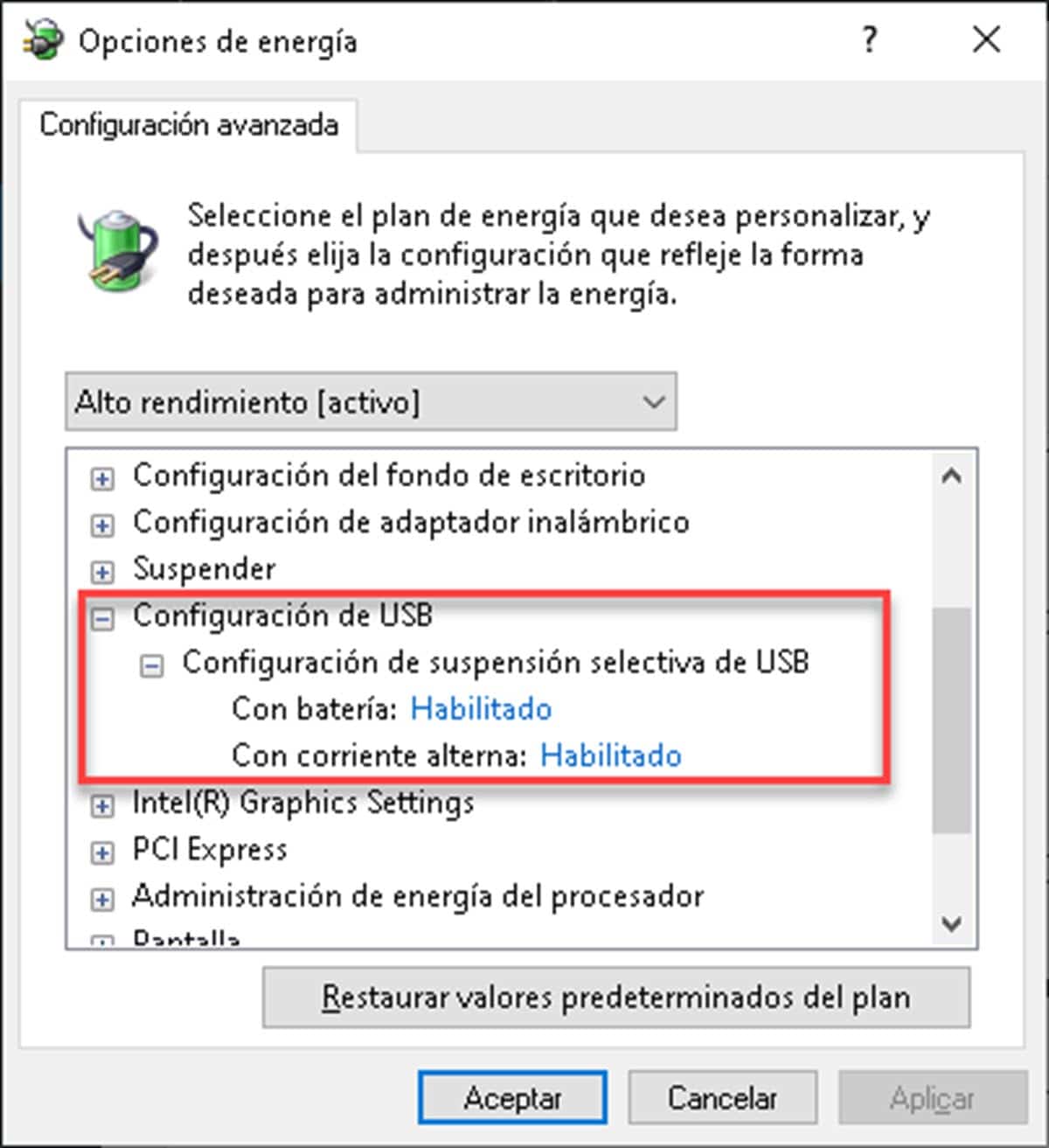
Deactivate it using both battery and AC power, and then click " OK ".
Finally, test the operation of your mouse to see if the problem persists.
The 3 best wireless mice you can find on Amazon
Hot Weeks D-09
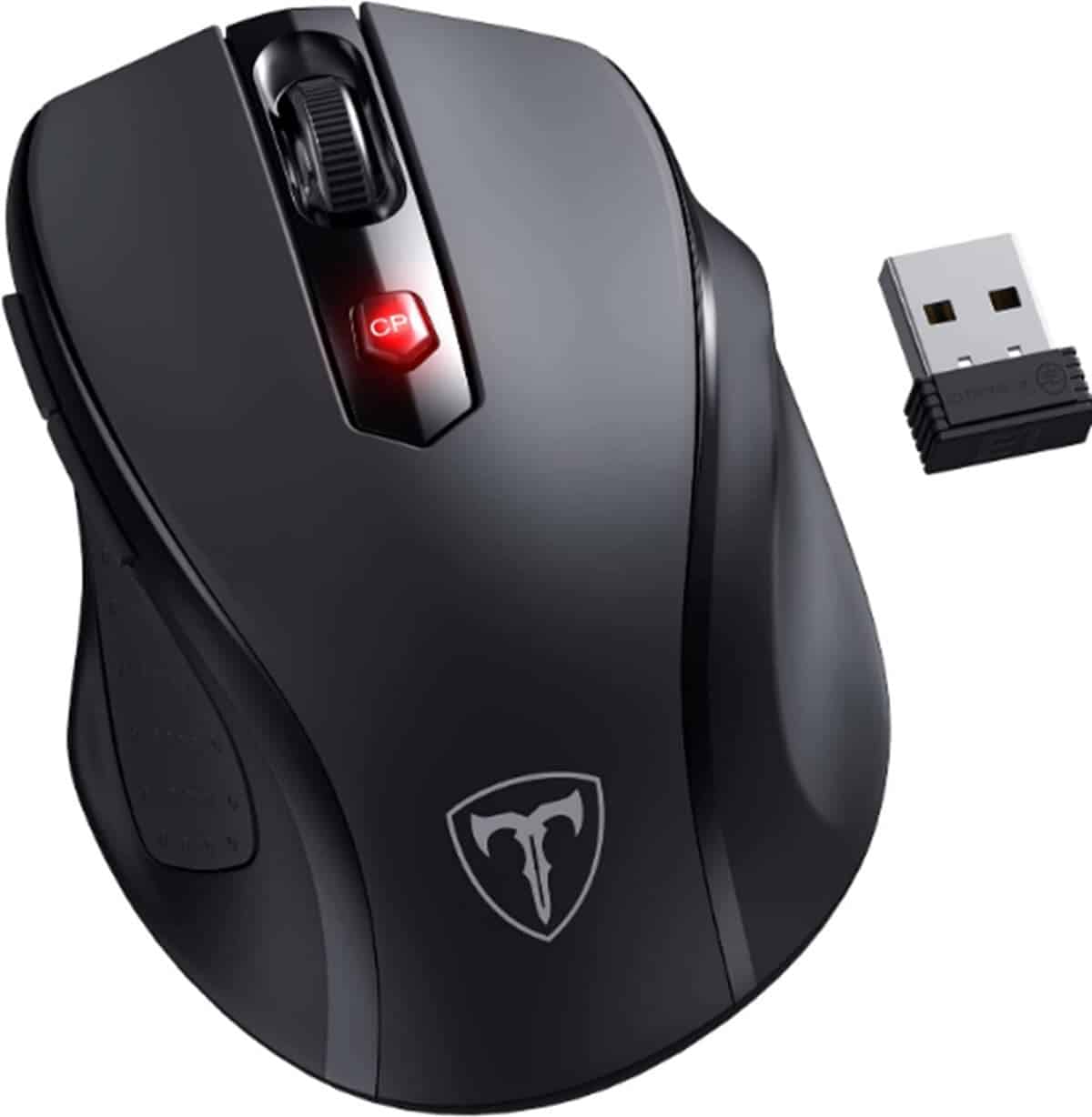
If your wireless mouse isn't working on Windows 10 and you want to replace it, the HotWeems D-09 is a great alternative for several reasons. First, its ergonomic design will significantly improve the experience and control you had with your previous mouse . Thanks to its contoured grips, it offers superior comfort while handling.
Furthermore, its 2.4GHz frequency promotes a much faster signal transmission . This means you won't experience interference or delays while using the mouse, which is very important for gamers and anyone who requires precision.
It's powered by a single AA battery, but it also features energy-saving functions that allow it to double its battery life . Specifically, after 8 minutes of inactivity, the mouse will turn off, thus preserving battery life.
Amazon Basics Mouse
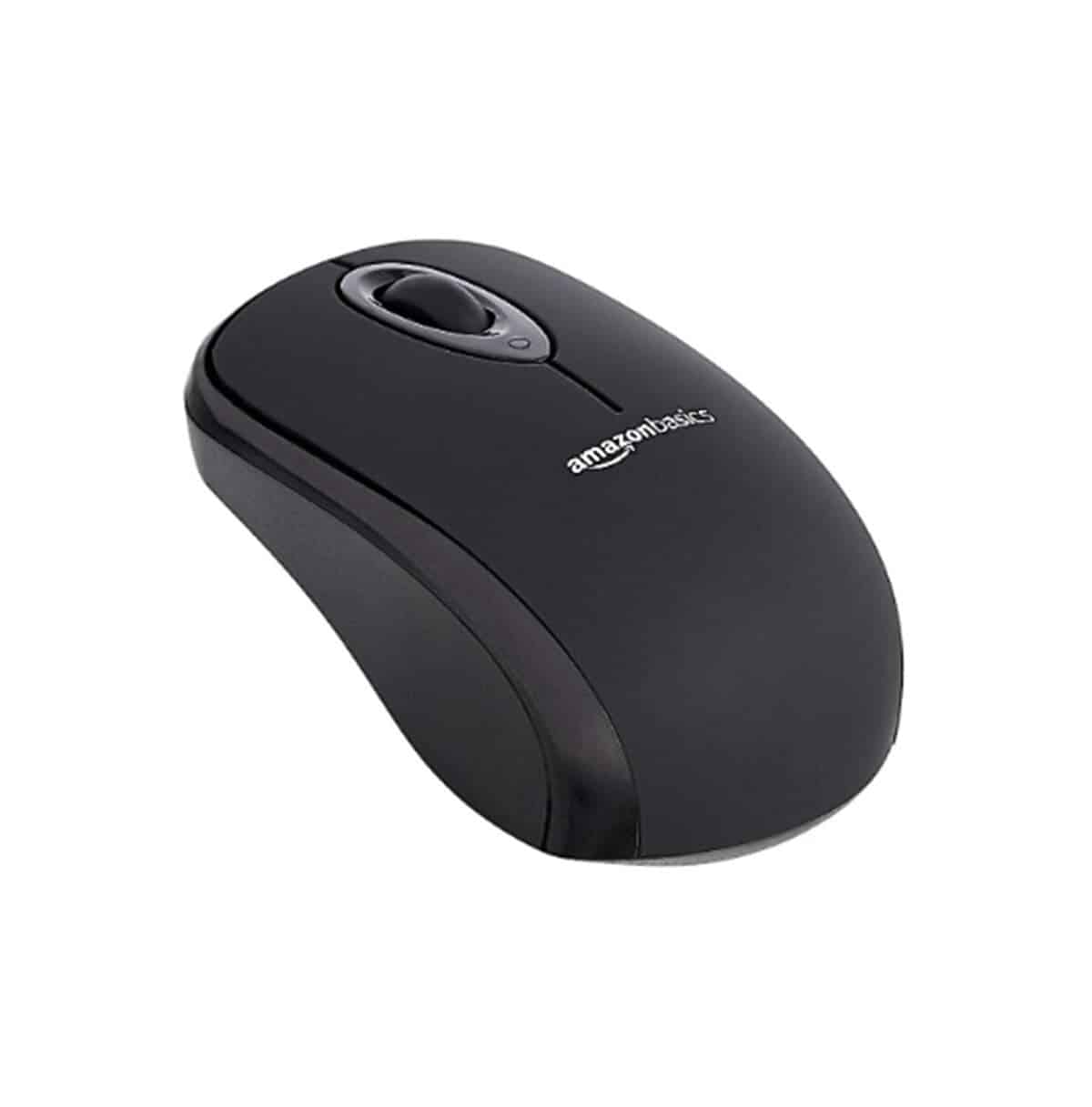
The Amazon Basics is a simple and affordable option for those looking for a wireless mouse compatible with Windows 10. In terms of design, it 's a conventional mouse with three buttons: right, left, and a scroll wheel in the middle that you can press . It connects wirelessly via a 2.4GHz nano receiver, so its transmission speed is comparable to other mice.
An interesting feature is that the receiver can be stored inside the mouse for easy portability. As for power, this device requires two AAA batteries to operate.
HP X3000 G2
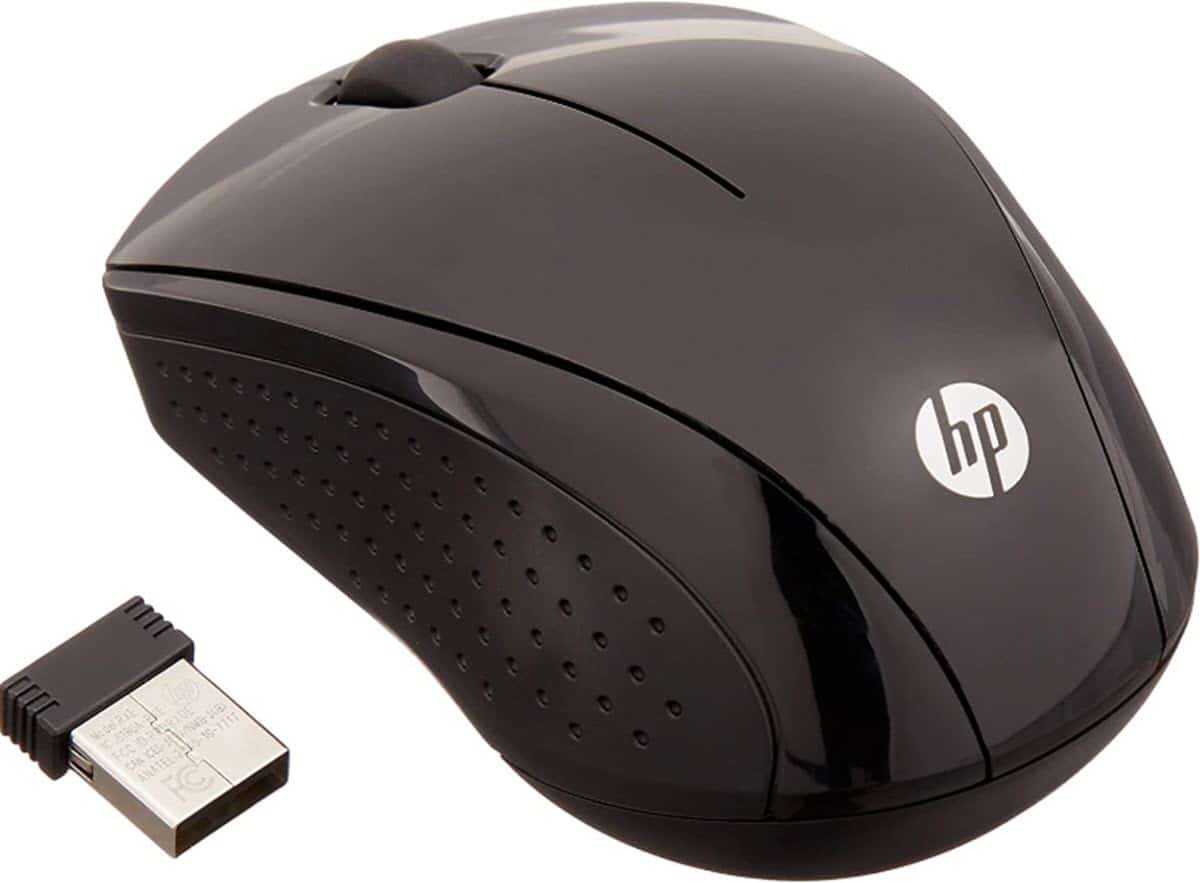
The HP X3000 G2 is a fairly basic wireless mouse, but it bears the hallmark of HP manufacturing. It features a sleek black design and an angled grip that provides a much more comfortable hold than conventional mice. It transmits at a 2.4GHz frequency, ensuring precise and responsive movements.
It is powered by an AA battery that it handles very efficiently, since it is capable of preserving its useful life for up to 15 months.
Table of Contents